Sales invoice creation - Internal
Earlier-interface video. Follow the written steps below for the current workflow; sample values are illustrative. Any tax values shown are not guidance for the current transaction.
Before you start
Use this flow to enter a sales invoice independently. If a sales order already exists, follow customer invoice creation from the order to retain the order link and prepare its shipment actions.
Have the customer, legal counterparty, applicable terms and contract, warehouse, items, quantities and agreed prices ready. For batch-tracked goods, check available stock and prepare the required batch allocation.
The existing video and illustrations show an earlier interface. The illustrated document path is below; labels may differ by configuration.
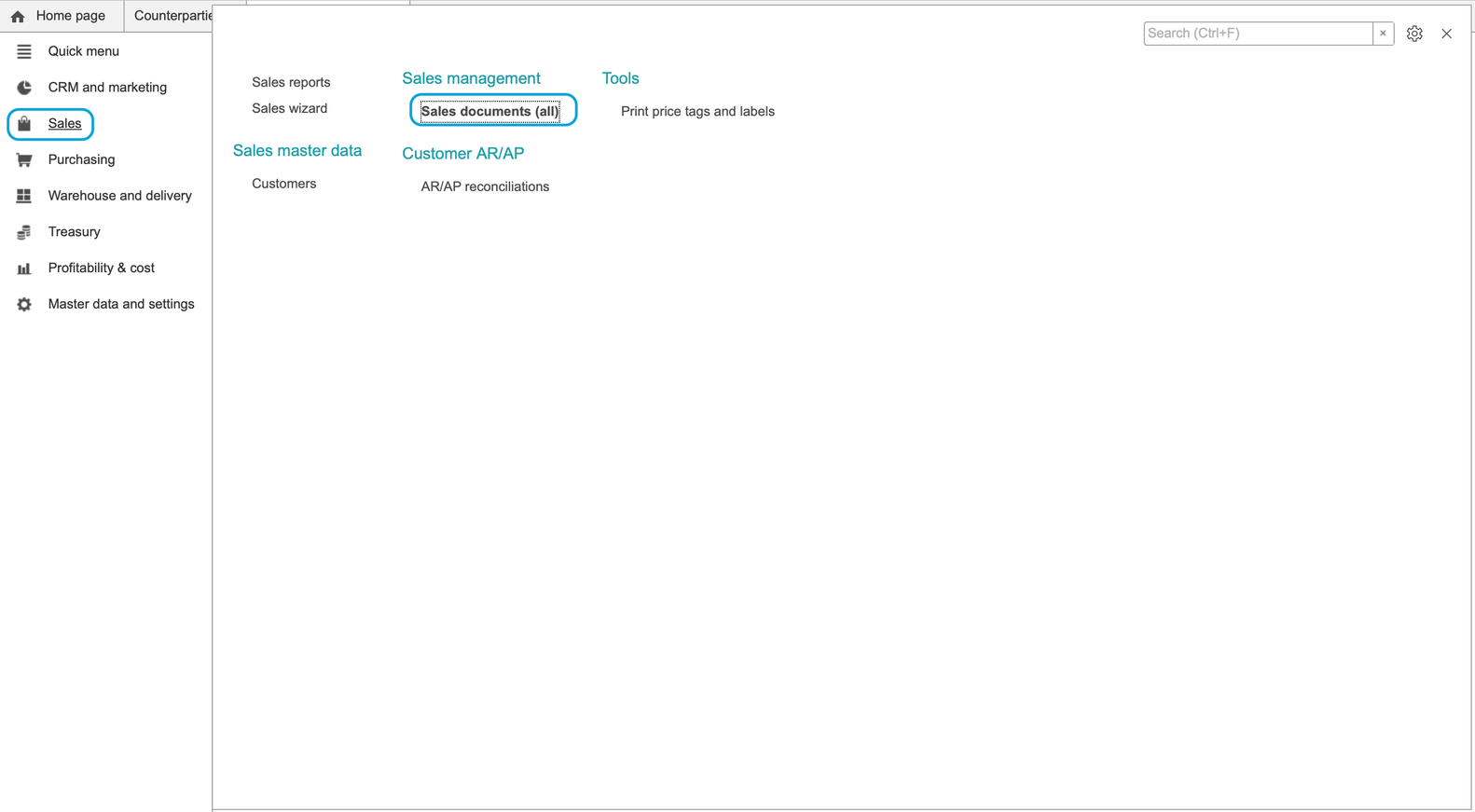
We move to the Sales section and click to Sales documents (all):
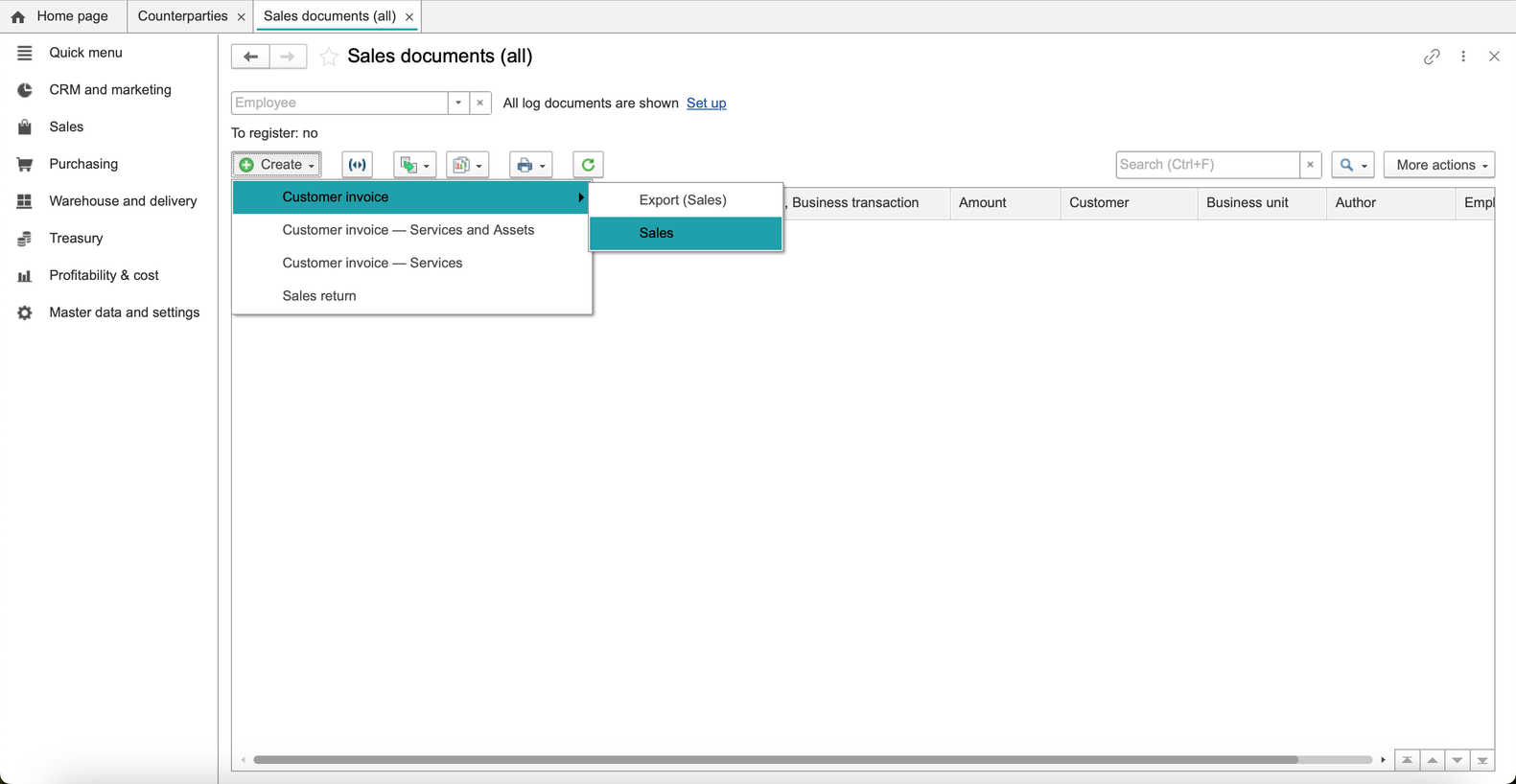
Click Create, then select Customer Invoice, then Sales
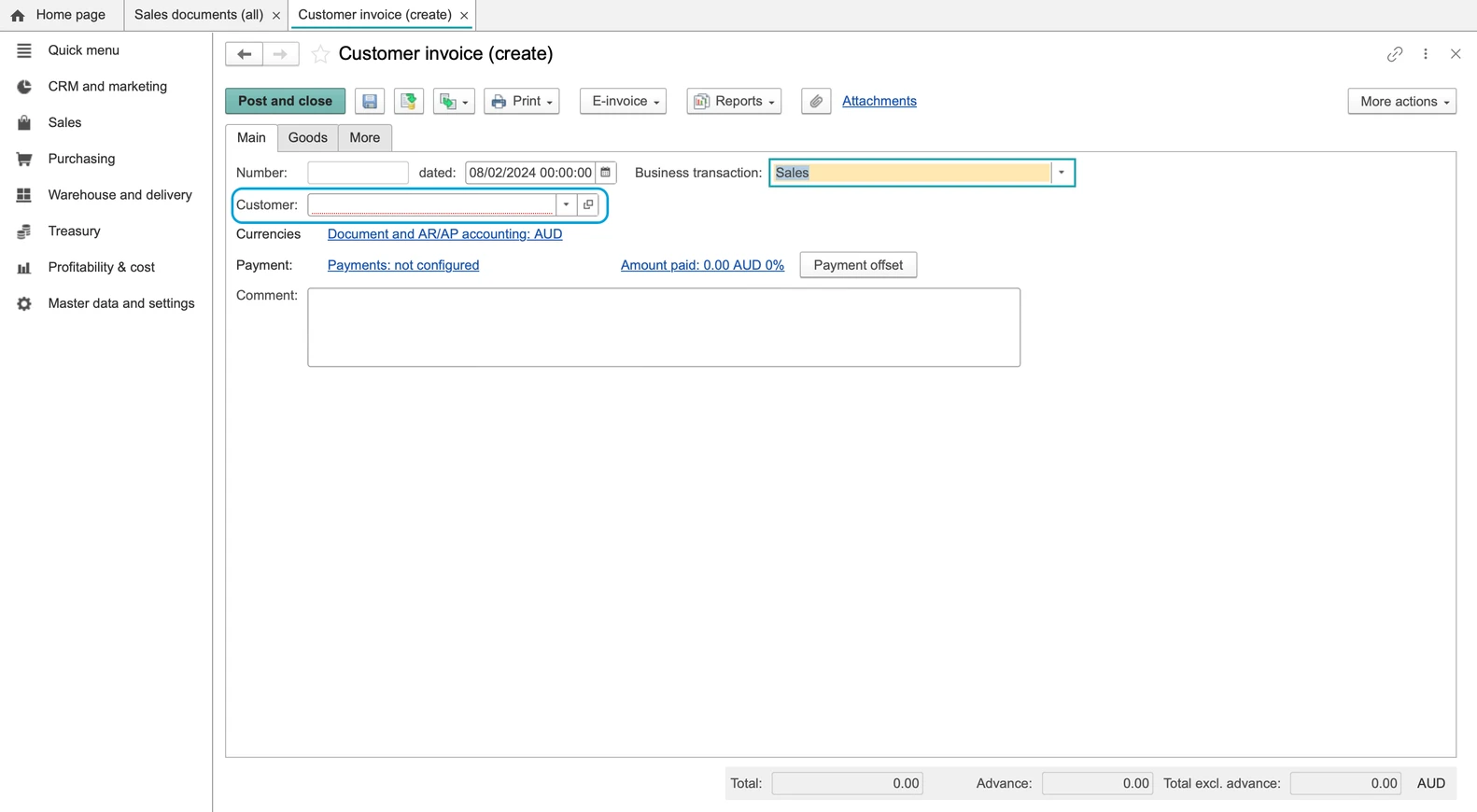
Choose your Customer
Add goods to your invoice
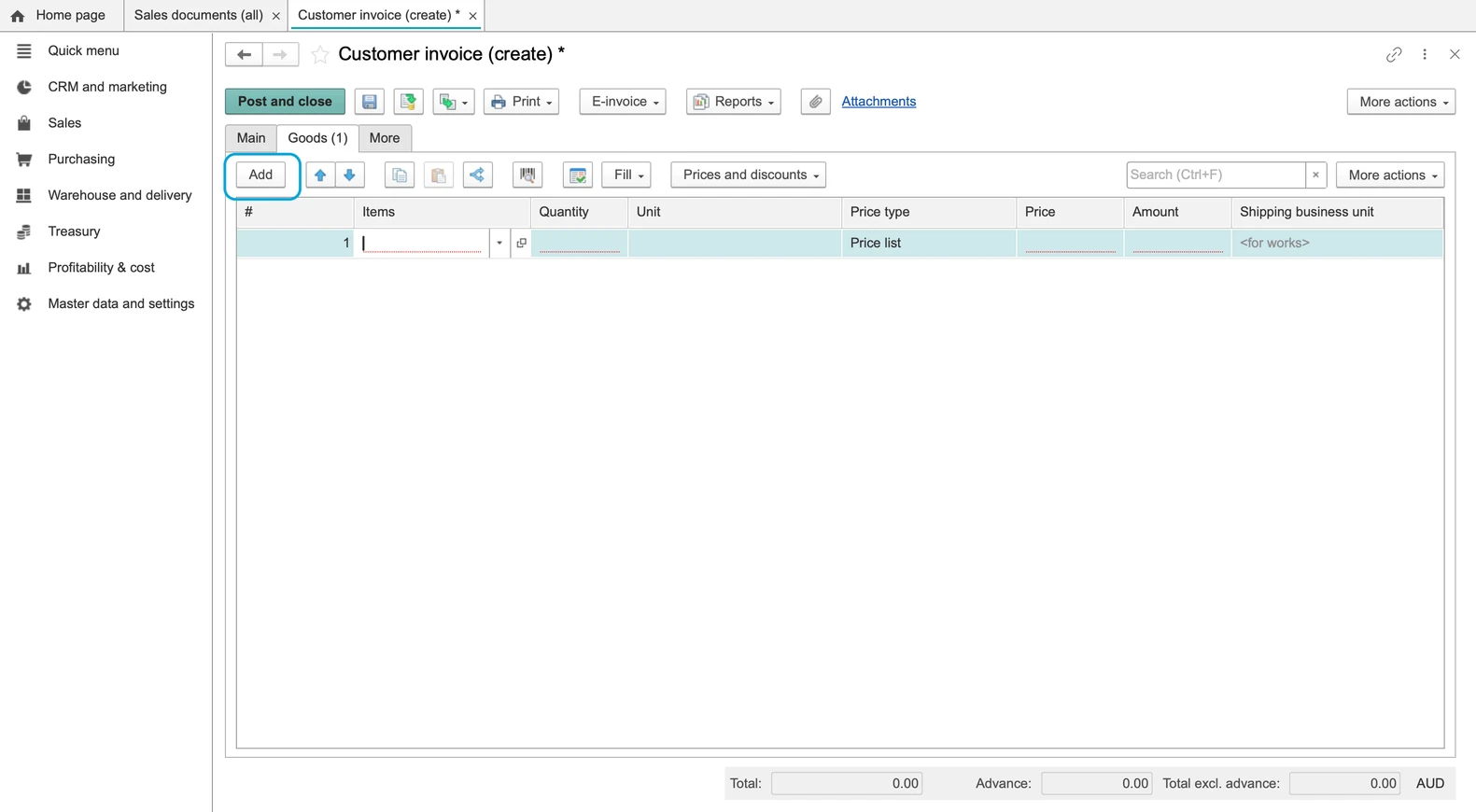
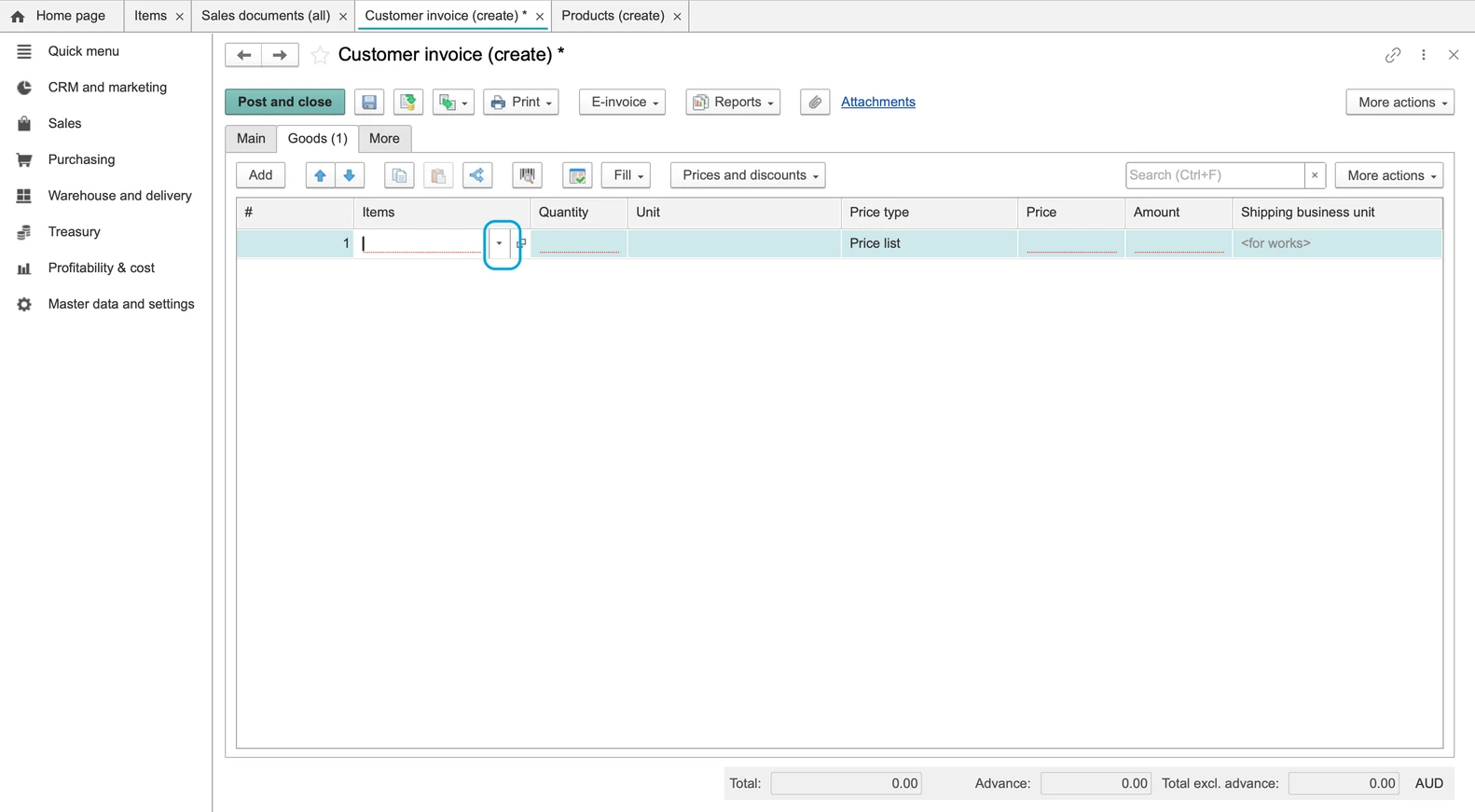
Click on the arrow to select a goods in the invoice
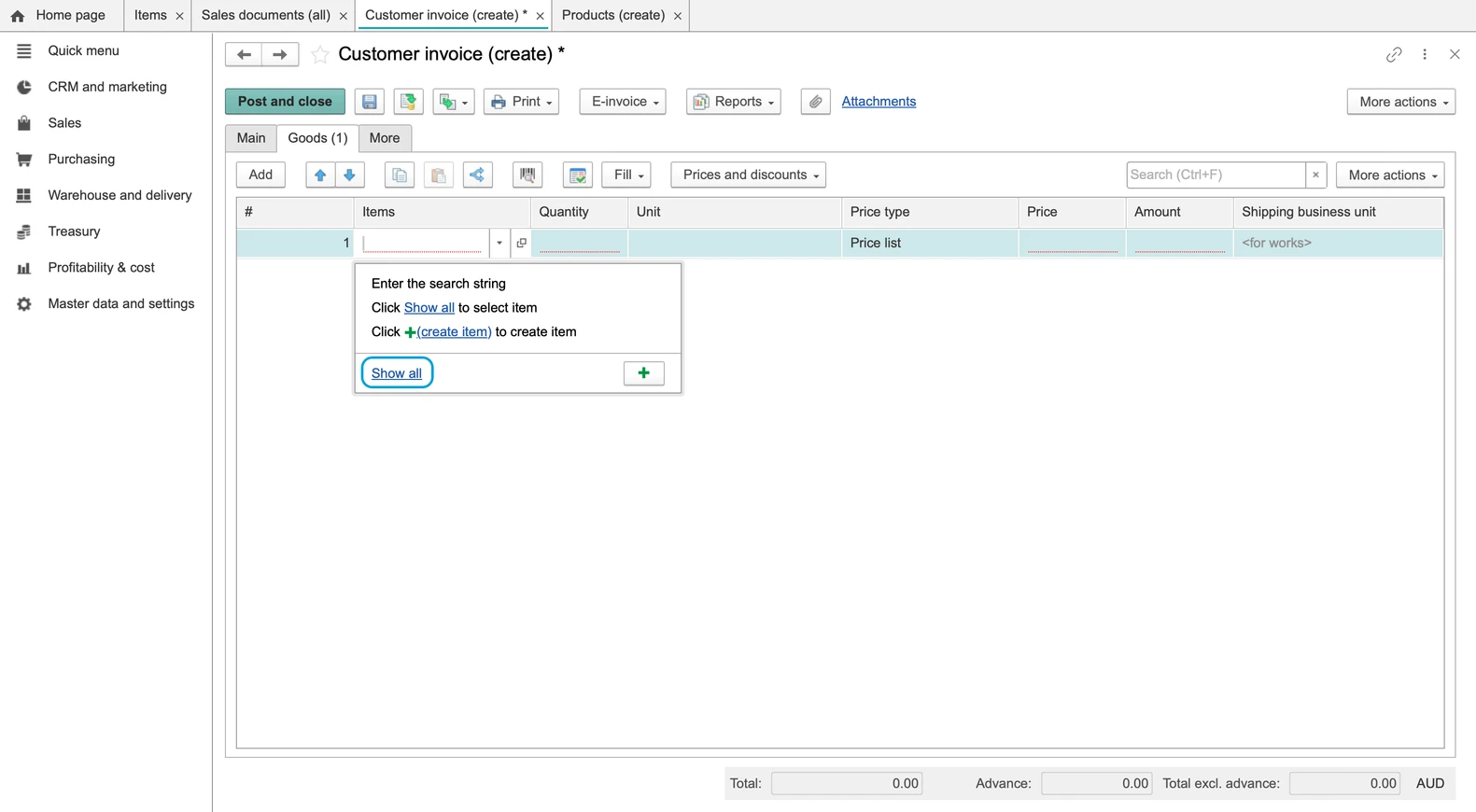
Next, click to Show all
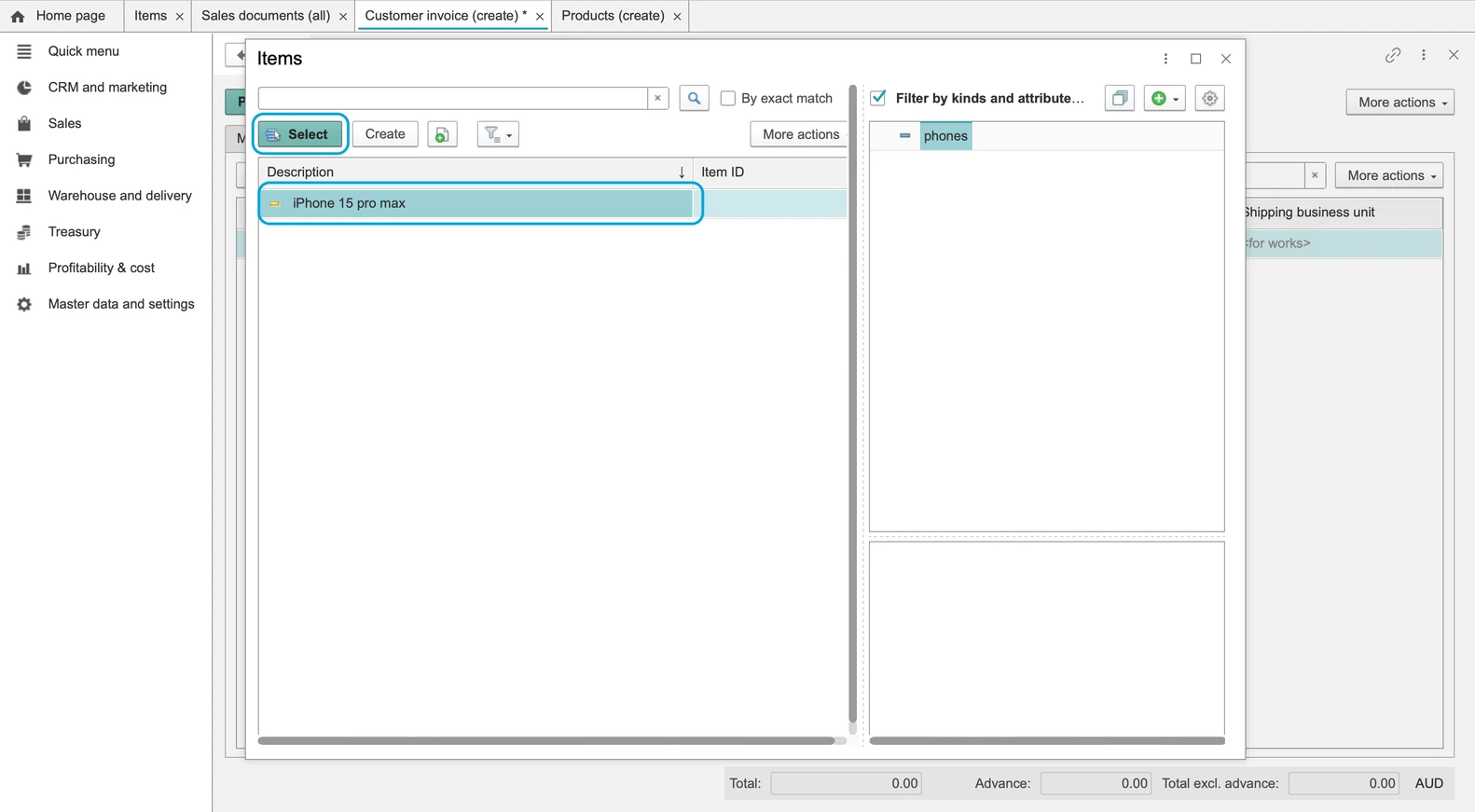
Select the item that needs to be added to the invoice
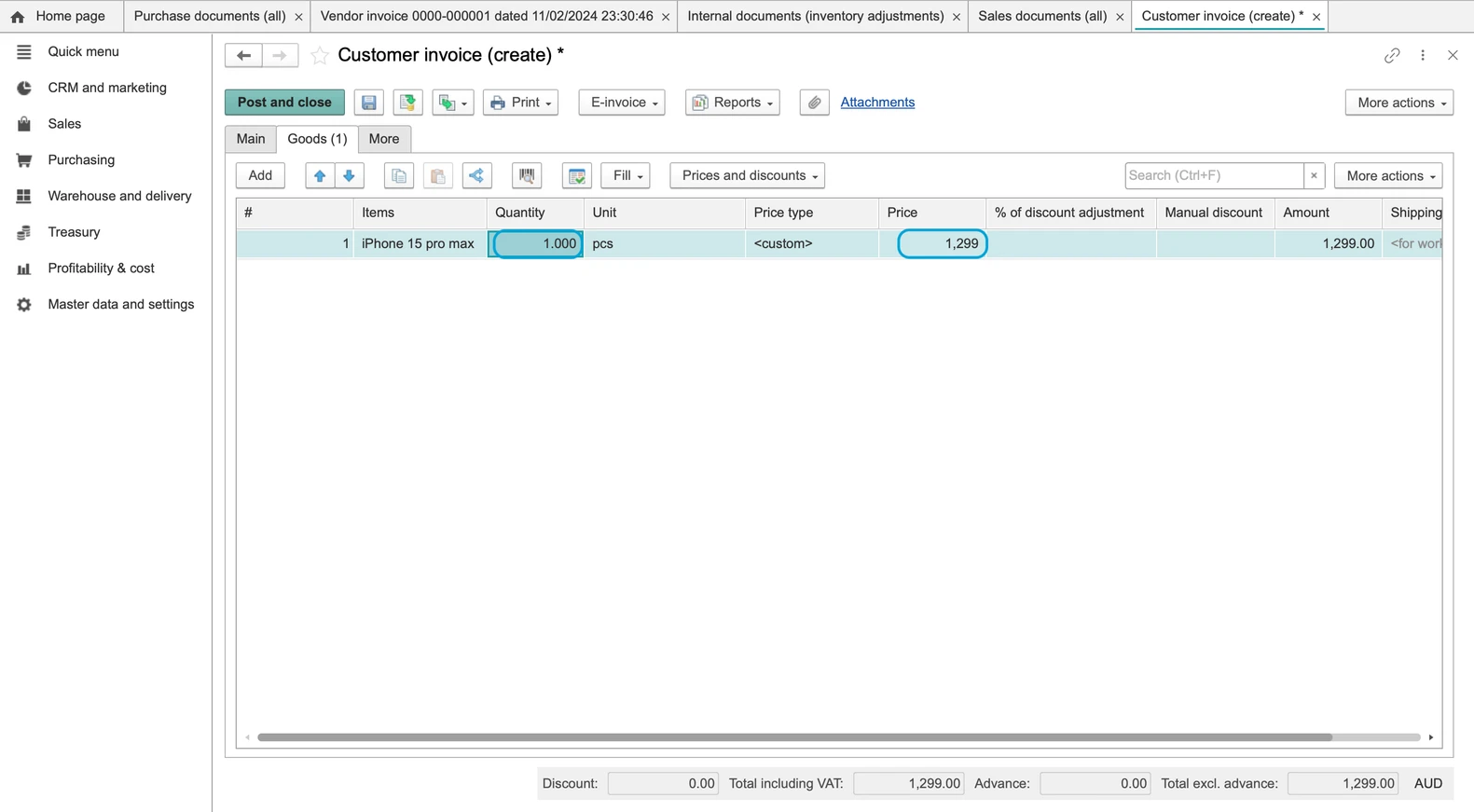
Choose Quantity of items and Price
Click to Post and close
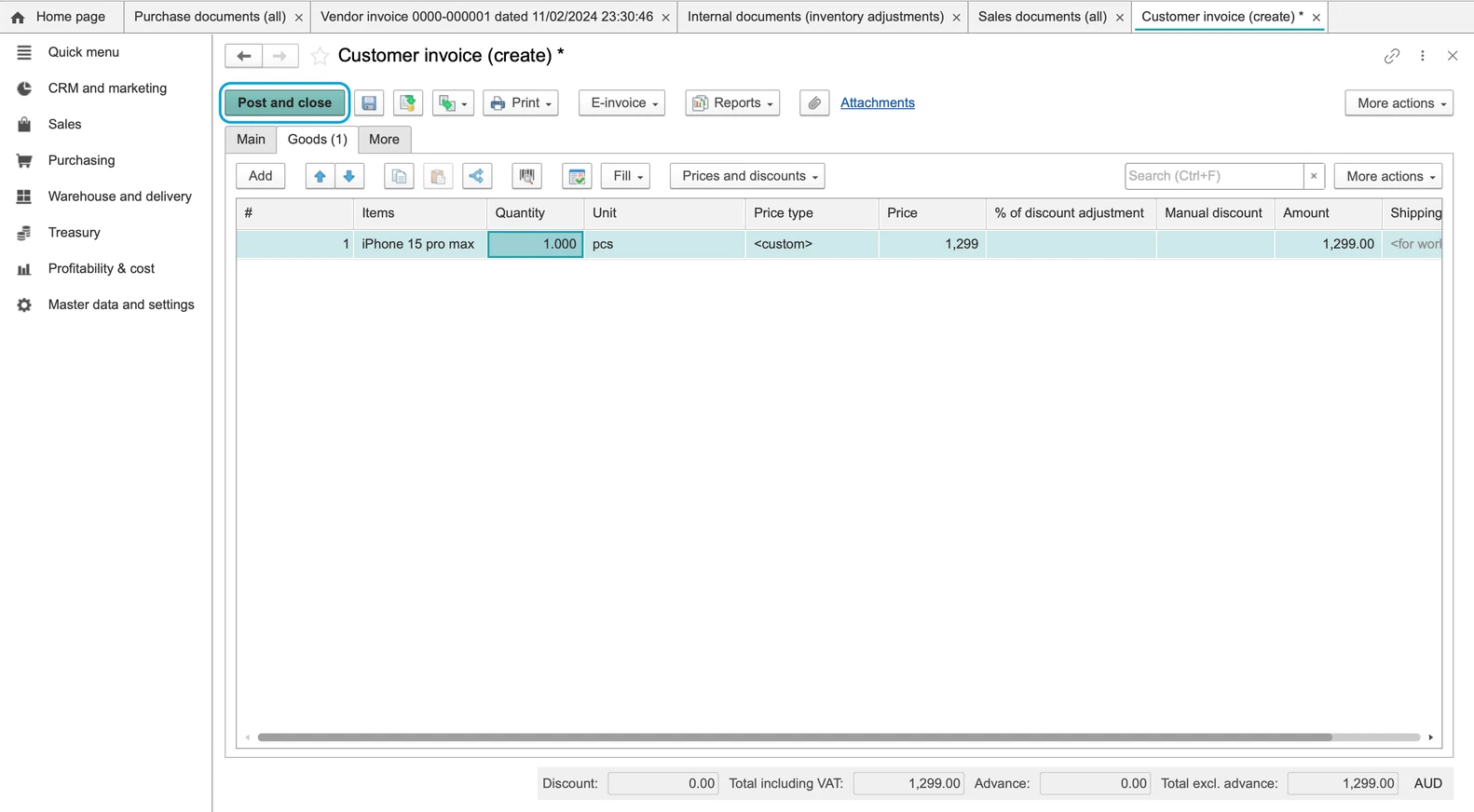
Check the result
Find and reopen the saved customer invoice. Verify the customer, legal counterparty, terms and contract where required, warehouse, items, units, quantities, prices and batches. Review the price-includes-VAT basis, applicable tax settings and final total.
For a required batch, confirm that its quantity has been allocated; merely highlighting a batch is insufficient. See item batches and expiry.
Check the stock report and any separate warehouse shipment required by your process. Invoice posting alone does not establish that physical picking or dispatch is complete.