How to register advance payments
Earlier-interface video. Follow the written steps below for the current workflow; sample values are illustrative. Any tax values shown are not guidance for the current transaction.
Go to Treasury
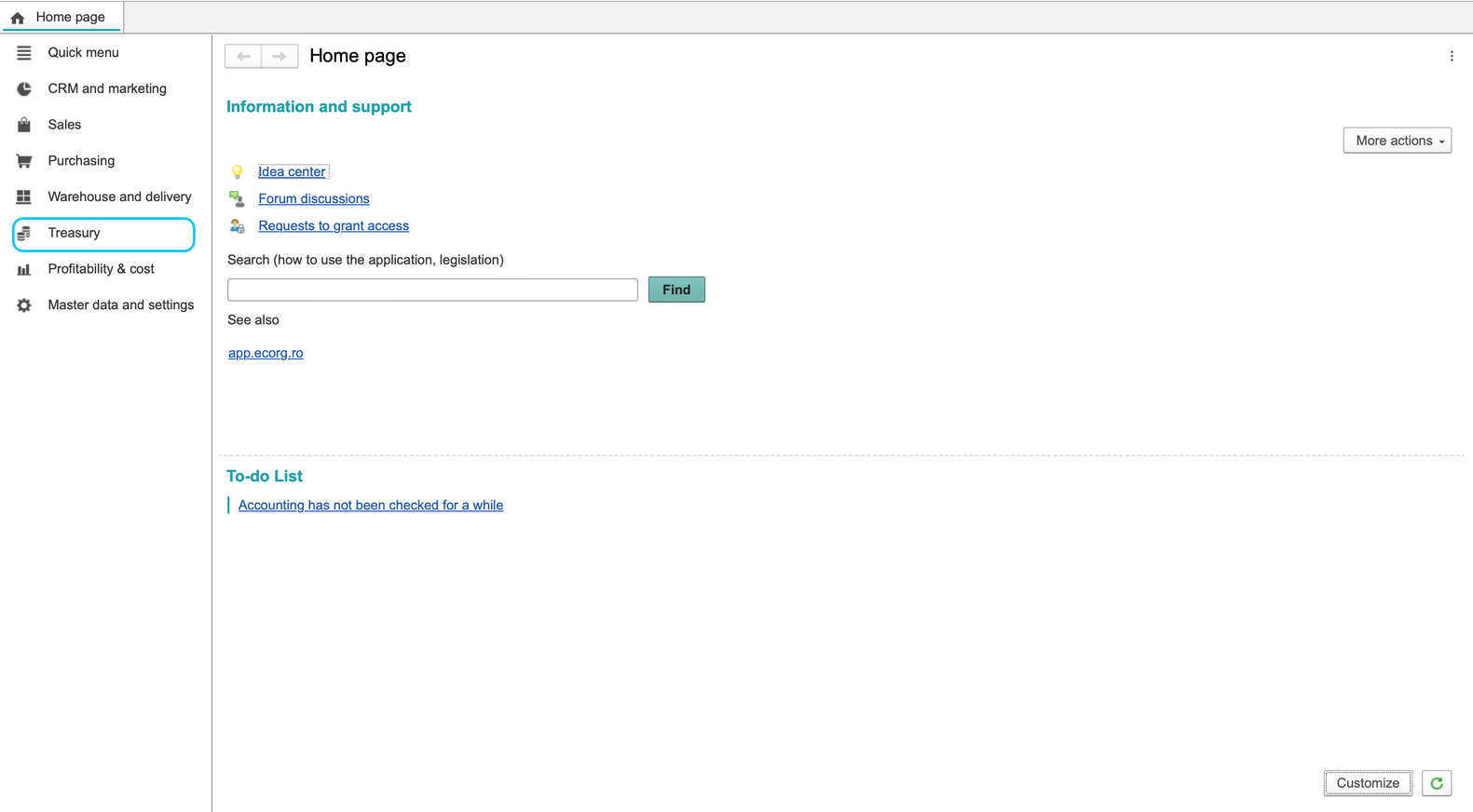
Then click Bank account payments under Bank
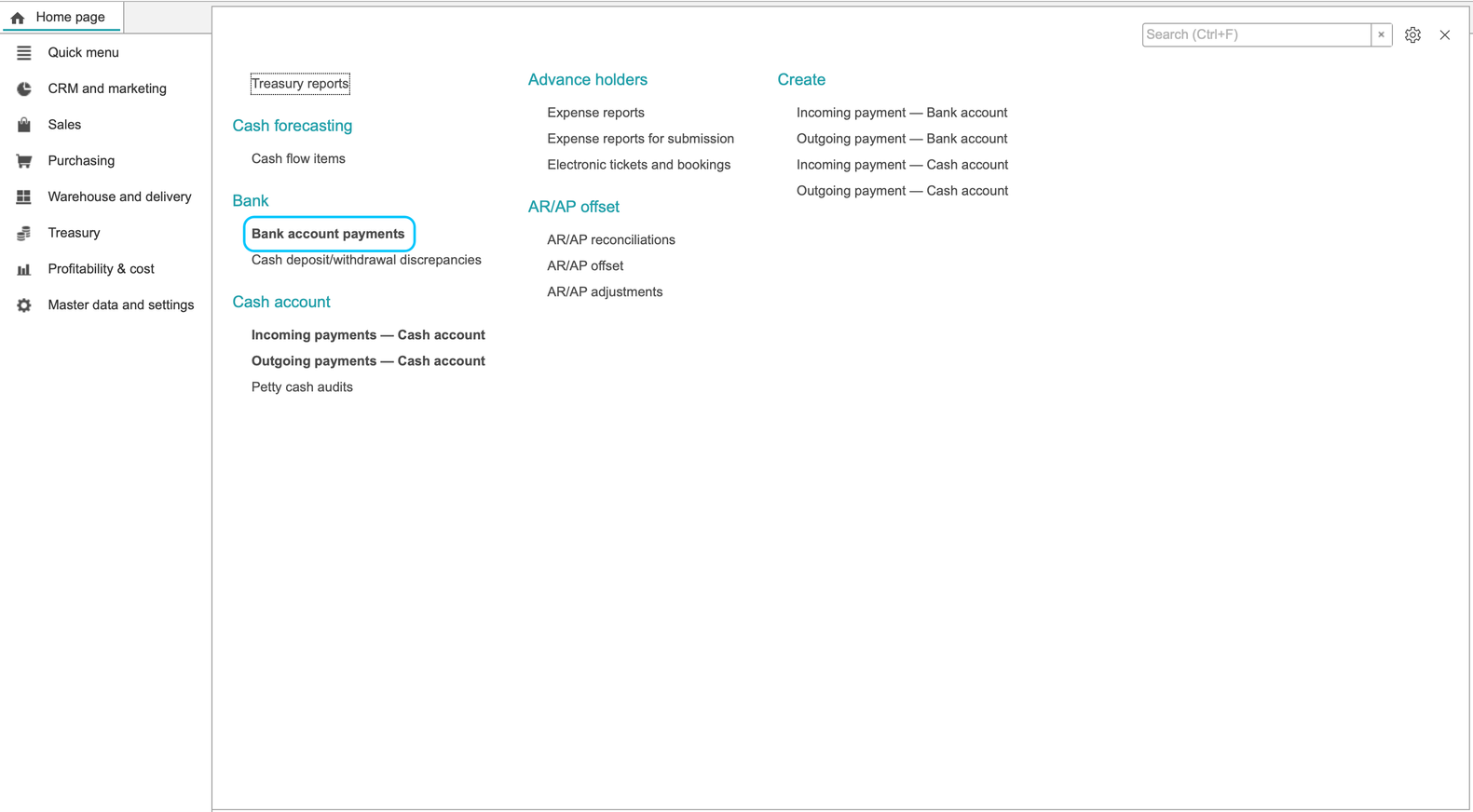
In the Bank account payments workplace, click Incoming payment, then select the Customer payment transaction, or another one relevant to the case
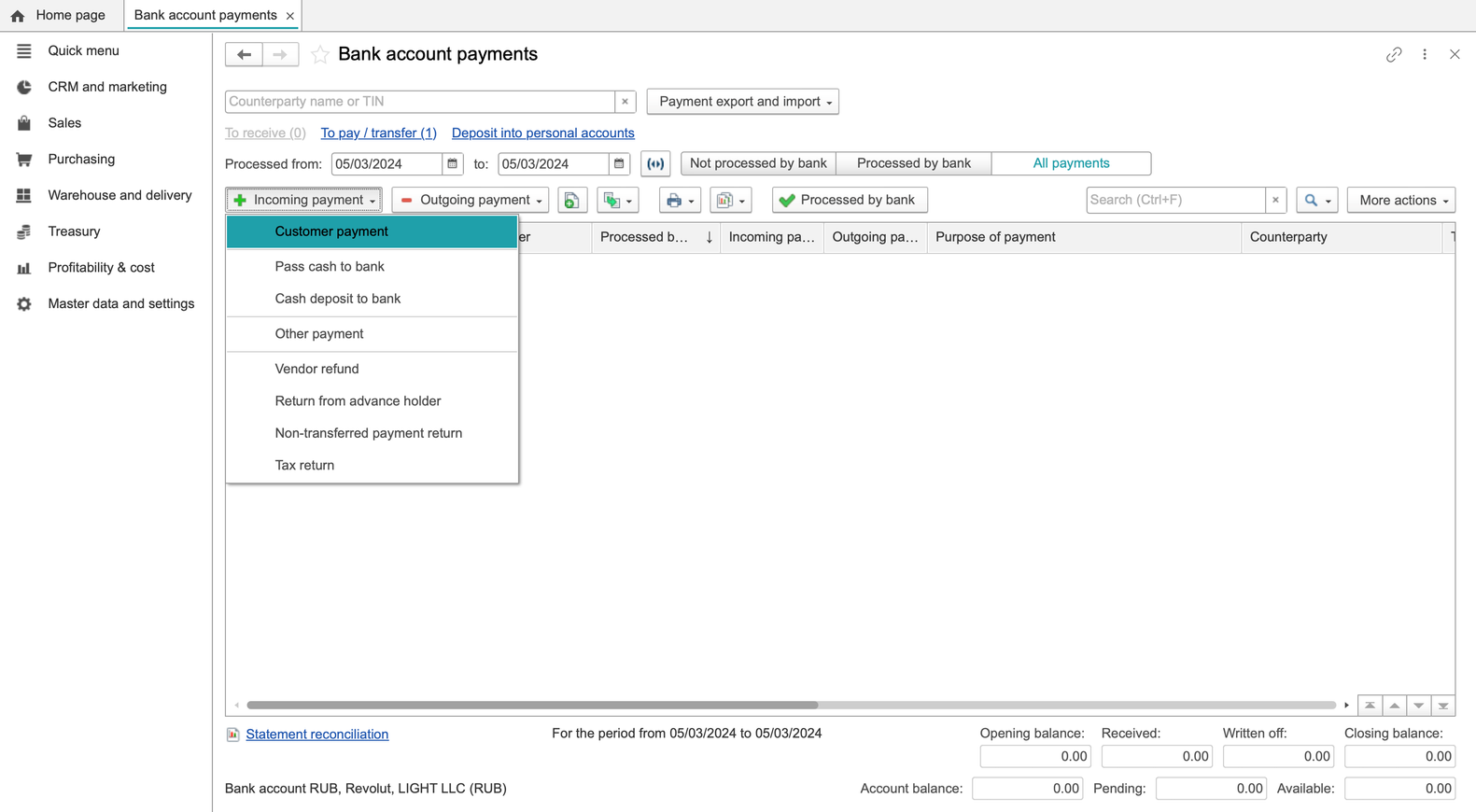
In the Incoming payment - Bank account document, click the Main tab, then select the Document type the payment was initiated
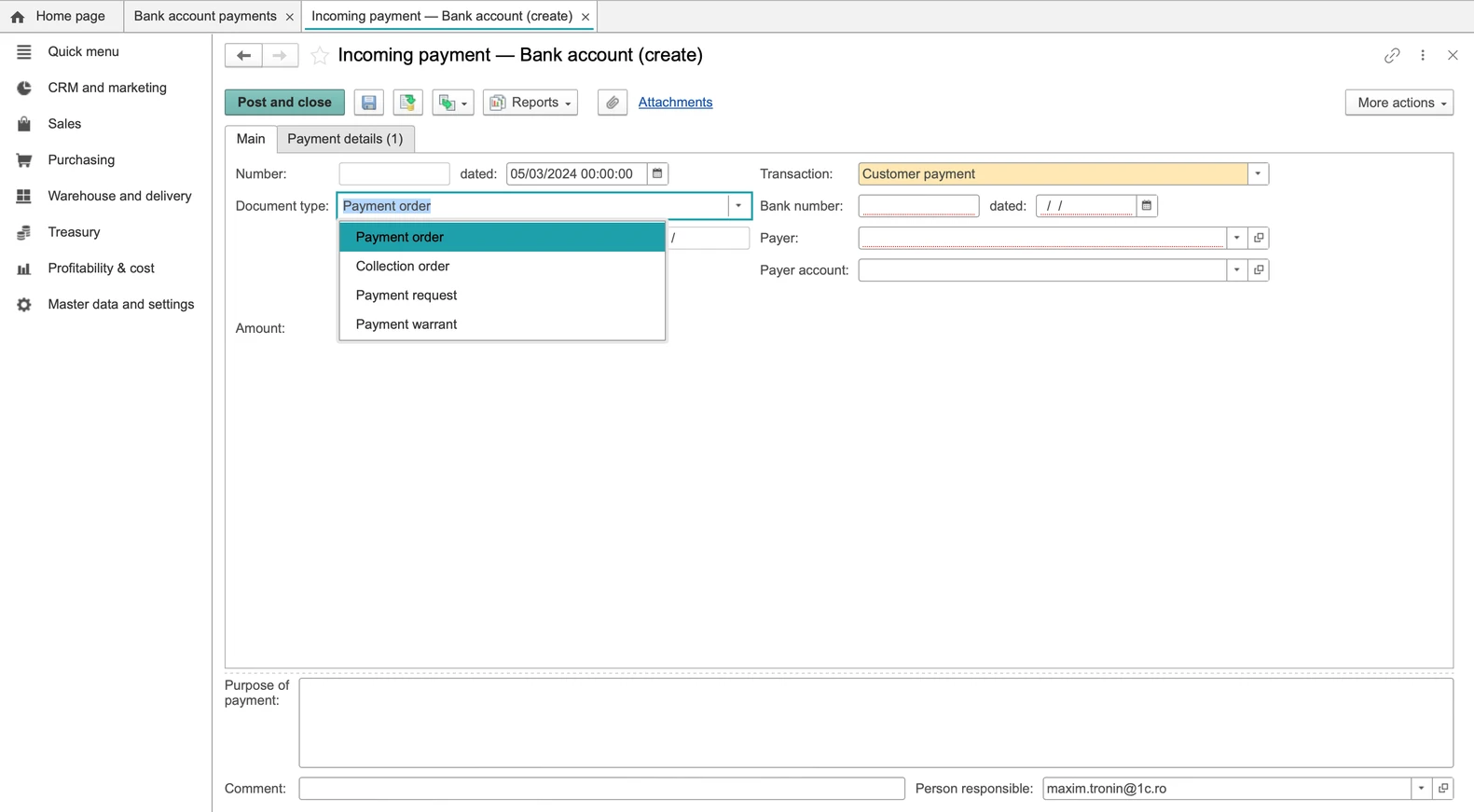
Enter Bank number and document Date, select the company Account and Payer, and enter the Amount actually received. Select Processed by bank only after bank confirmation and verify the processing Date.
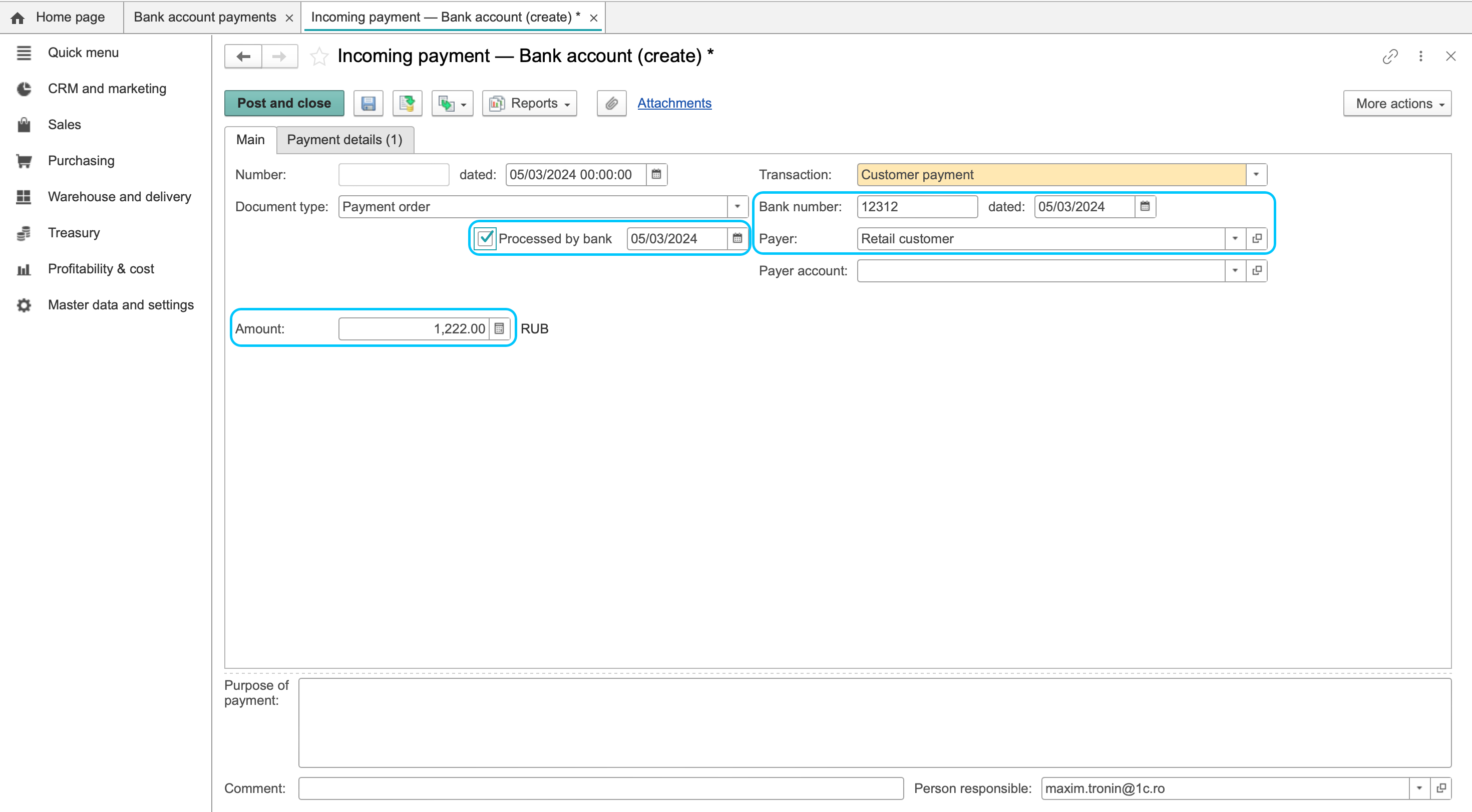
Open Payments details. Use the single-allocation mode (Without splitting) for one allocation. Use As a list only if the amount must be split across several allocations.
Earlier illustration: As a list and RUB are example screen values. A single allocation can use Without splitting; select the actual payment currency and amount, rather than copying the illustration.
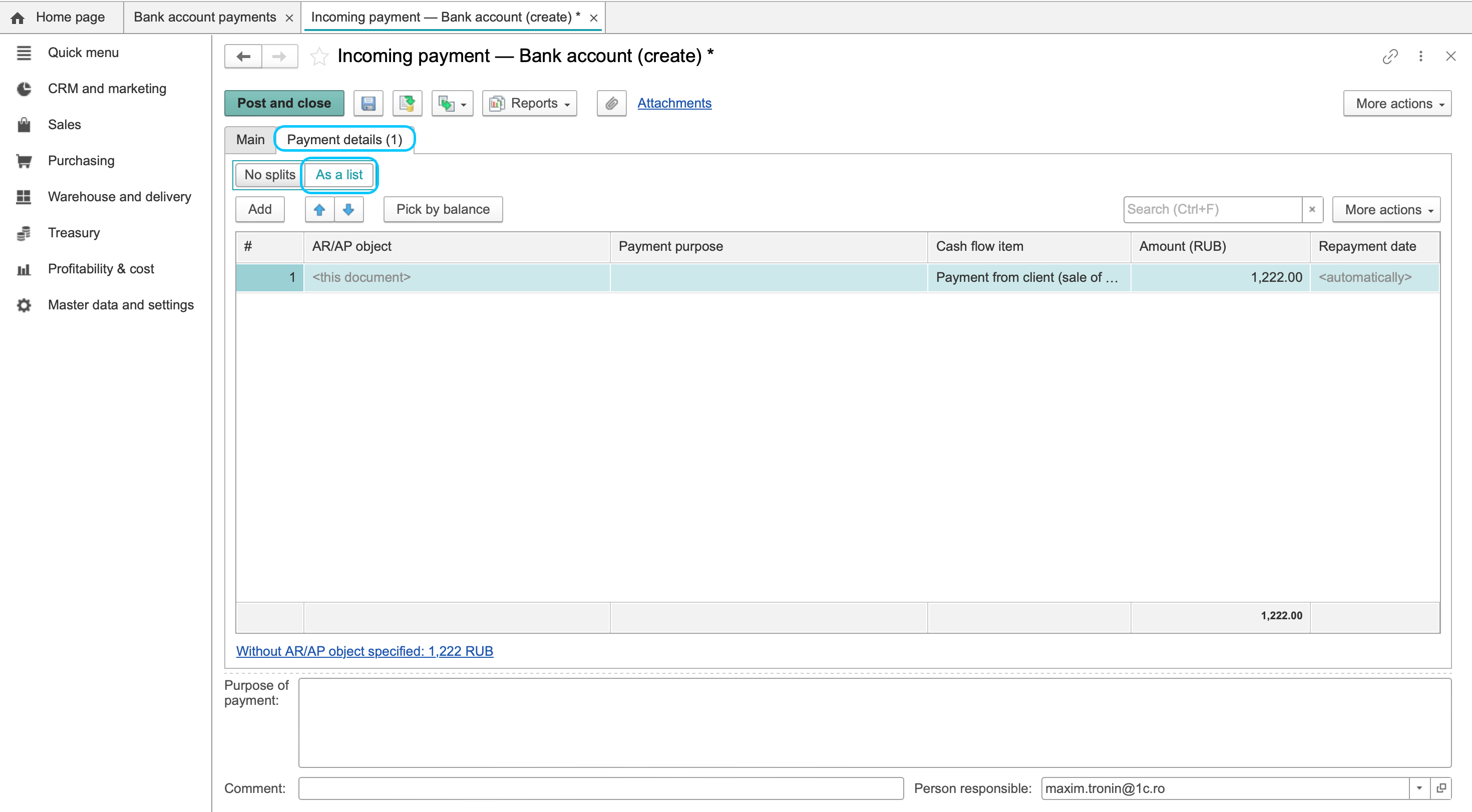
Open the AR/AP object selection menu, tap to ‘three dots’
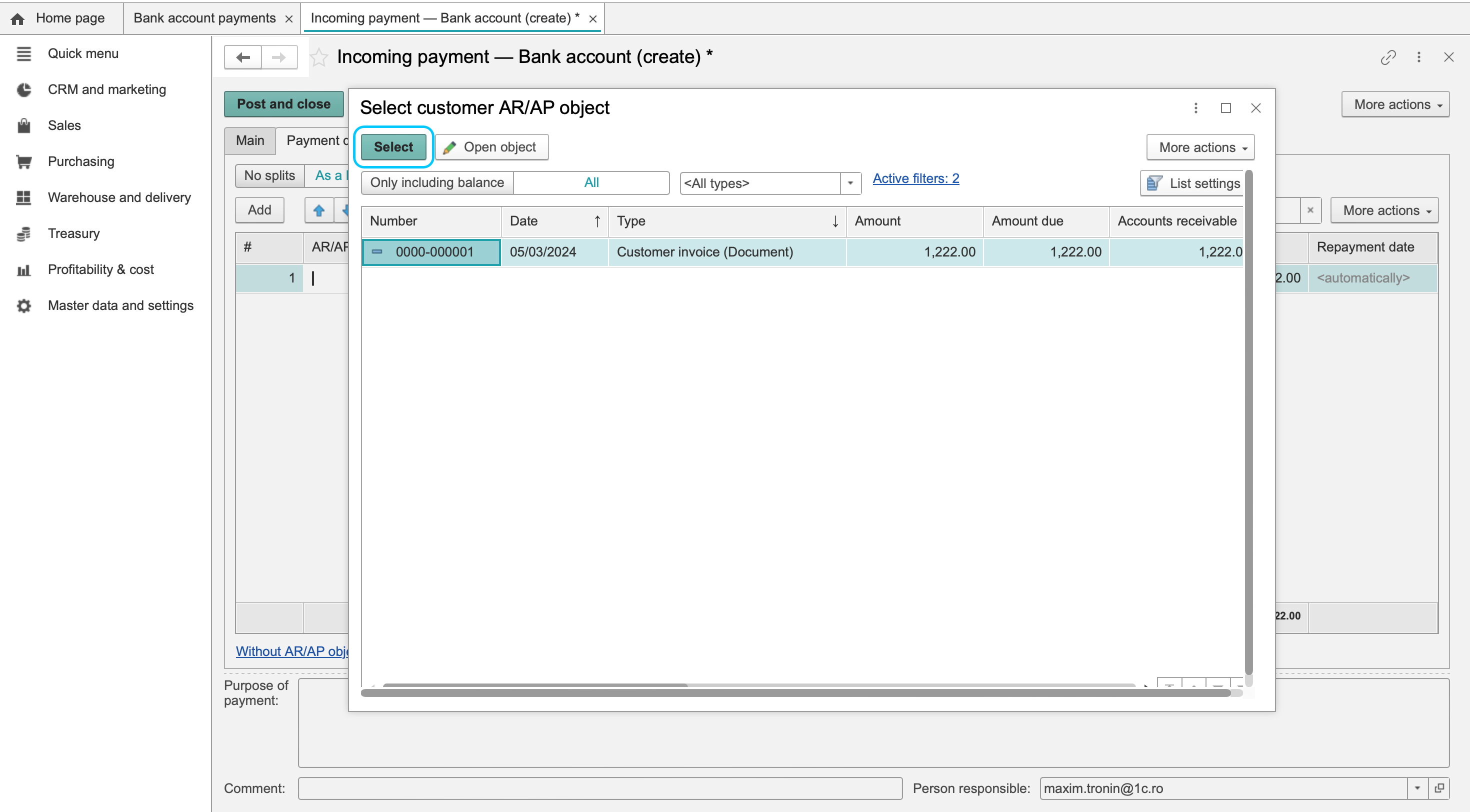
Select the Contract or Order required by the settlement method and find the corresponding record. Check any automatically filled settlement object, contract, currency and amount. For a split payment, verify each line and the total; do not leave the object blank merely because this is an advance.
Tap to Post and close
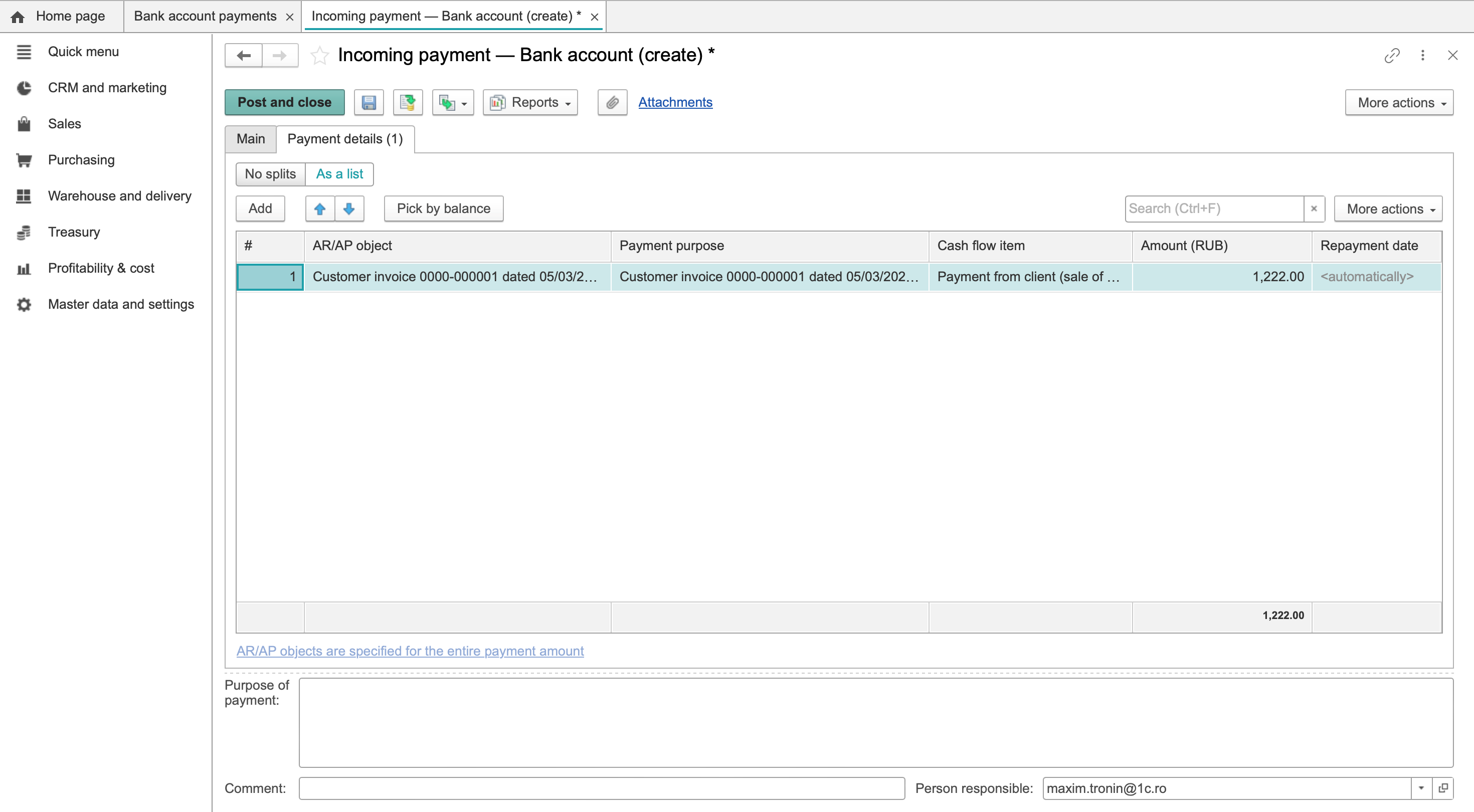
Check the advance-payment record
Reopen the saved payment and verify its bank reference, amount, account, processing date and settlement object. Match it to the bank-workplace row and check the applicable settlement report before deciding how the advance is applied to a later invoice.
Advance allocation depends on the contract or order settings. Posting this payment alone does not establish that a later invoice has been offset automatically.
See customer bank payments for the current navigation and detail checks.