Creating Purchase Conditions
Use this guide to complete the commercial parameters of a supplier's terms. For enabling the feature and creating the main record, start with Terms of Purchase.
The video and illustrations were published earlier and may show a different layout.
Before you start
Open the supplier's terms and check the supplier, document date, validity period and Valid status. Have the agreed settlement, delivery and pricing conditions ready.
Complete the purchase conditions tab
- Open Terms of purchase in the terms record.
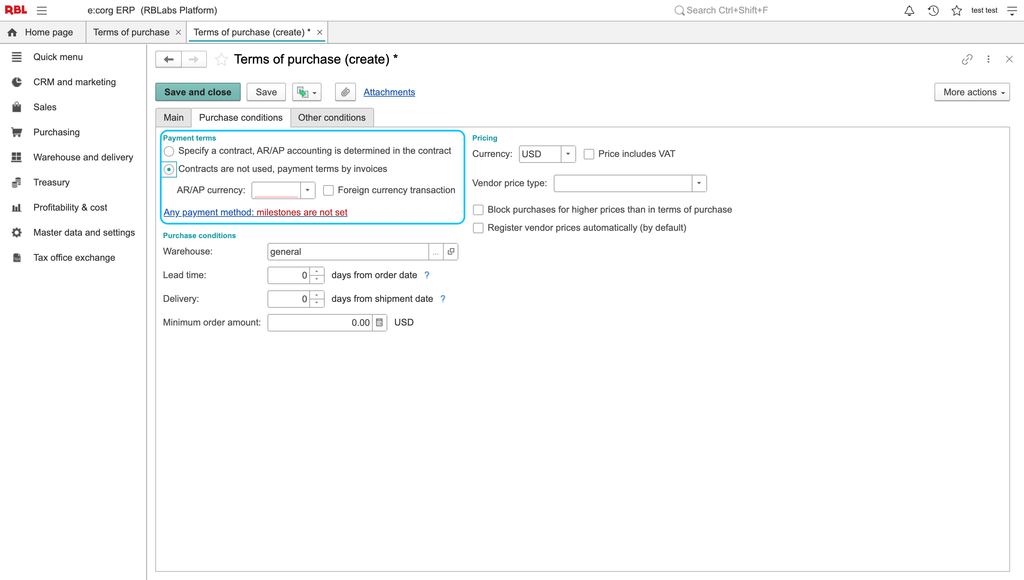
- Choose how contracts are used. Select the option for specifying a contract when your process requires one. Otherwise, choose Contracts are not used, payment terms and complete the payment conditions directly.
- Check the settlement currency. Select the currency agreed with your supplier.
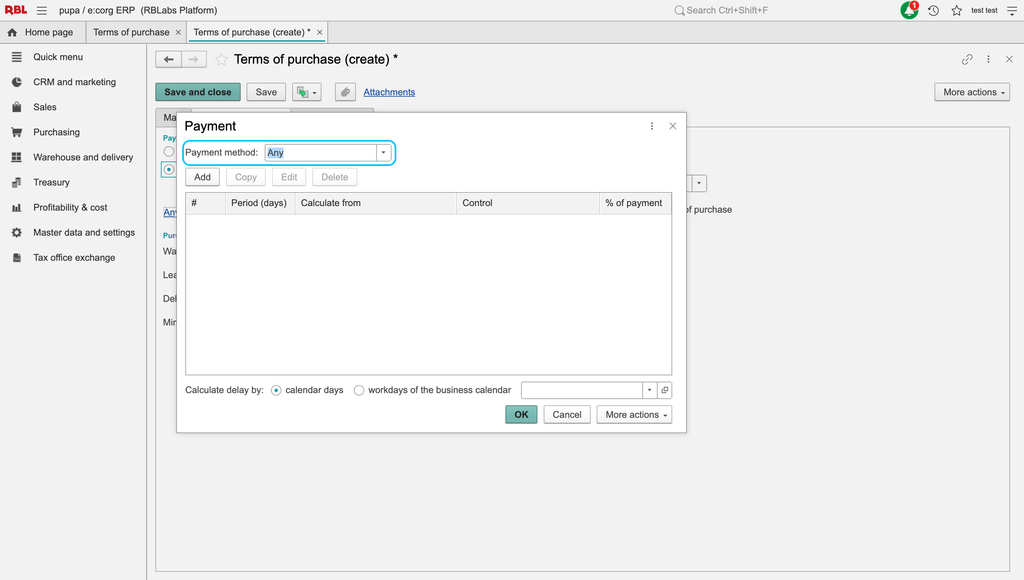
- Select the settlement detail appropriate to your process. For example, Order for debt and prepayment tracks debt and advances by order. Review this choice carefully because it determines how debt and advances are tracked.
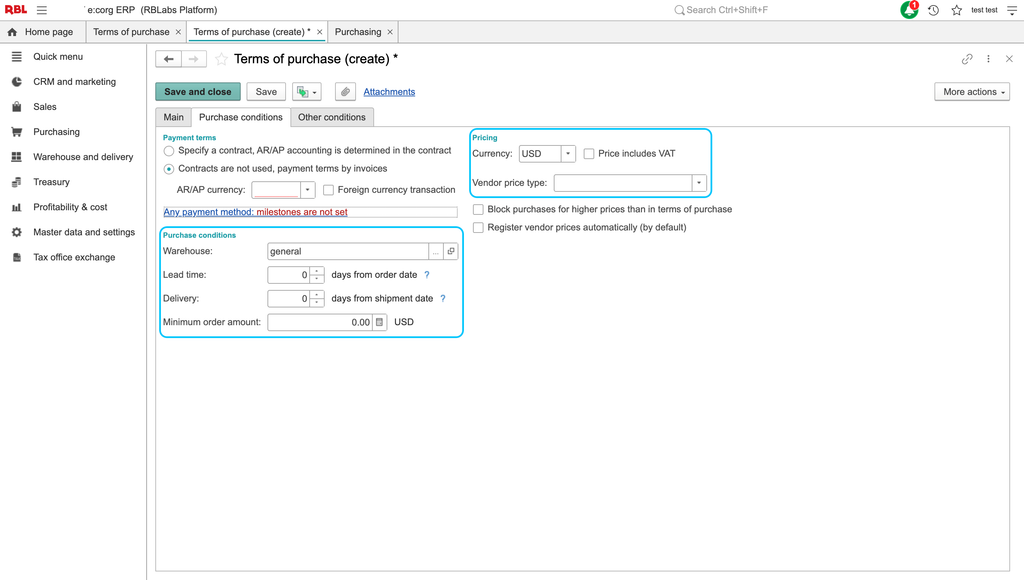
- Set the receiving warehouse if the terms should supply a warehouse. The warehouse is optional in the terms.
- Review the shipment lead-time and delivery-duration fields. Use the actual agreed periods for your purchases.
- Check whether prices include VAT. Set the checkbox according to the agreed pricing basis. This choice does not itself establish a numeric VAT rate.
- Review any other pricing or payment fields displayed in your configuration, then choose Save and close.
Check the result in an order
Create or open a purchase order for the same supplier. Check that the intended terms are selected, then review the currency and commercial values filled into the order. Review any terms selected automatically for this supplier.
If the values do not match
- Check the supplier and the selected terms before changing individual order values.
- Compare the order date with Valid from and the end date. An expired record can still display Valid.
- If a contract is requested unexpectedly, review the contract-use choice in the terms.
- If a warehouse is blank, check whether one was specified in the terms; the terms can leave this optional field empty.
- If the VAT treatment is unexpected, check the price-includes-VAT setting and the item/document tax settings separately.
Existing illustrations
The images below come from the earlier terms-of-purchase guide. They show contract, payment and delivery/pricing areas and are retained as reference images rather than new captures.
See also vendor contracts and purchase orders.