Creating Terms of Purchase
Terms of purchase store the commercial conditions used for a supplier. Start here to check the feature and create the record; use Purchase Conditions to fill in and check its commercial parameters.
Existing illustrations show an earlier interface.
Before you start
Create the partner and select its Vendor role. Decide when the conditions become valid and whether they need an end date.
Check that terms are enabled
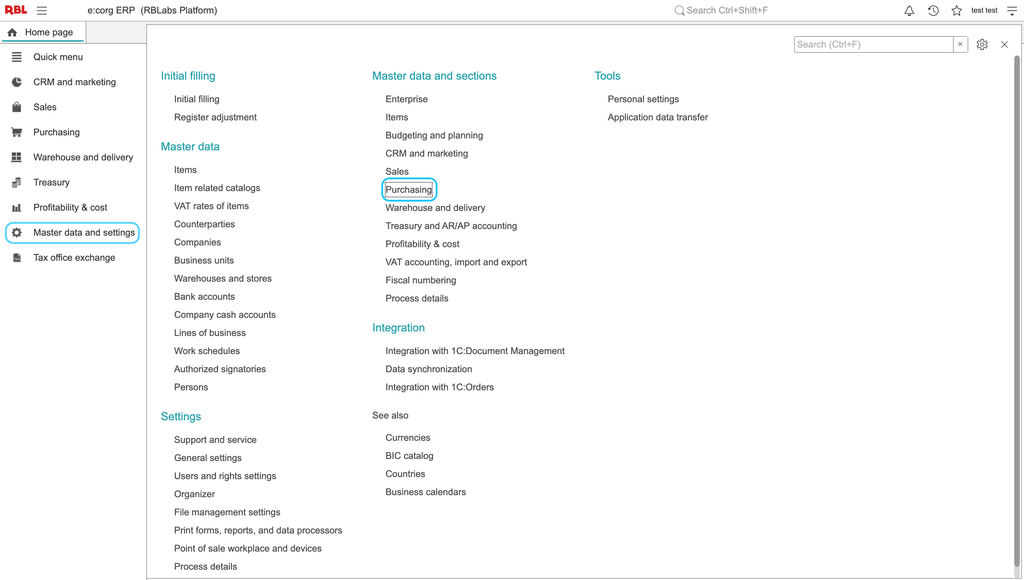
- Open Master data and settings > Purchasing.
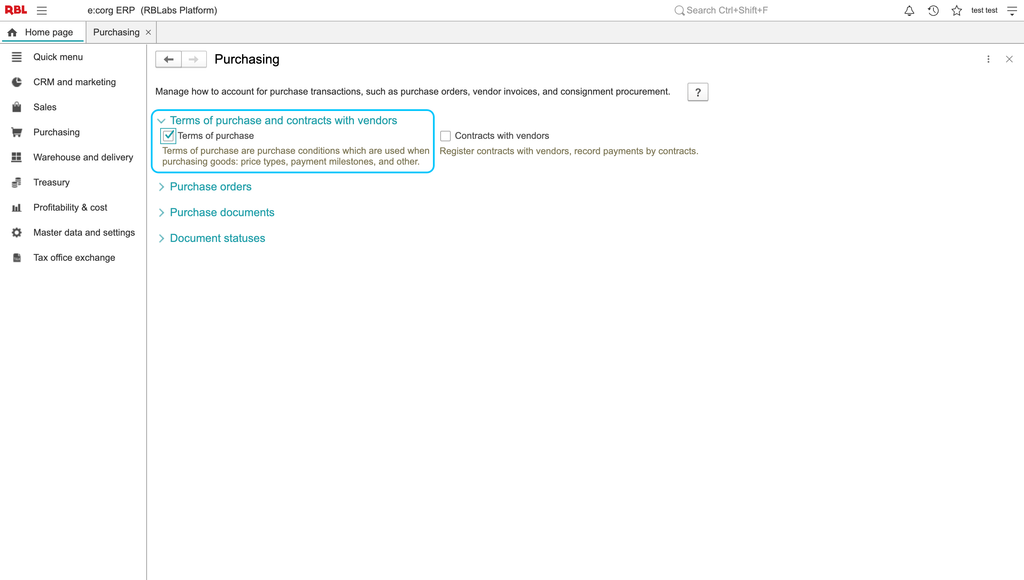
- Find Terms of purchase. If your purchasing process uses terms, make sure this option is enabled.
- Review Contracts with vendors separately if your process also uses vendor contracts. Enabling contracts and requiring a contract in a particular set of terms are separate choices.
If the required options are already enabled, continue to the terms catalog.
Create the terms record
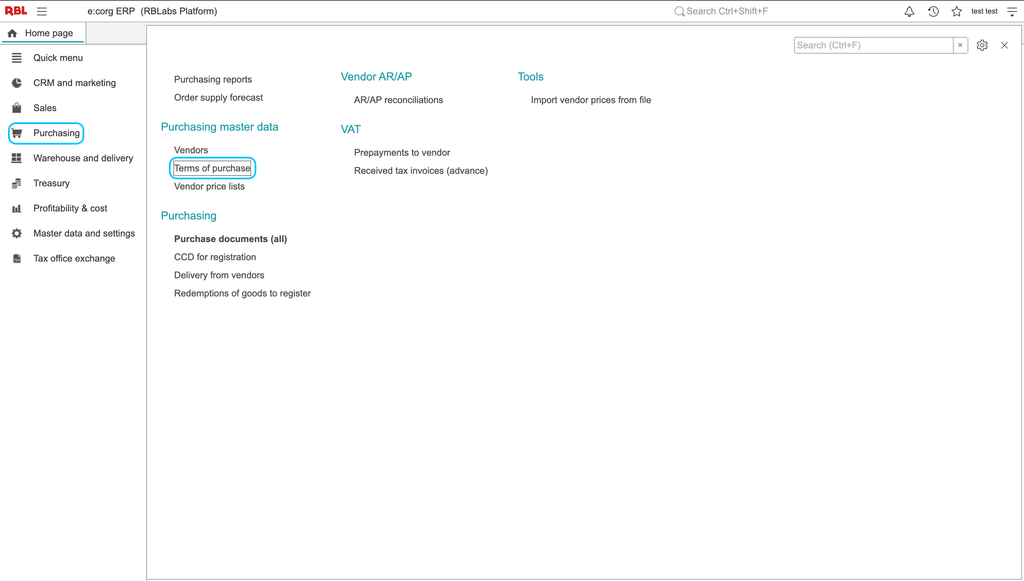
- Open the purchasing section and choose Terms of purchase.
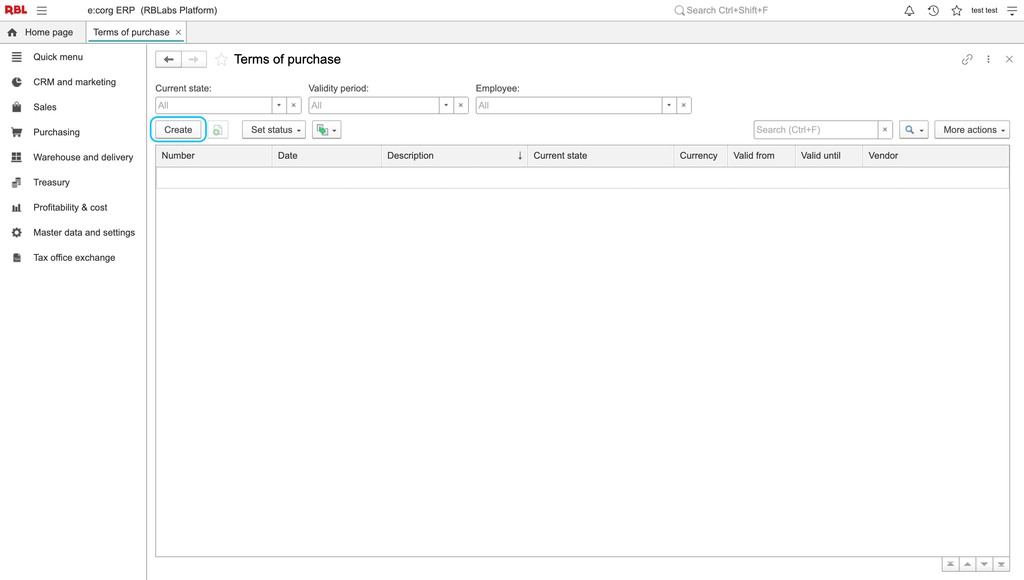
- Click Create.
- On the main tab, check the number and document date, and enter a description that identifies the terms.
- Select Vendor. Use the optional Counterparty field when the terms should identify a particular legal counterparty.
- Set Valid from and, if applicable, the end date. Leave the end date empty when there is no defined end date.
- Use the Valid status when the terms are ready to use.
- Complete the commercial parameters, then choose Save and close.
Complete the fields available in your configuration; the main tab can omit a company field.
Check the result
Find the saved terms in the list and reopen them to check the supplier, status and dates. Review any terms filled automatically for the supplier before continuing with the order.
If the terms are not selected
Check the supplier and compare the purchase document's date with the validity period. Valid alone is insufficient: a record can still have an end date earlier than the document date. Review expired records before creating another one.
Existing illustrations
These earlier images show the settings and list entry points; their labels and field layout can differ from the current application.
Continue with commercial parameters and purchase orders.