Creating a new counterparty
Create a partner record for a customer, supplier or other business relationship. The partner wizard can also capture legal-entity details when the corresponding option is enabled.
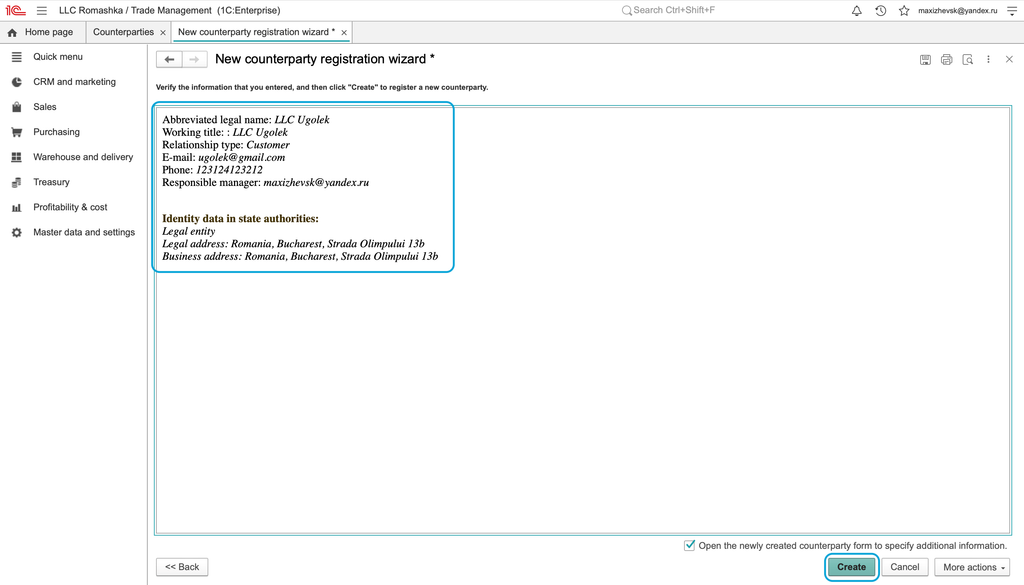
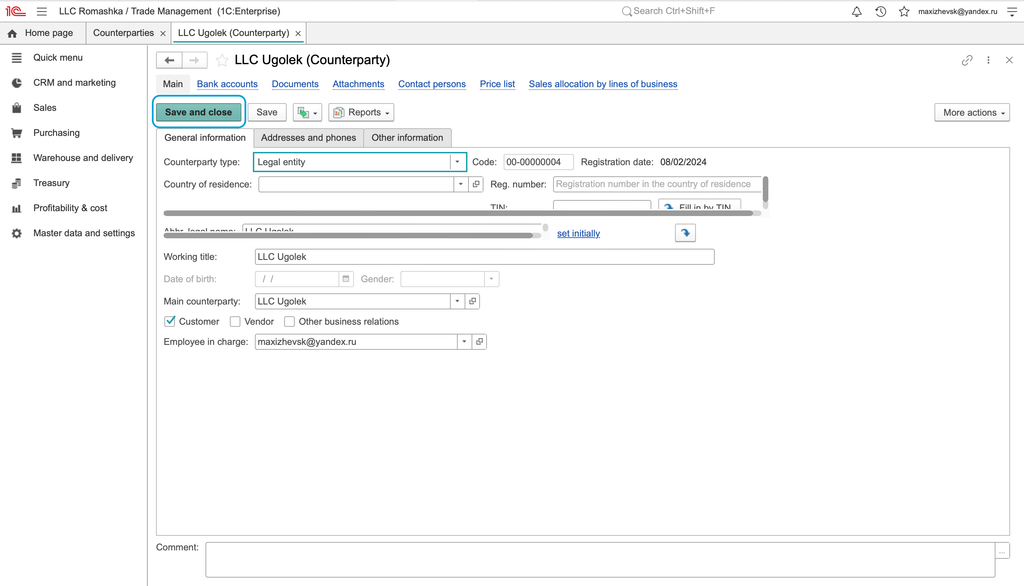
The retained screenshots show an earlier interface.
Before you start
Have the partner's public name and at least one contact value: an email address or a phone number. Decide whether the partner is a company or an individual and which relationship roles it needs.
Complete the partner wizard
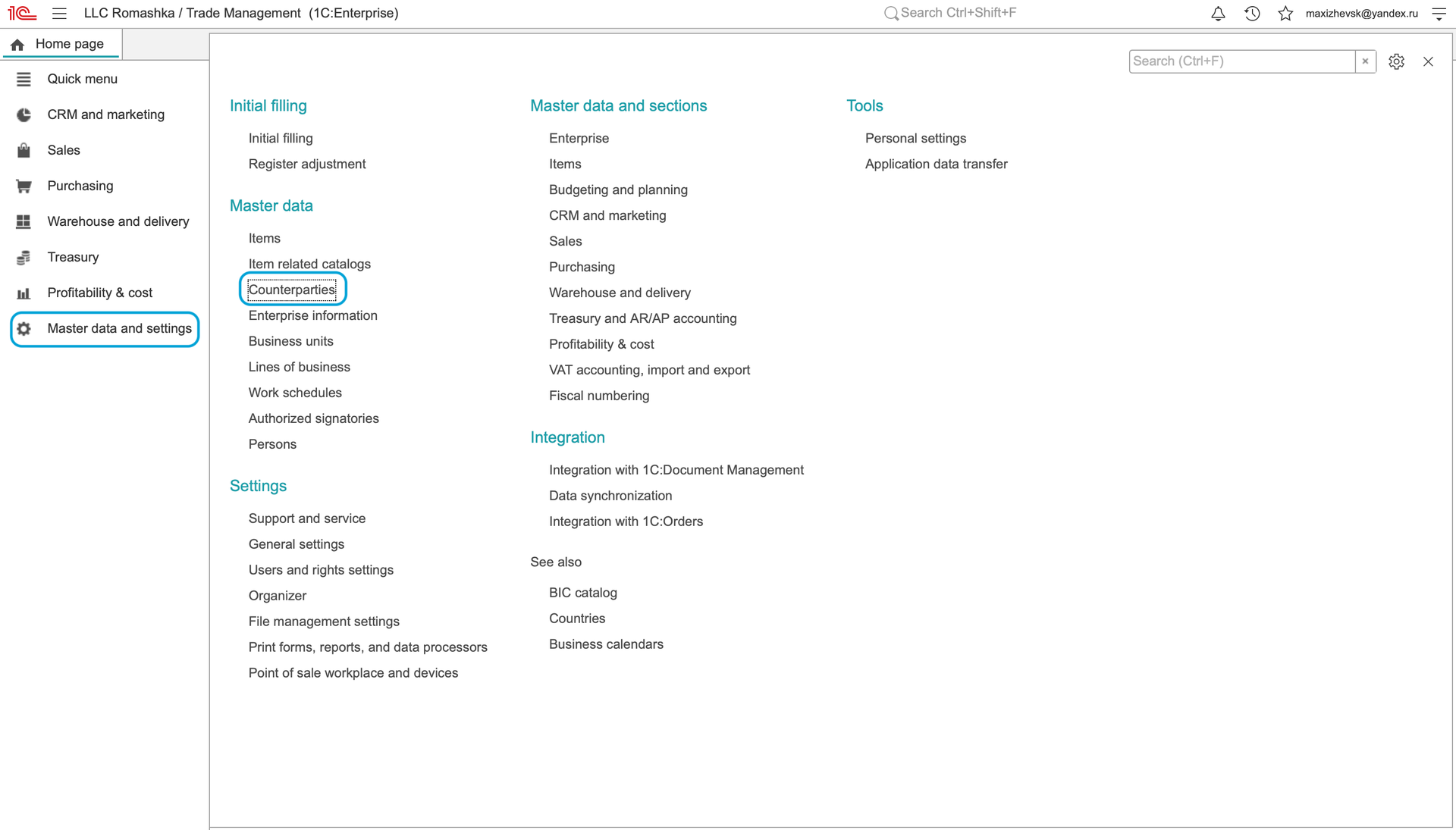
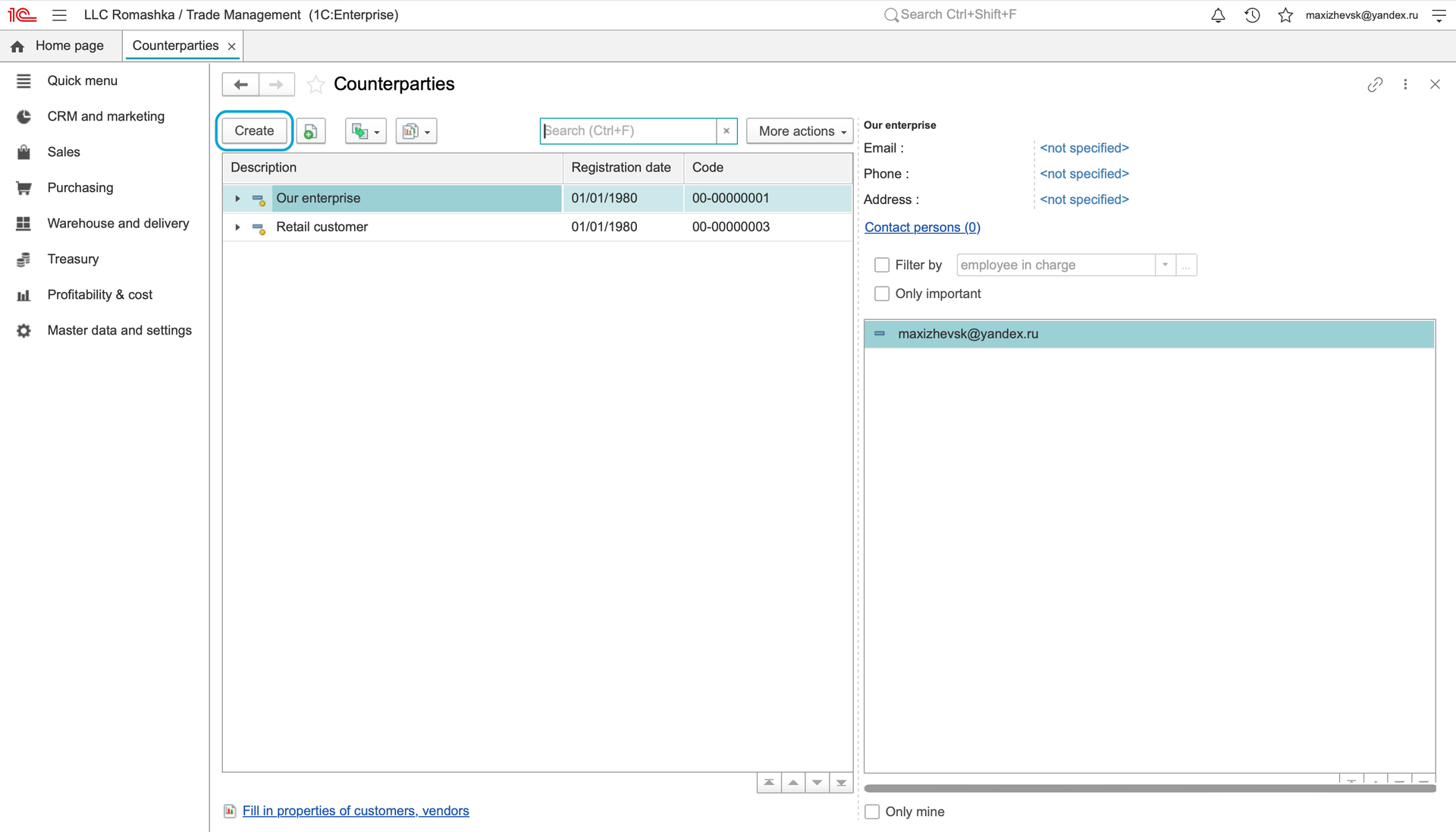
- Open Master data and settings > Partners and click Create. The Partner registration wizard opens.
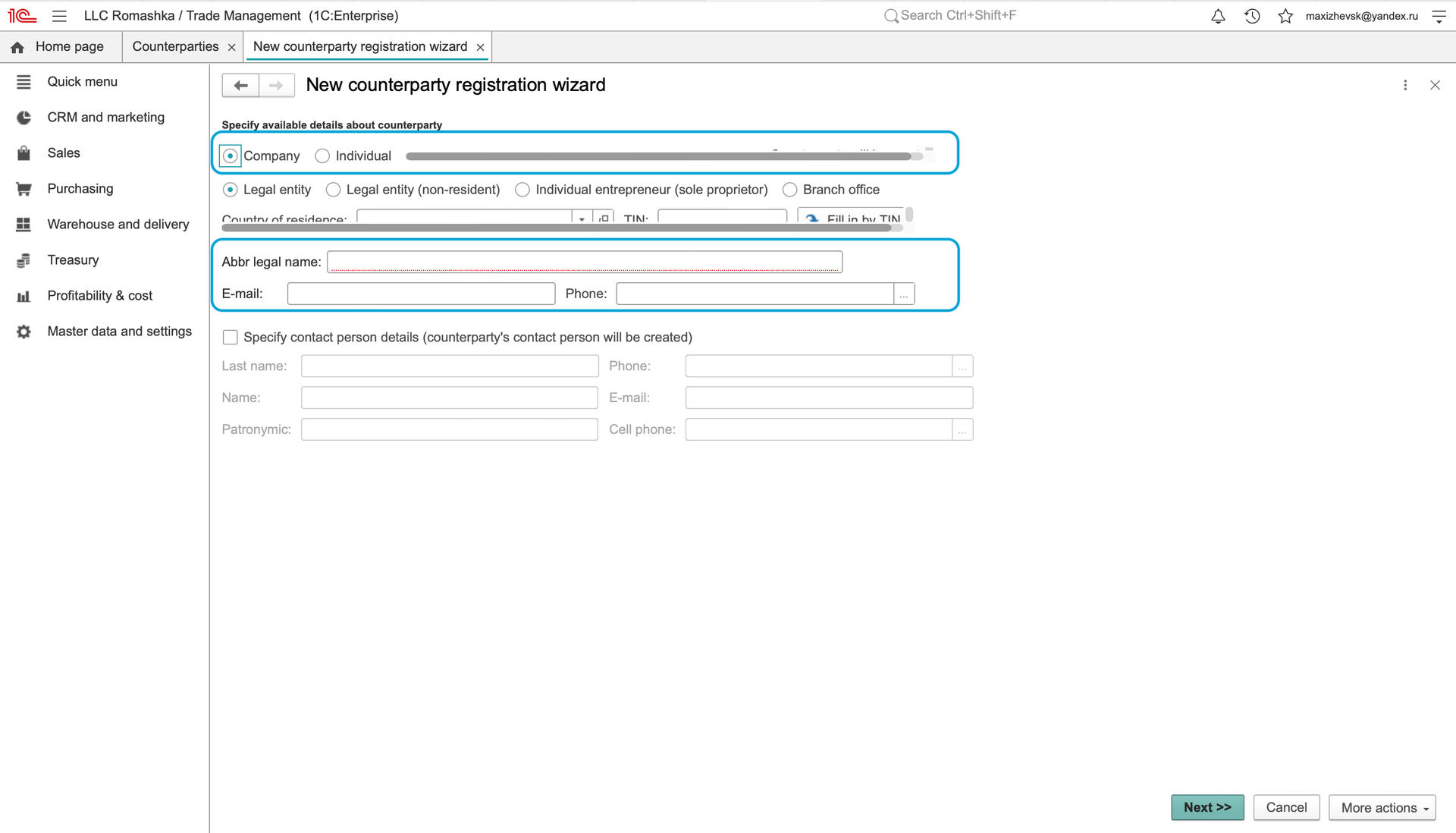
- Select the partner type, such as Company, and enter the Public name.
- Enter an email address or phone number. The wizard requires at least one contact value before continuing.
- If you need to enter legal-entity details, enable the corresponding option on this first step. With this option off, the abbreviated legal-name field is disabled; it is not a mandatory input for the basic partner flow.
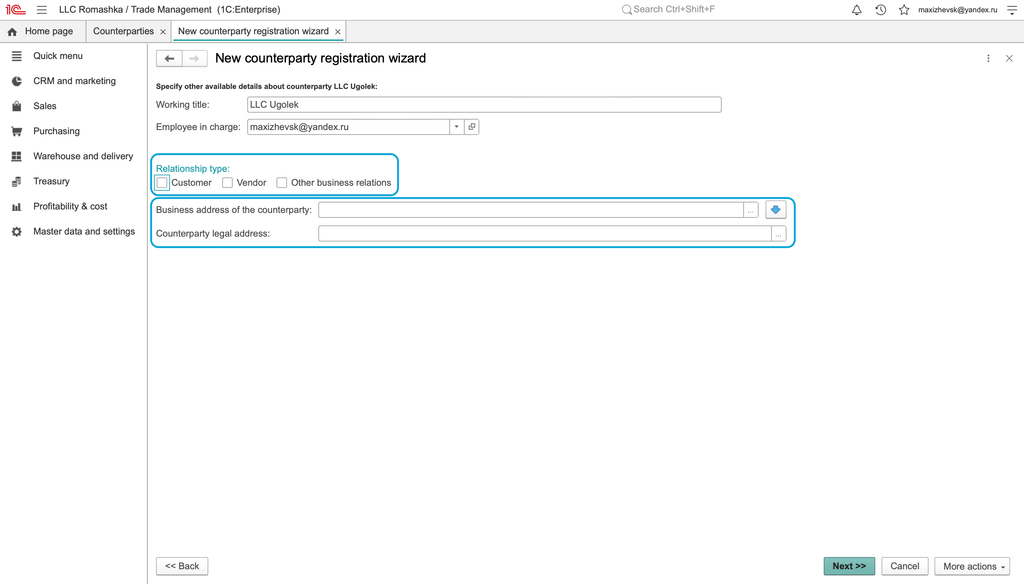
- Click Next and select the relationship roles. A partner can be both Customer and Vendor. Complete any other applicable details.
- Click Next, review the summary and choose Create. With legal details disabled, the wizard proceeds directly from relationship roles to the summary.
- The new partner card opens. Check the assigned code and selected roles, then choose Save and close.
Check the result
Find the partner in Partners, reopen the card and check its public name, contact information and roles. If it will be used for purchases, confirm that the supplier role is selected.
If the wizard cannot continue
Enter at least one email or phone value. If the legal-name field is disabled, check whether legal details are enabled. For documents that require a separate legal counterparty, complete the relevant legal details using the available option rather than treating the public partner name as a legal entity record.
Add the legal counterparty for purchase documents
The supplier partner and the legal counterparty are separate records. A purchase order may require the legal Counterparty field before posting, even when Vendor is already selected.
If the wizard did not create the legal record, open F4 from Counterparty in the purchase order. In Counterparties, use More actions > Create, check the inherited names, select the company's actual country and enter its actual legal details. Save with Save and close, then select the record with Ctrl+Enter.
For the complete sequence and checks, see Partner and legal counterparty.
Existing illustrations
These earlier screenshots show the entry point, initial details and relationship selection. The wizard's current sequence is described above.
Continue with terms of purchase or customer contracts.