Customizing print forms
Earlier-interface video; use the written workflows below for the current catalog and limitations. Any tax values shown are examples, not guidance for the current transaction.
Choose the type of change before working with a print form:
| Task | What it affects |
|---|---|
| Edit a reusable template | The layout used to generate future documents when that template is selected. |
| Edit one generated printout | The current output. This does not by itself change the reusable template. |
| Change Print-menu visibility | Whether a print command appears in the menu; it does not edit the document layout. |
Find the template catalog
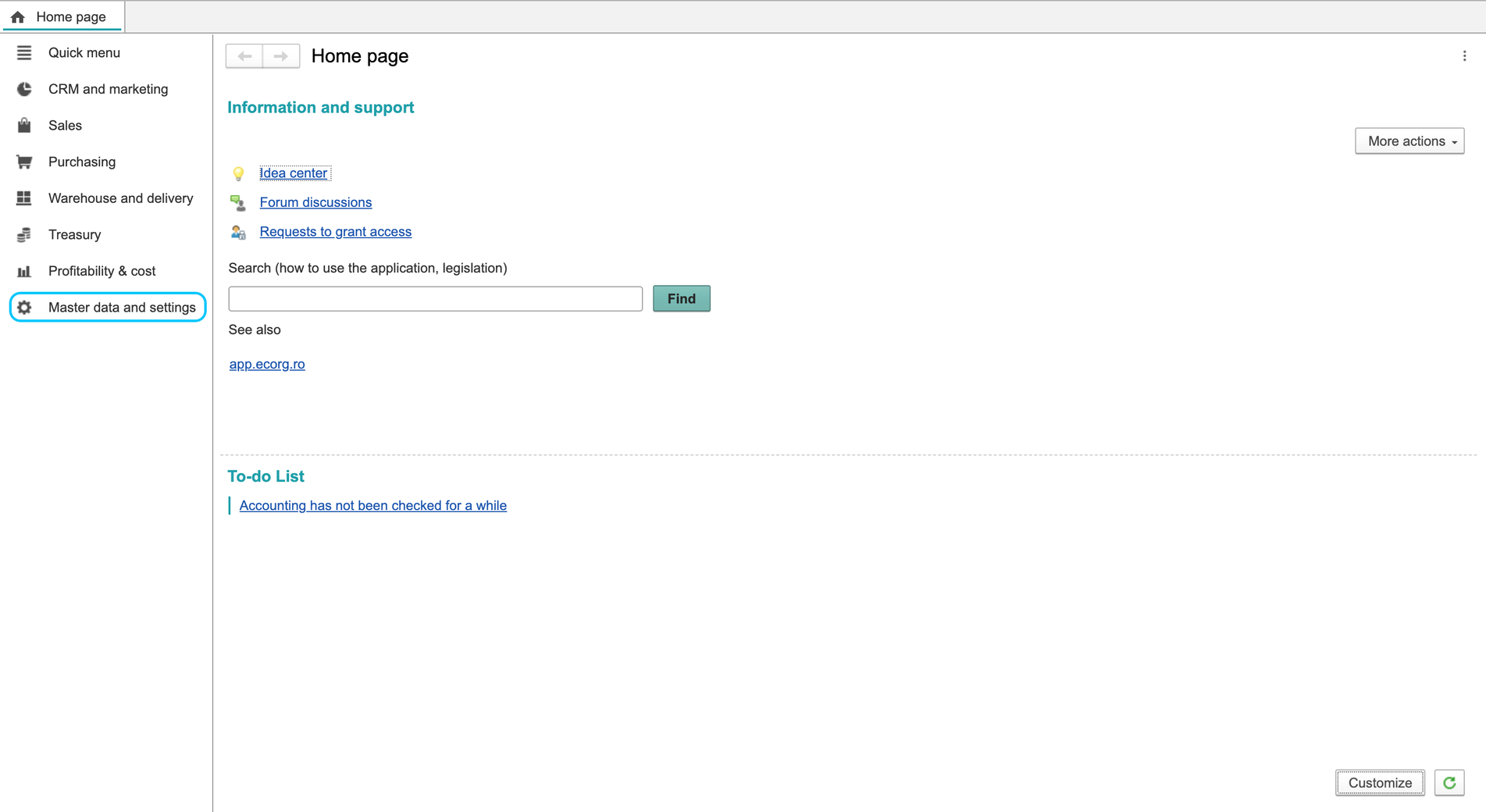
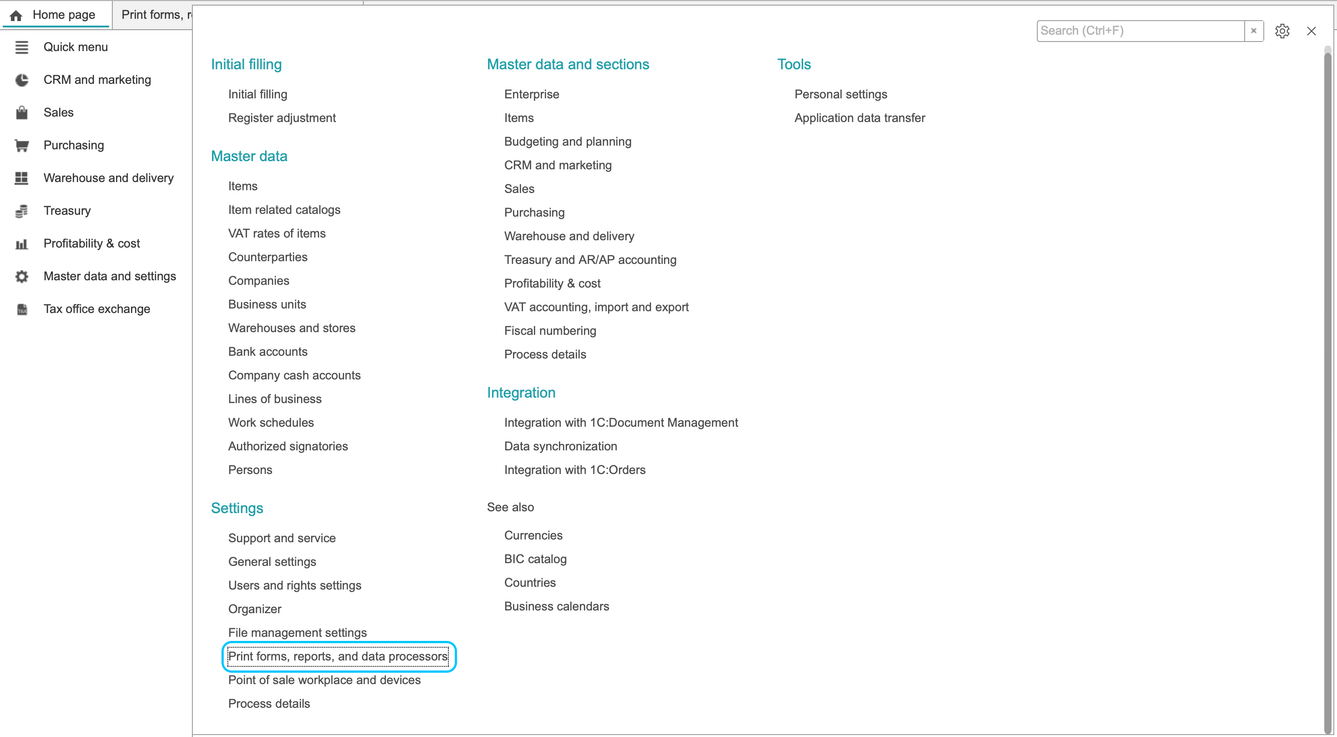
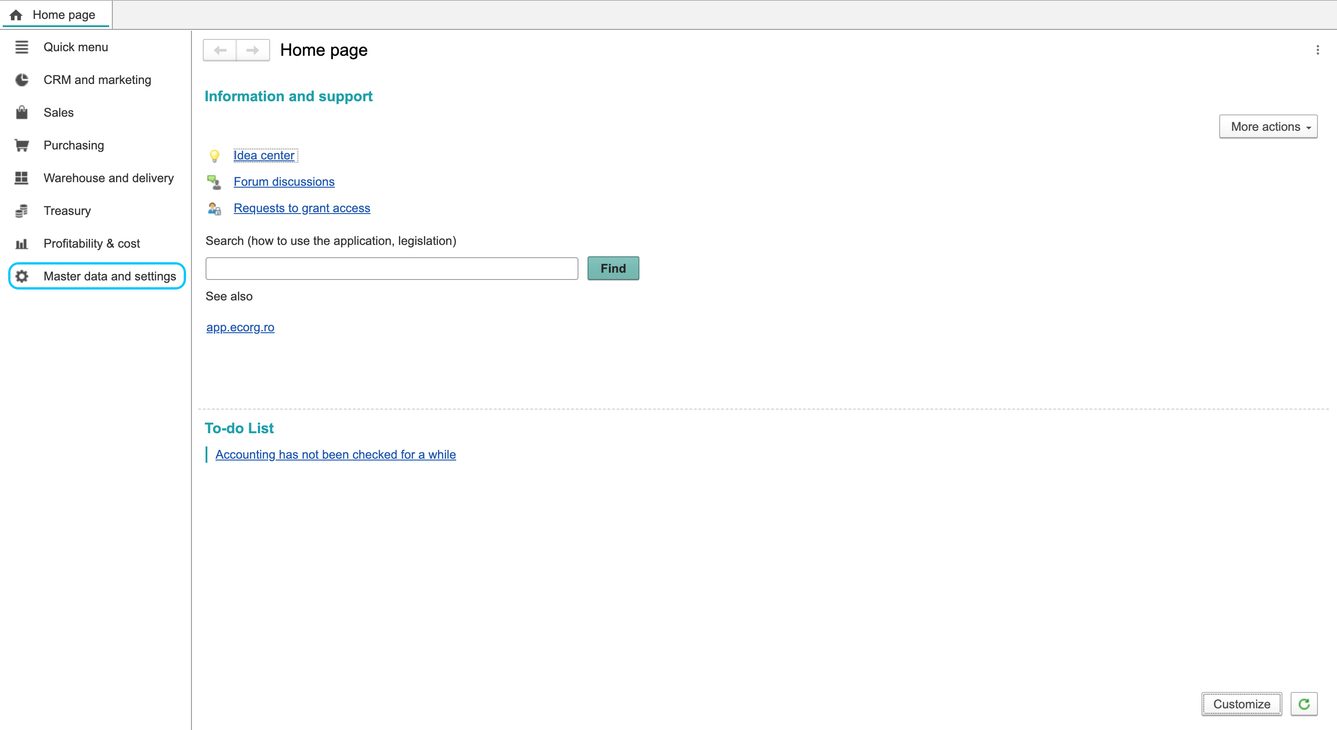
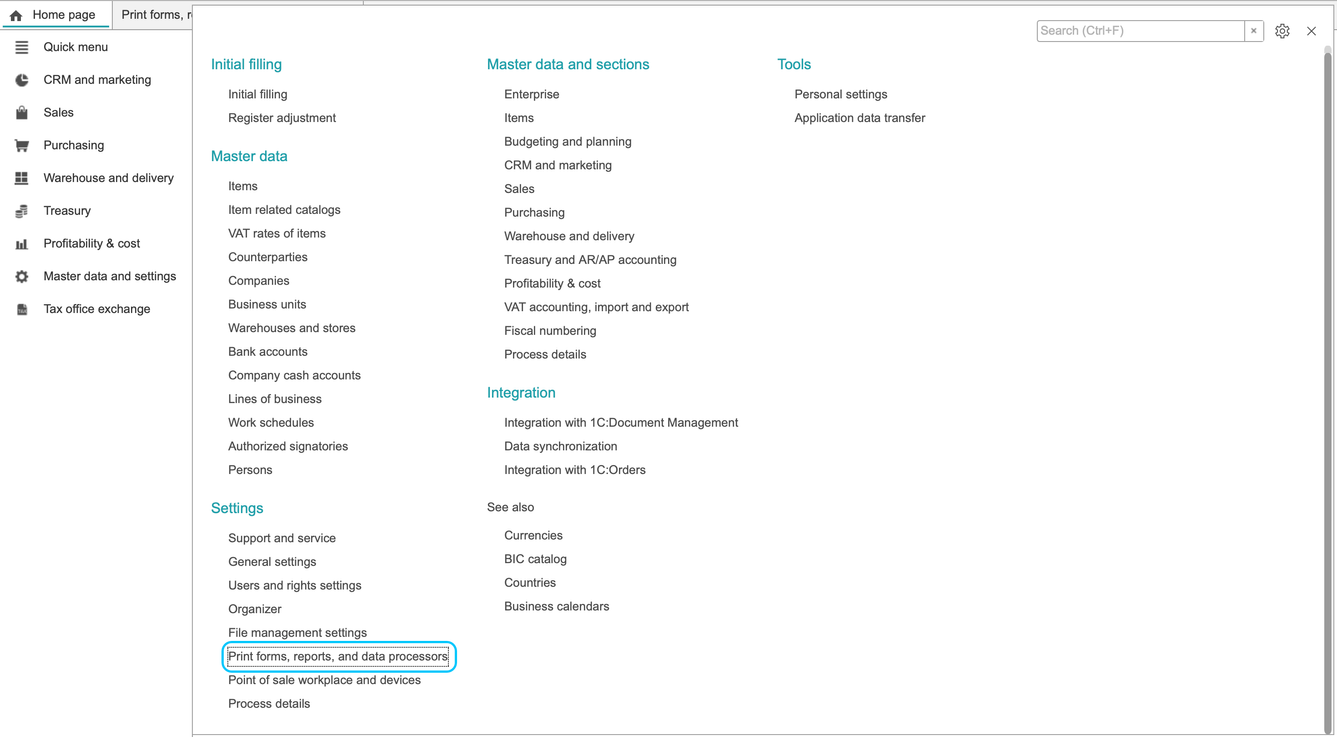
- Open Master data and settings > Print forms, reports, and data processors.
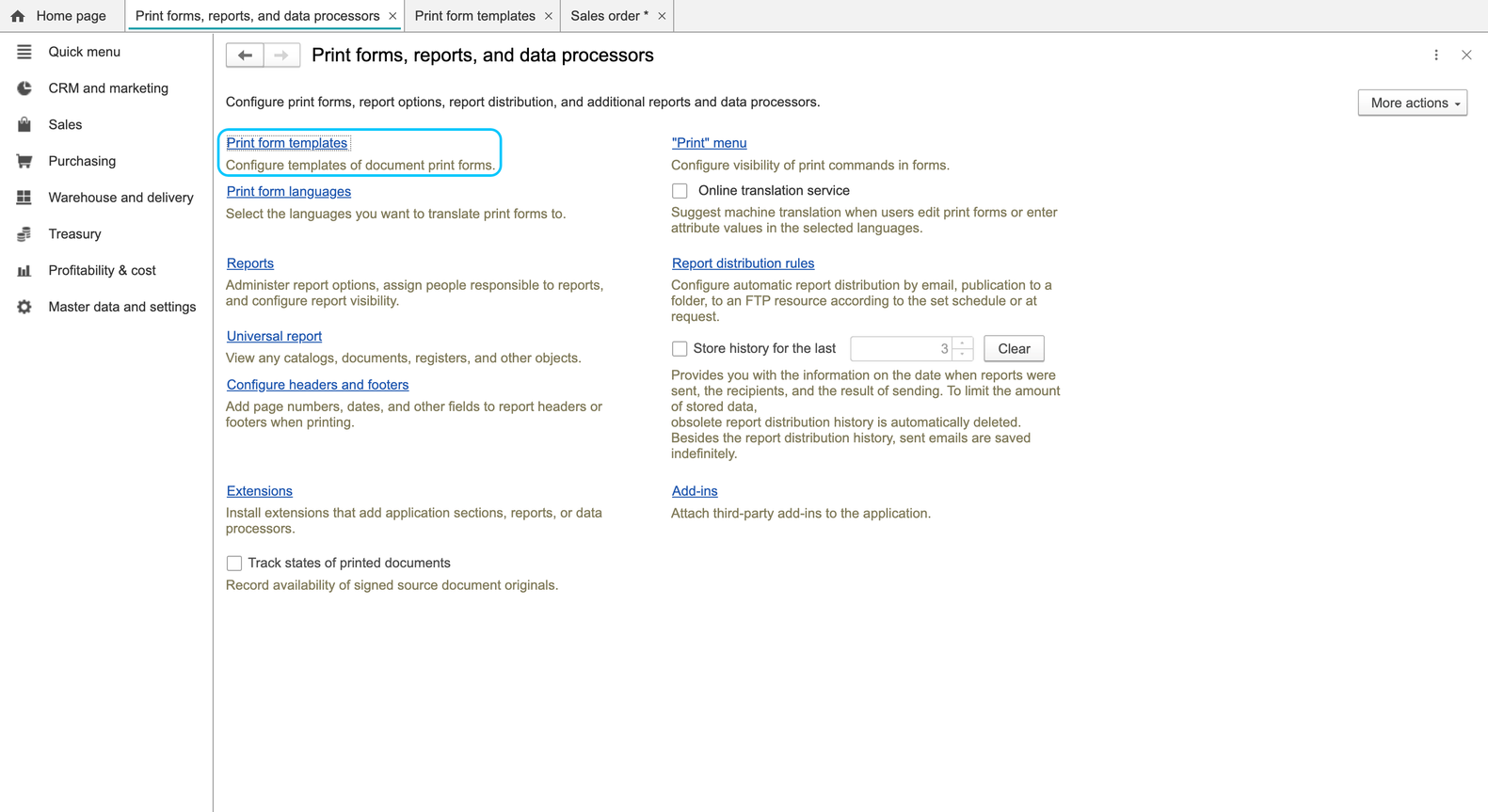
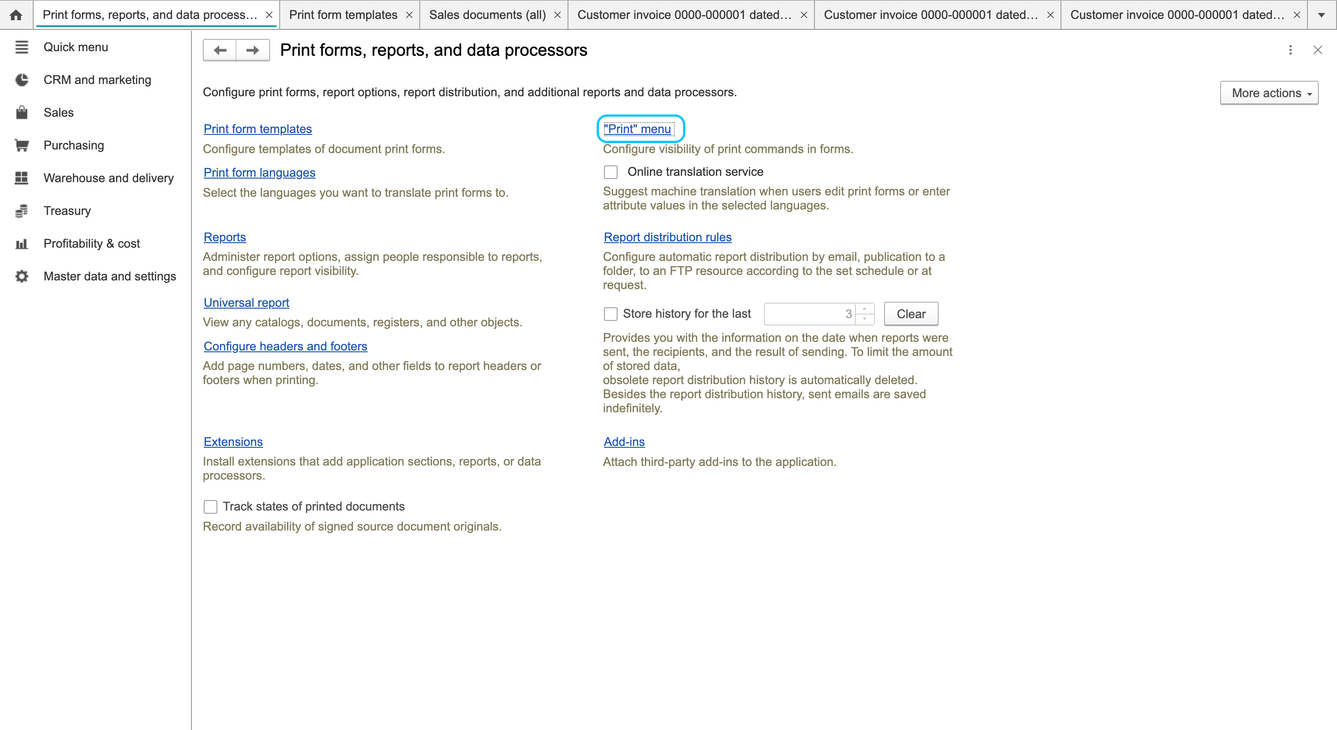
- Open the template-catalog link. If localization issues obscure the link or catalog title, use the template controls below to confirm the destination; garbled captions are not template names.
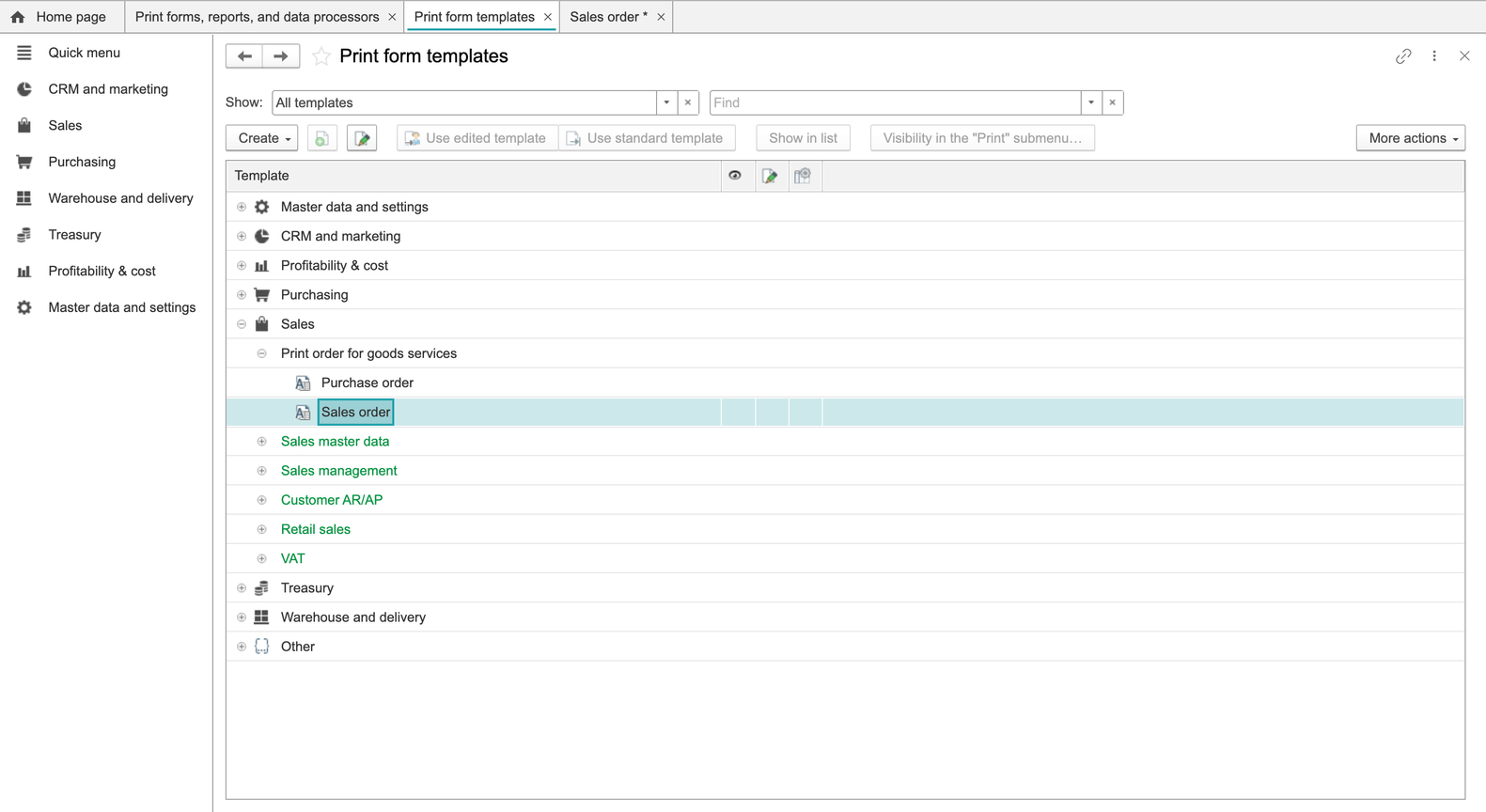
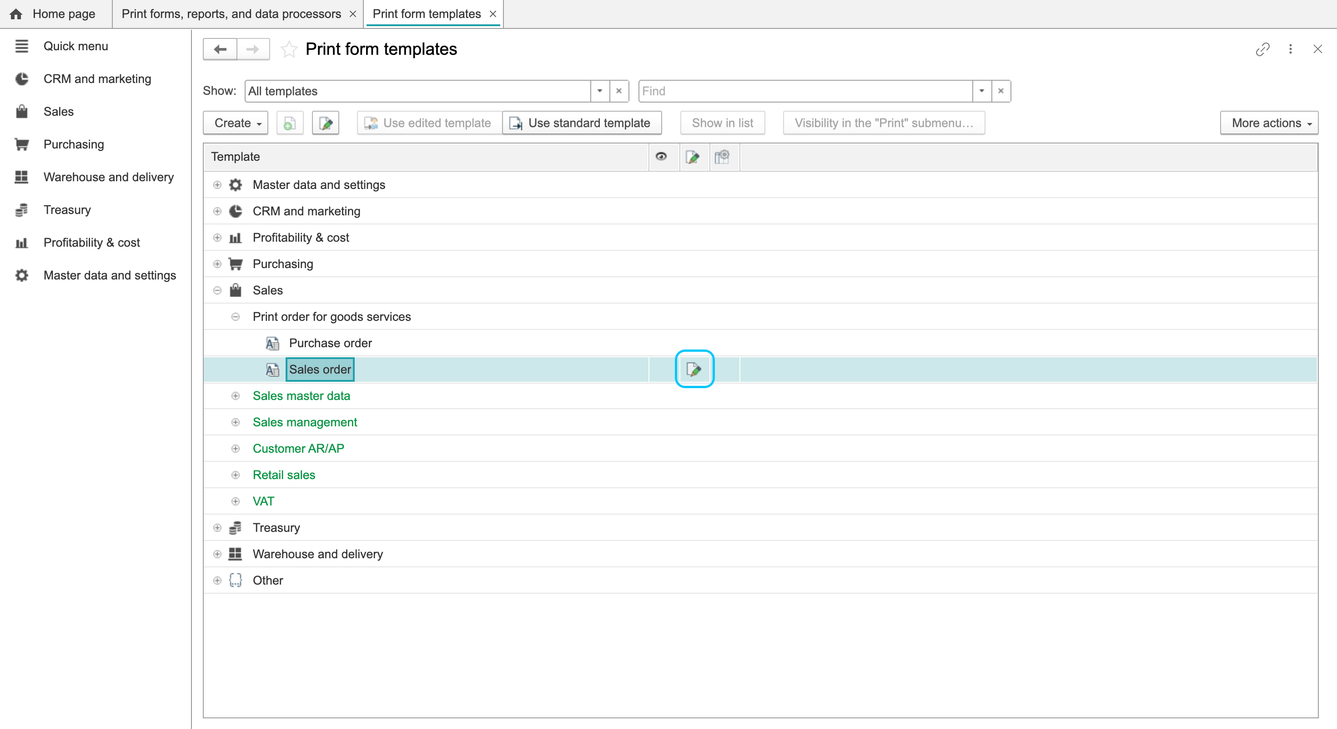
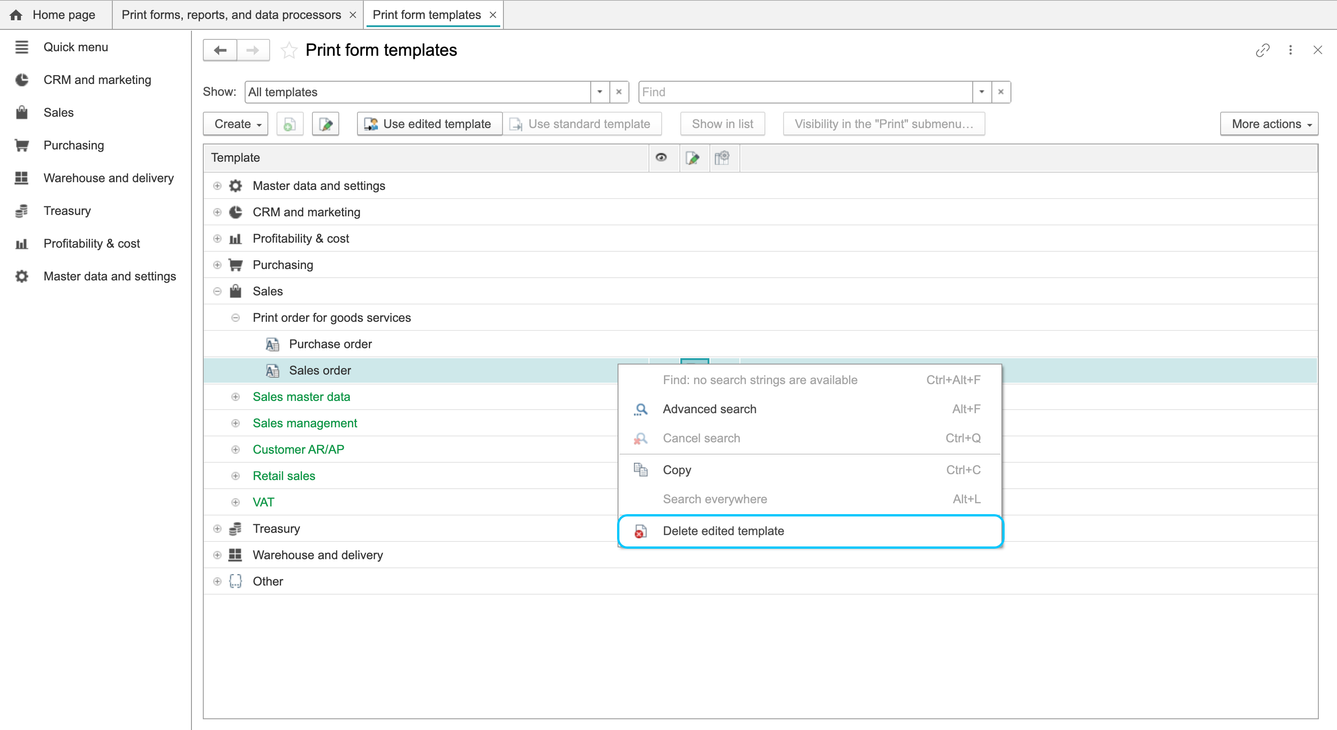
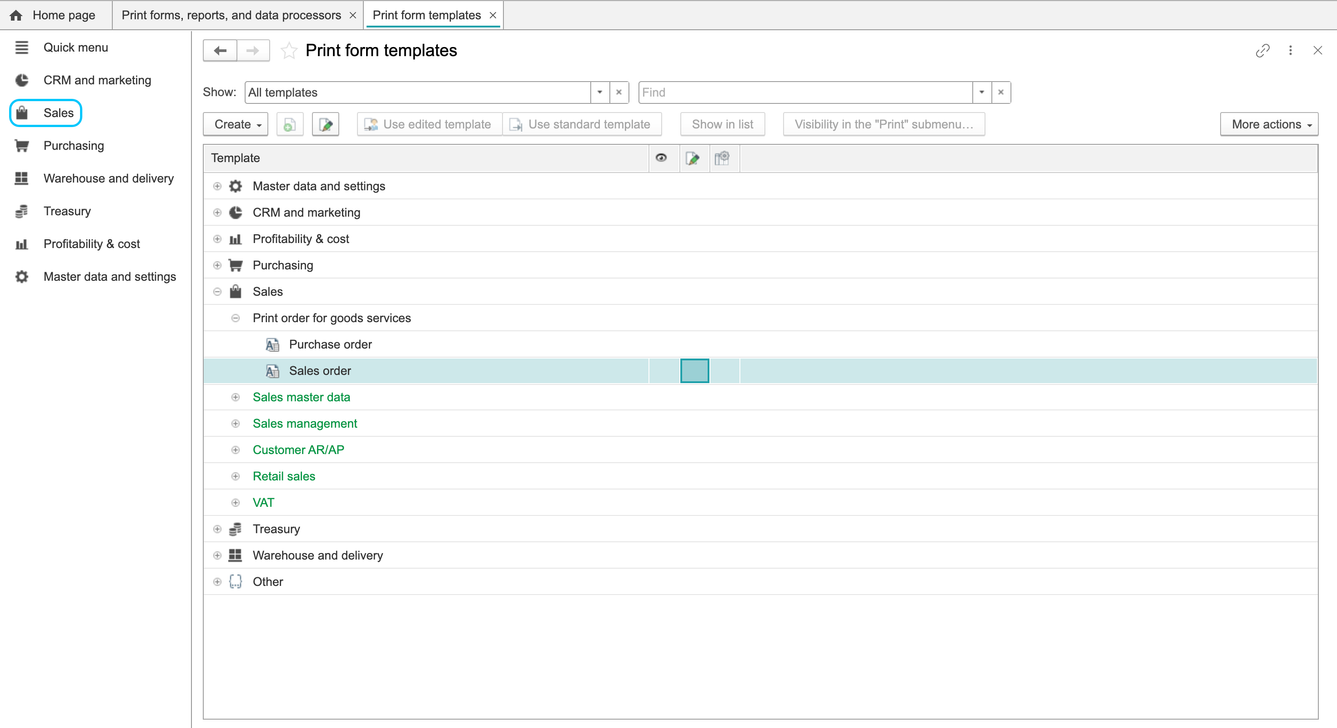
- In the catalog, use By subsystem or By object, Mode > All templates, and search to find the relevant document, such as Sales order.
- Check the selected document and template before using a command.
Reusable template changes
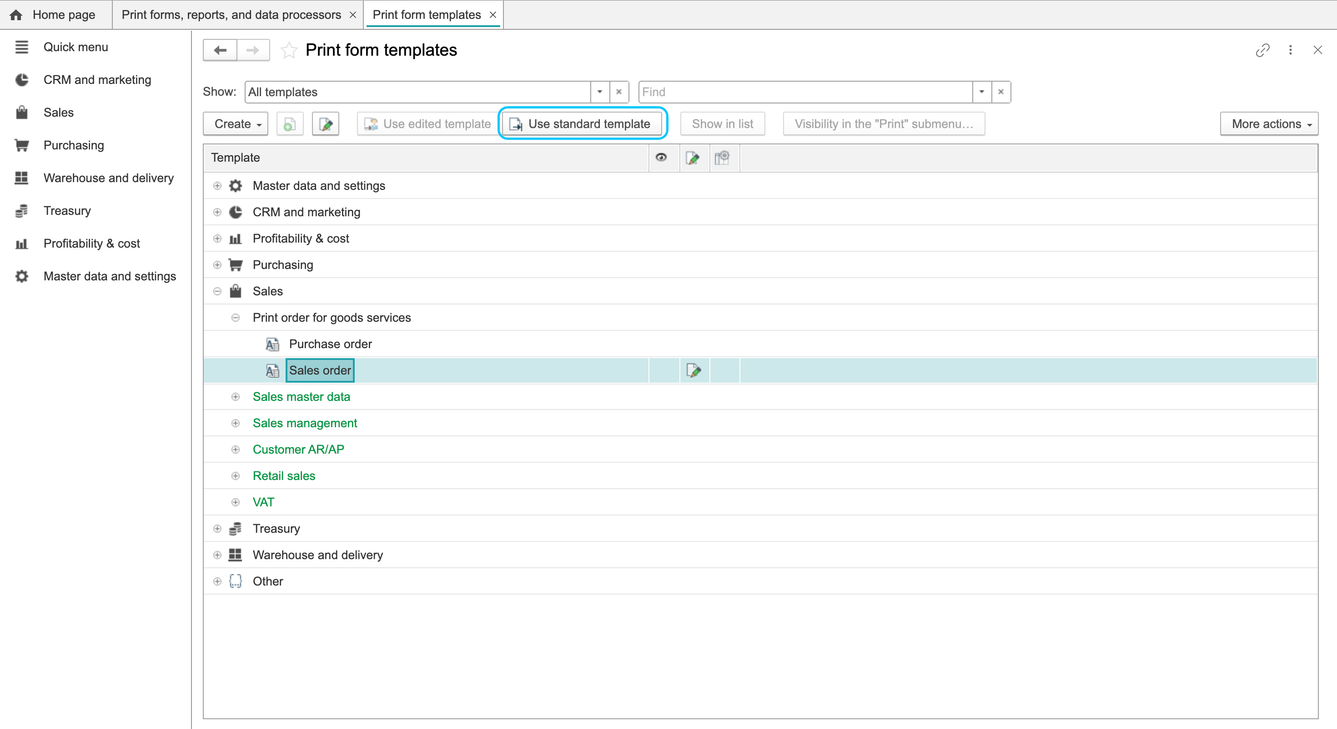
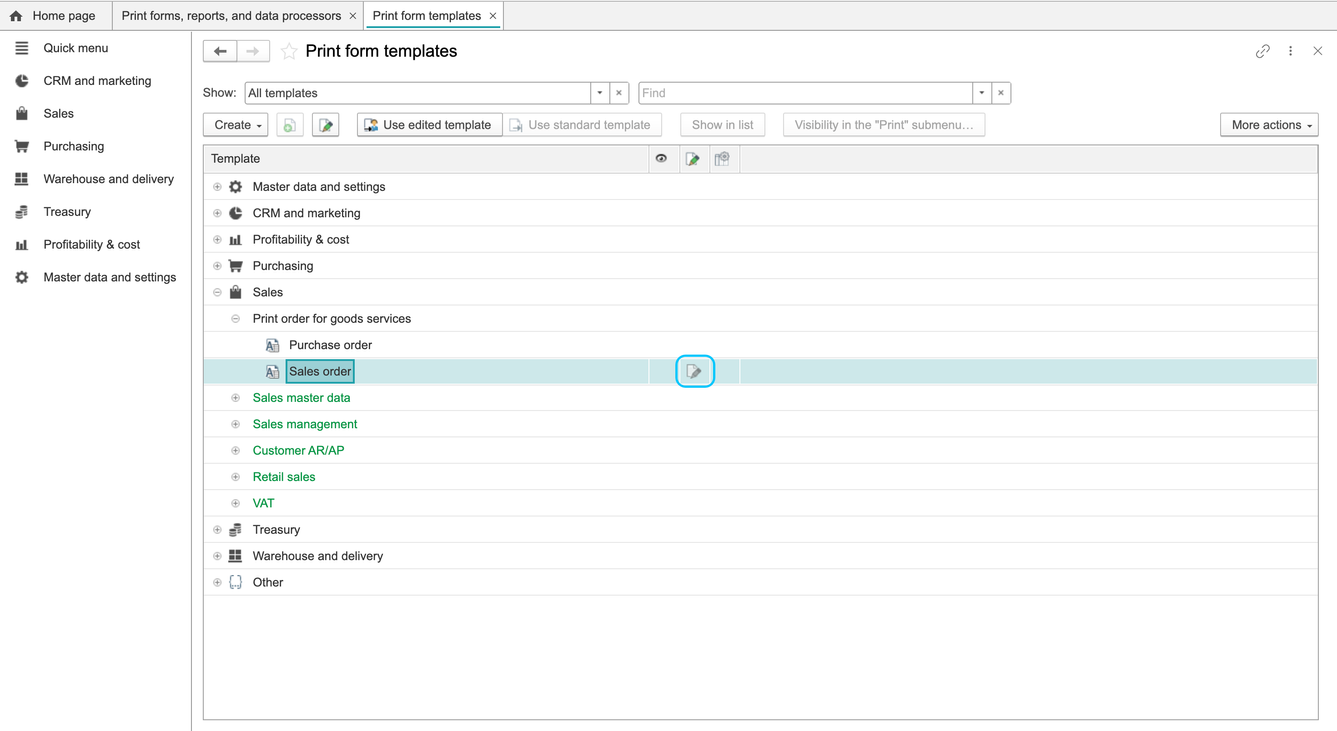
The catalog offers Create, Use edited template, Use standard template and Visibility in the Print submenu. If an edited version exists, use the appropriate edited/standard command to choose which version is used.
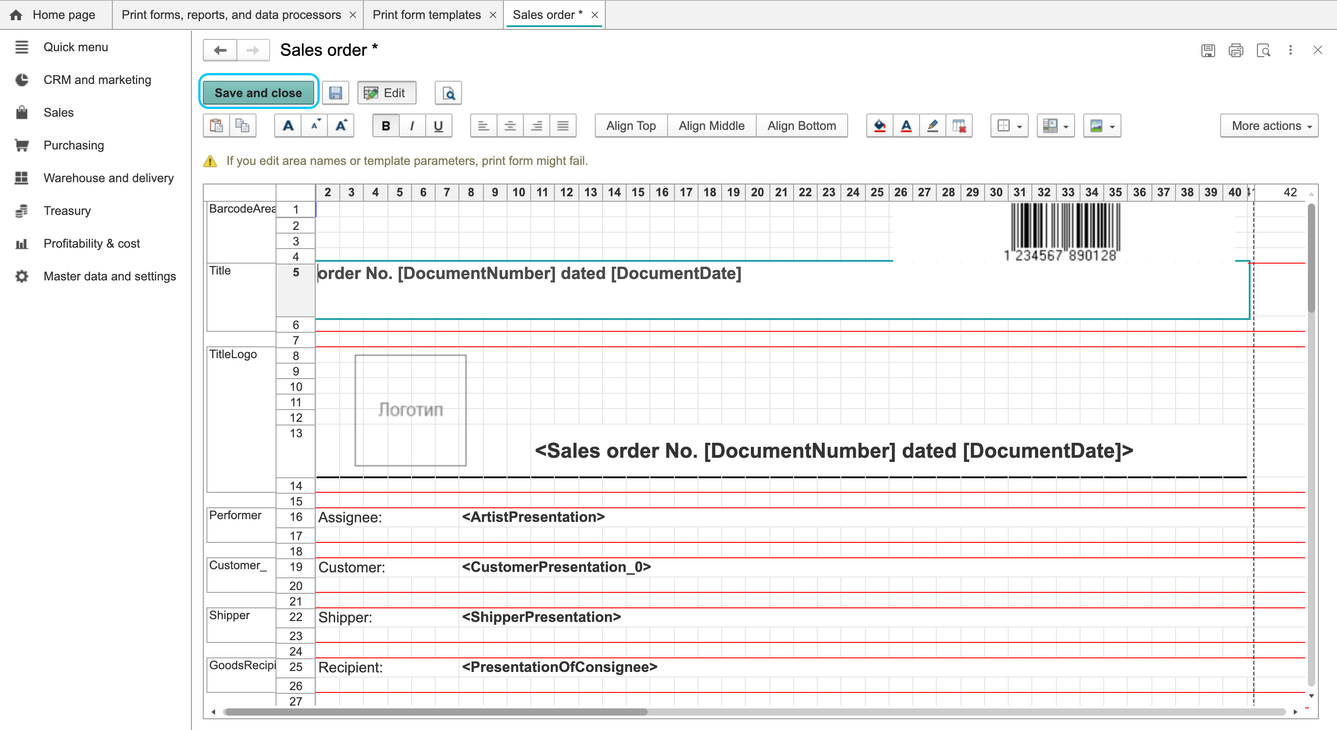
Template-editor availability depends on your permissions and client. If the client opens a supported template editor, make the intended changes and save through that editor. If opening the item only returns to the catalog or does not provide an editor, use a supported client or ask the administrator to check access; editing one generated output is not a substitute for saving a template.
After a template change, generate a new printout from another document of the same type. Compare its layout with the expected result and check which template version is selected. Reopening the output you edited is not enough to verify reuse.
Edit only the current output
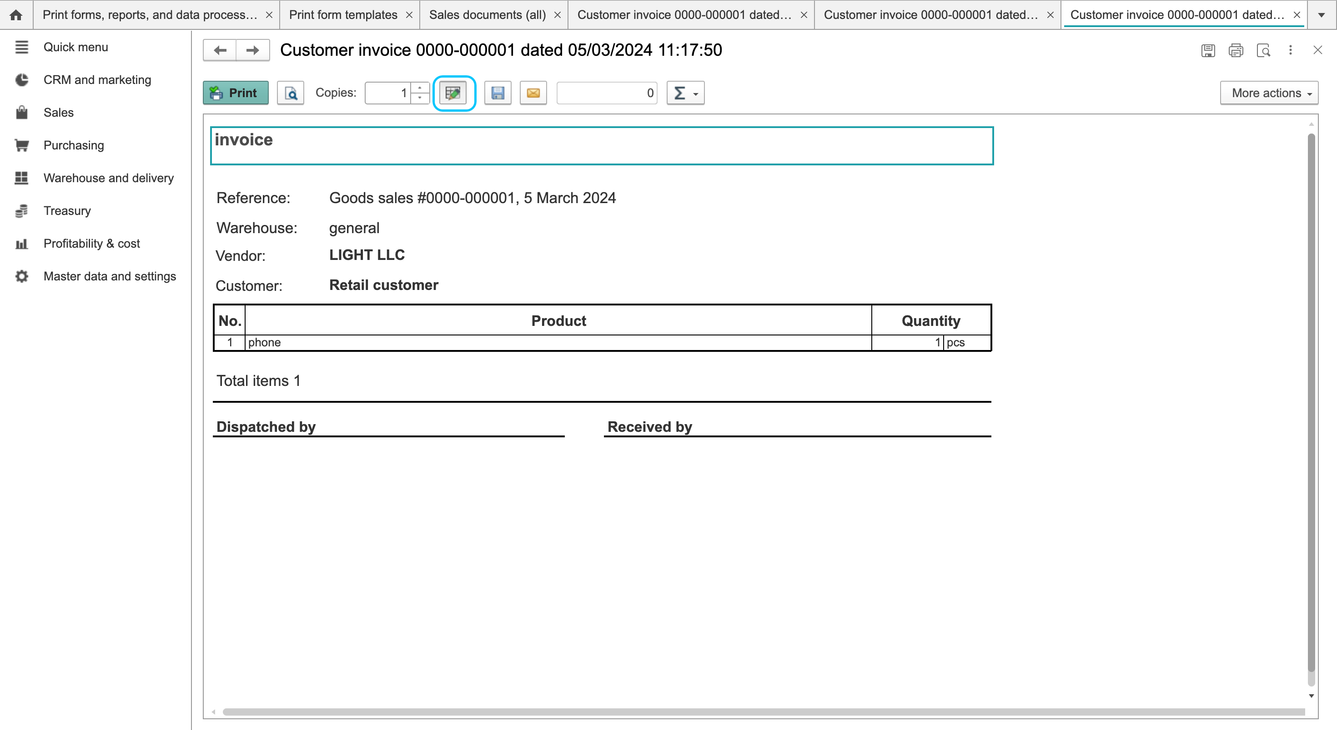
If the generated print form provides Allow/Forbid print form editing, use it for changes to that output. Treat the result as a document-specific change unless you separately save and verify a reusable template through the template workflow.
Set Print-menu visibility
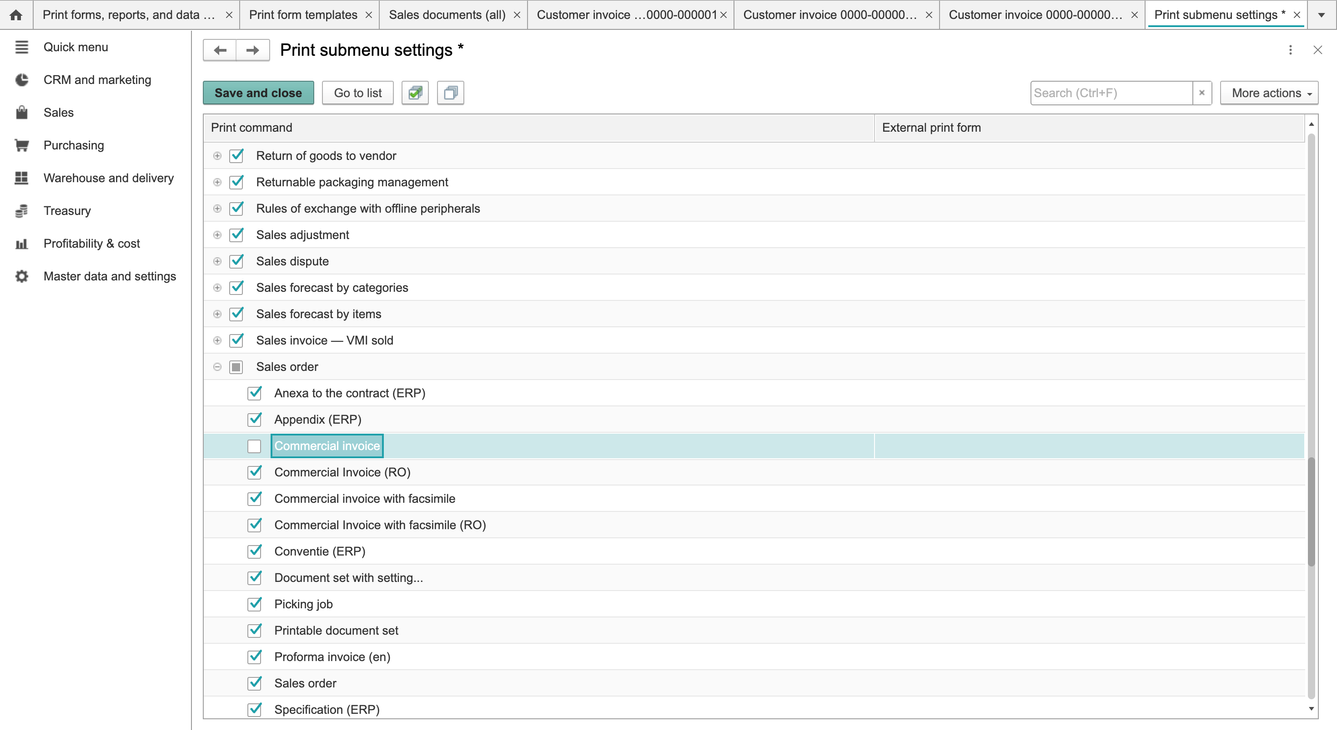
- Return to Print forms, reports, and data processors and open Print menu.
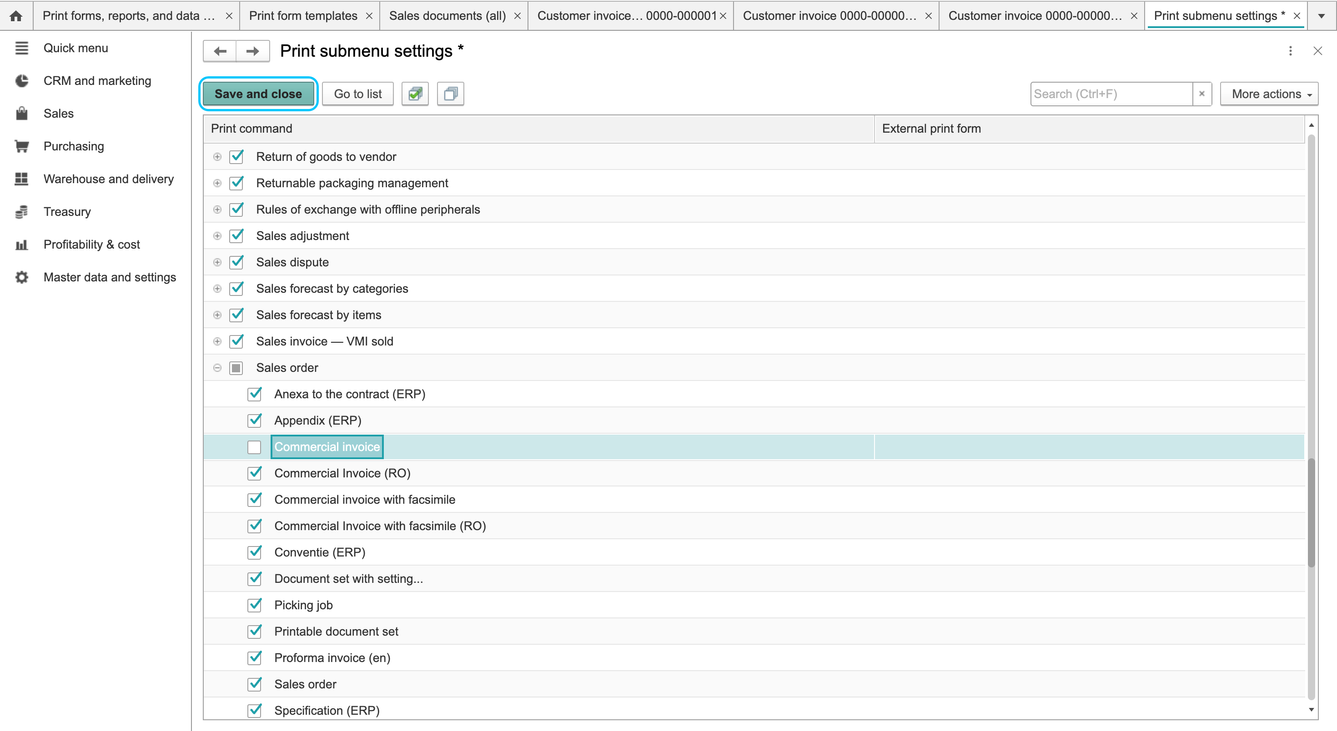
- In Print submenu settings, search the document tree and select the intended print command.
- Adjust visibility according to the commands your users need, then choose Save and close.
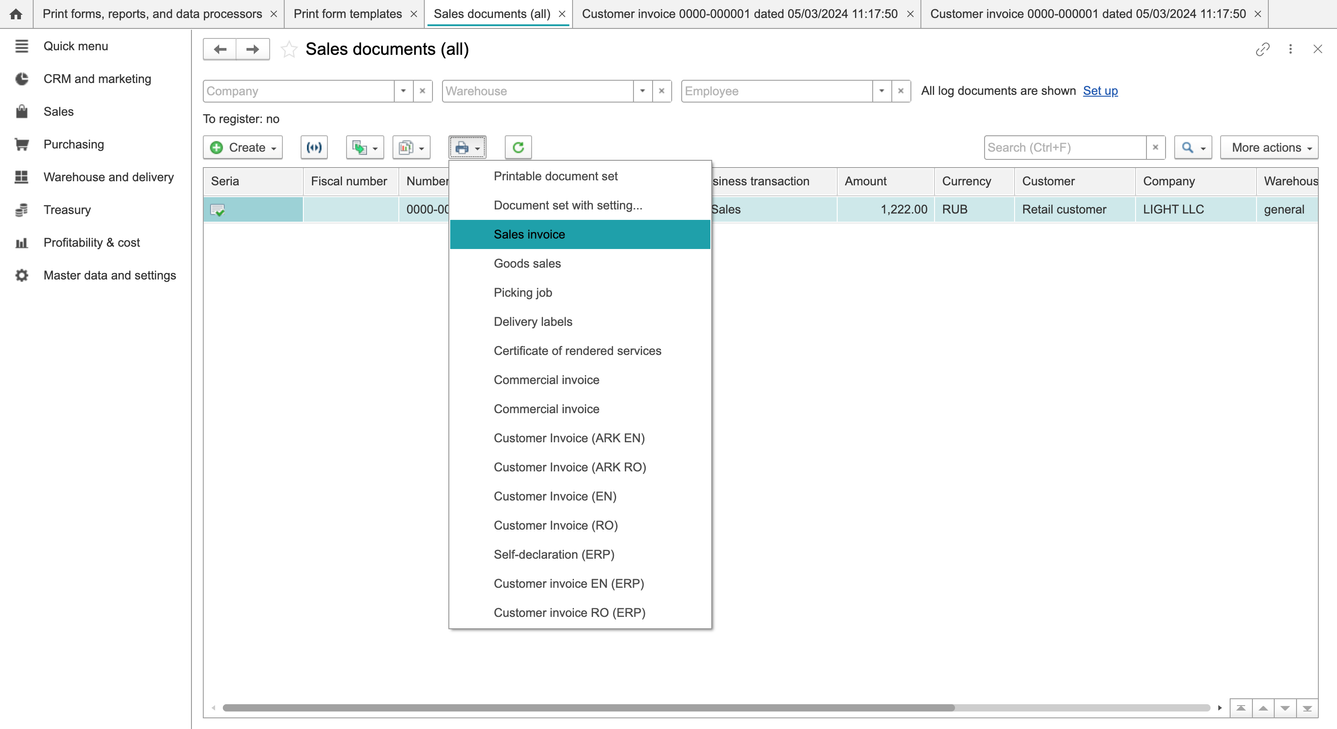
- Open the document's Print menu again and check the command. Preview a newly generated document to confirm that the intended layout is still selected.
If a command or editor is missing
Check the selected object, template version, menu visibility, permissions and client support. Distinguish a hidden menu command from an unavailable editor before changing the template.
Compare new output after each layout or visibility change, including document headings, parties, item quantities, totals and page layout.
Earlier interface illustrations
Earlier illustrations include template screens and editing a generated output. They are an archive, not proof that the current browser saved a reusable template; use the separate workflows above.