Creating Companies, Business units, and Warehouses
The video below is retained from an earlier interface. Follow the written steps for the current workflow; the video is not confirmation of current field requirements or tax rules.
Review the company's legal details separately from its departments and stock locations. In the checked single-company setup, the existing company card was inspected; a business unit and a wholesale warehouse were created and saved.
Review the company
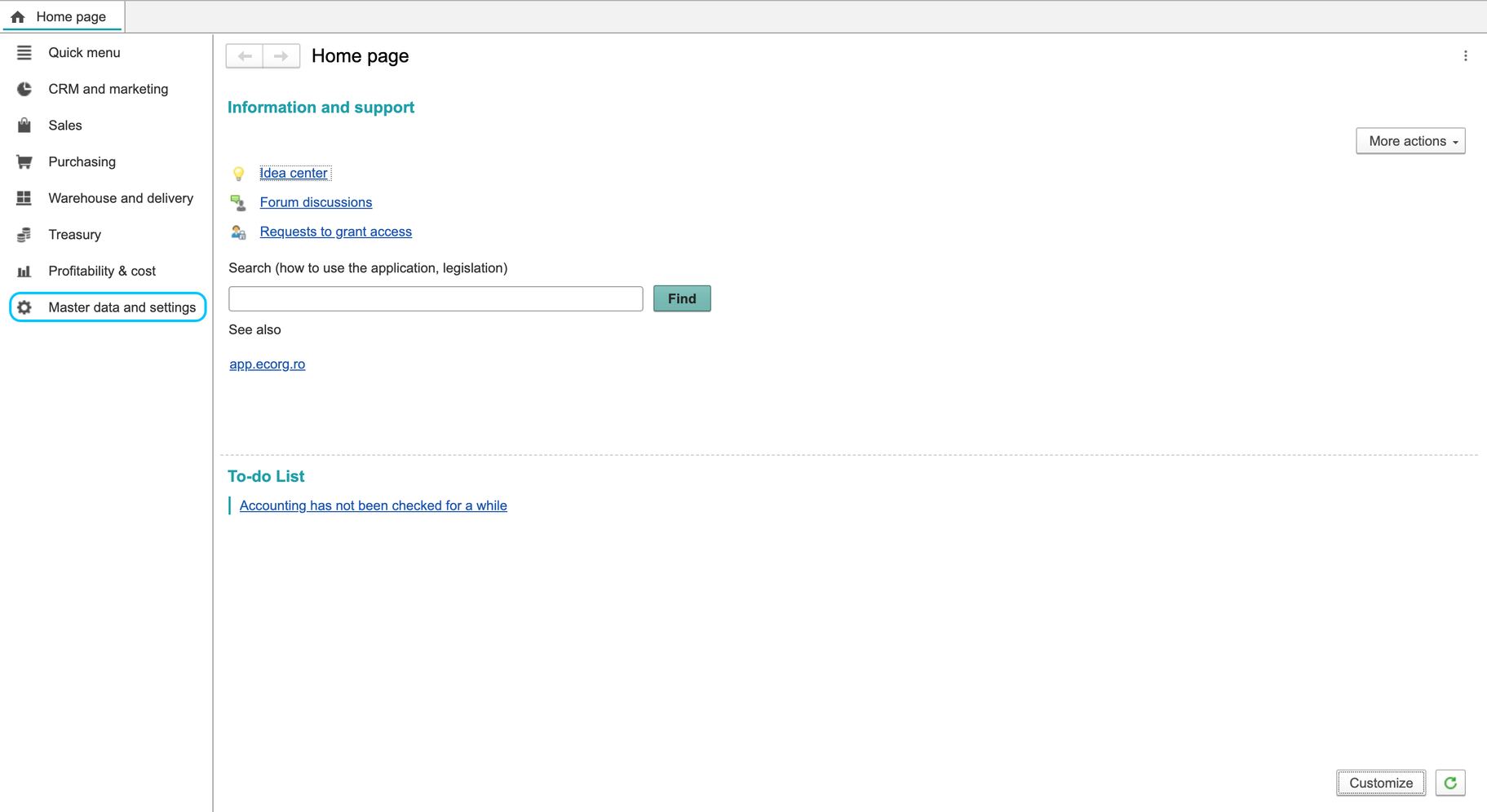
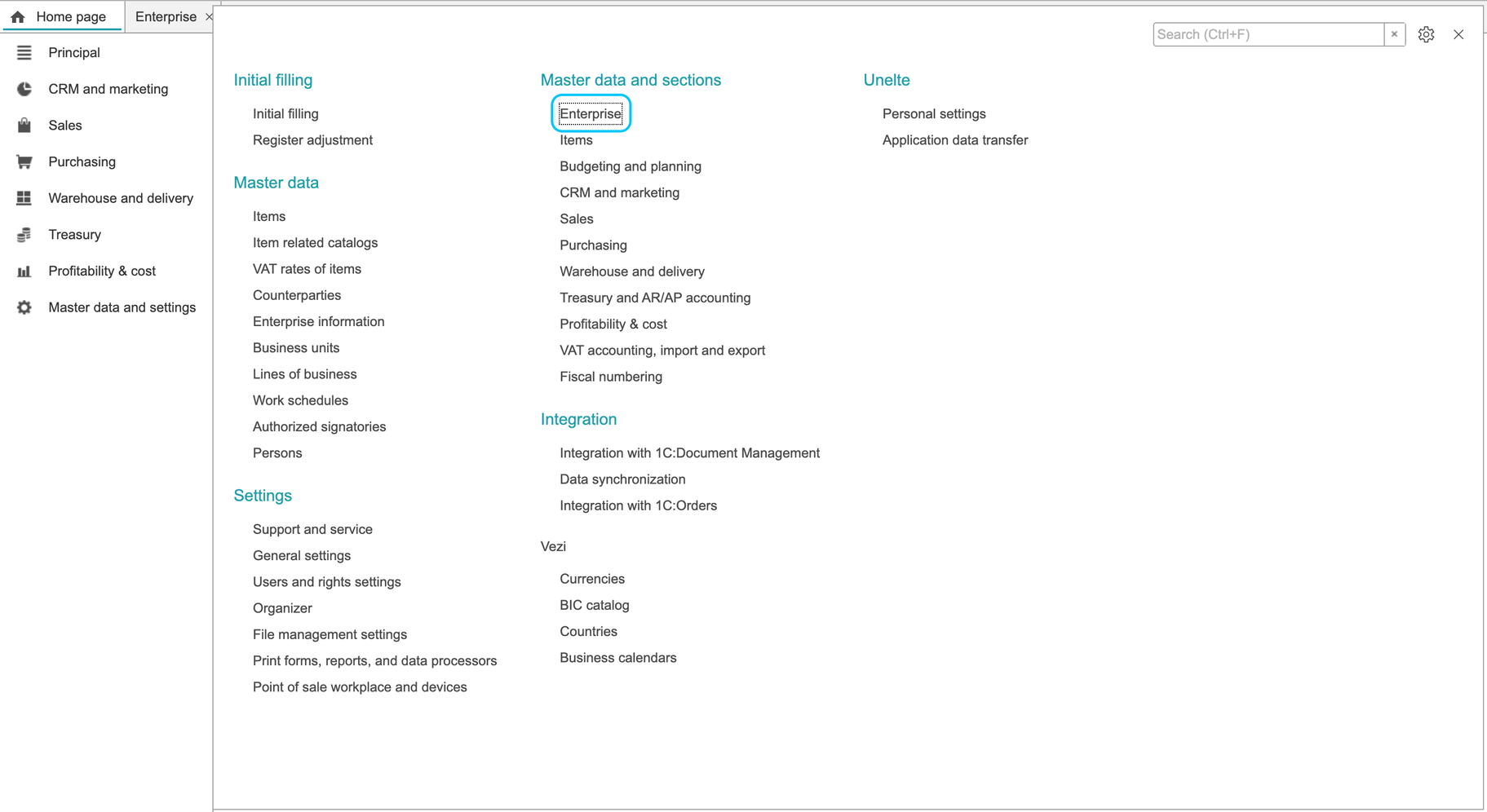
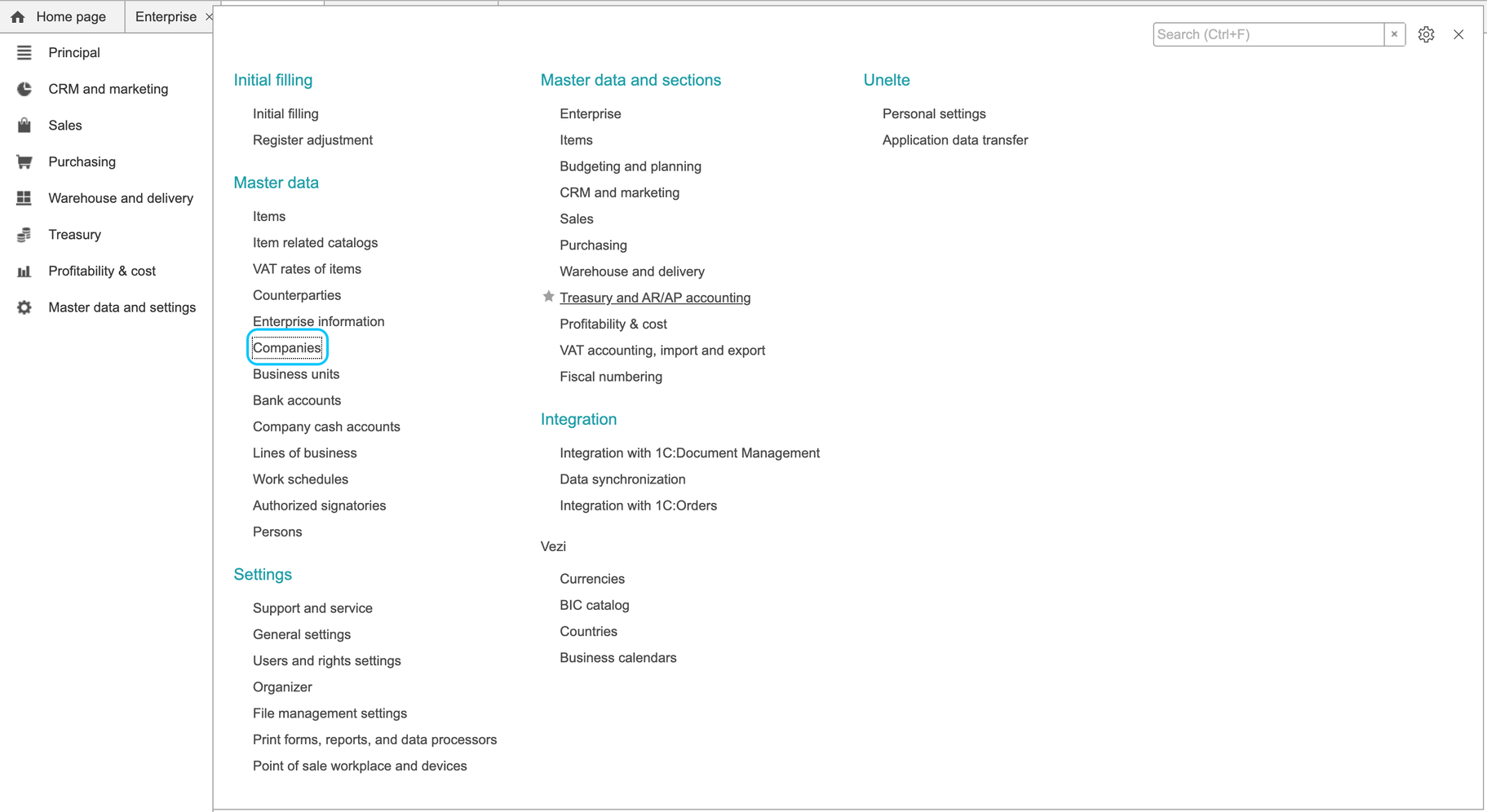
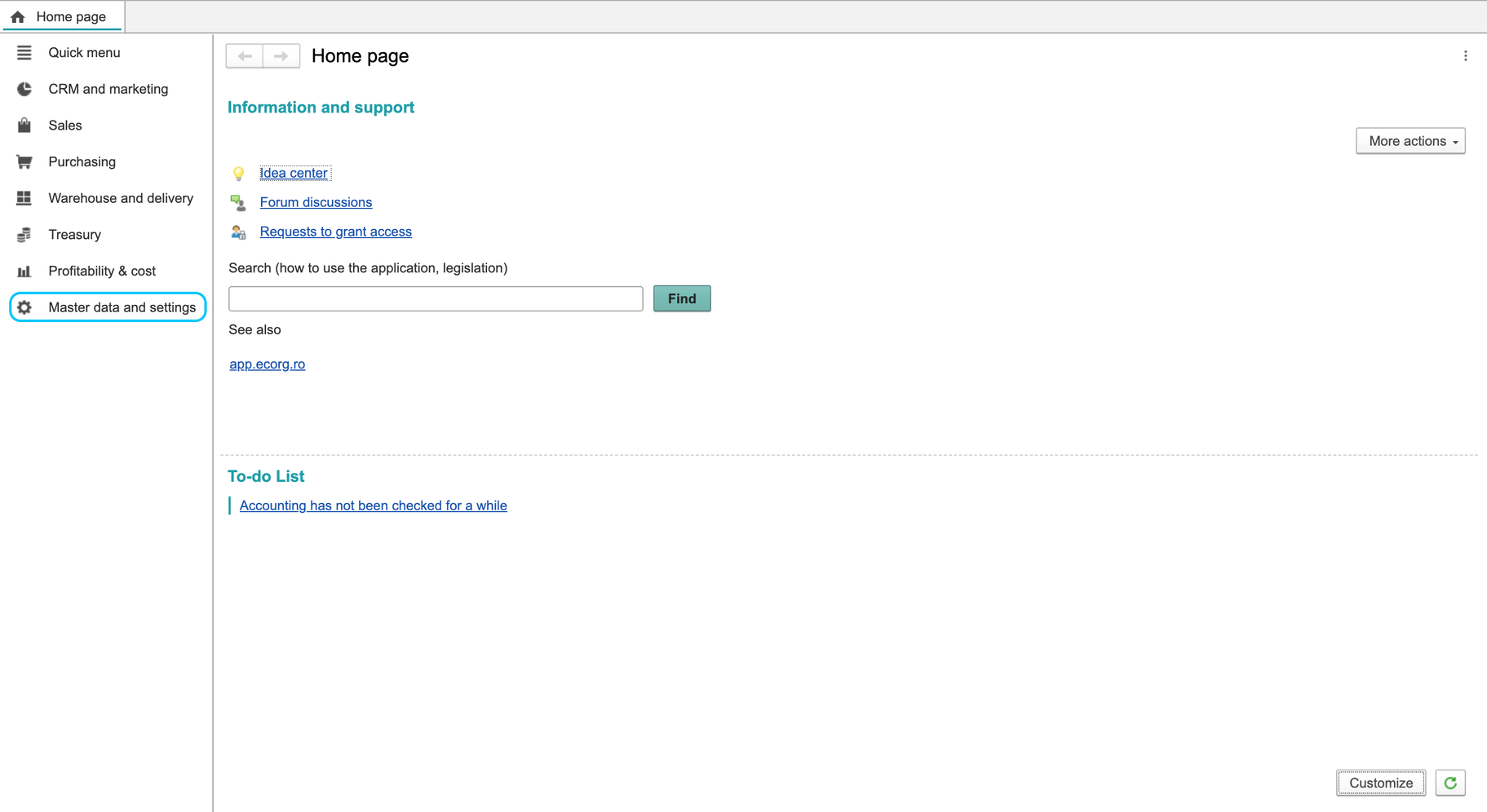
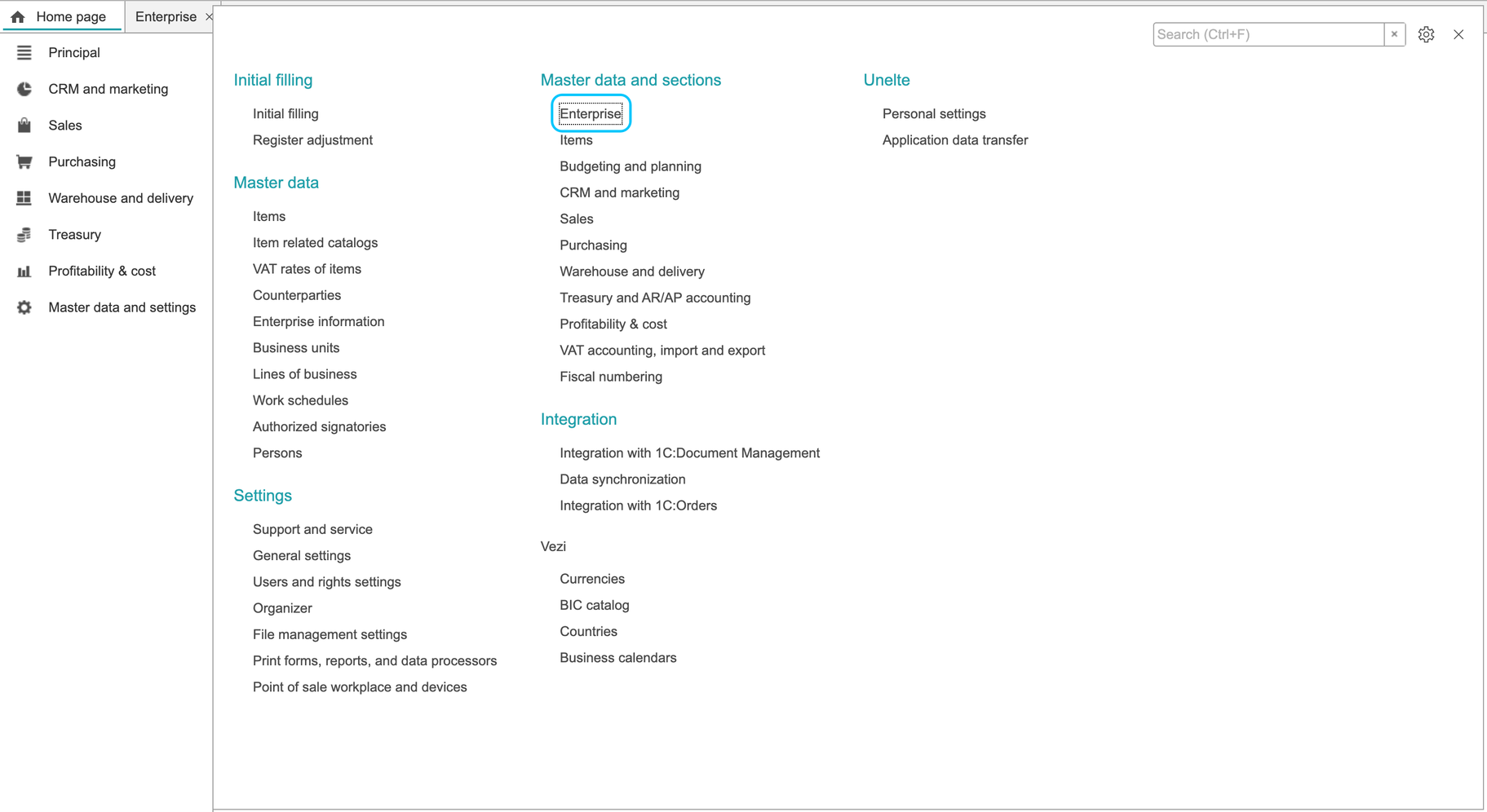
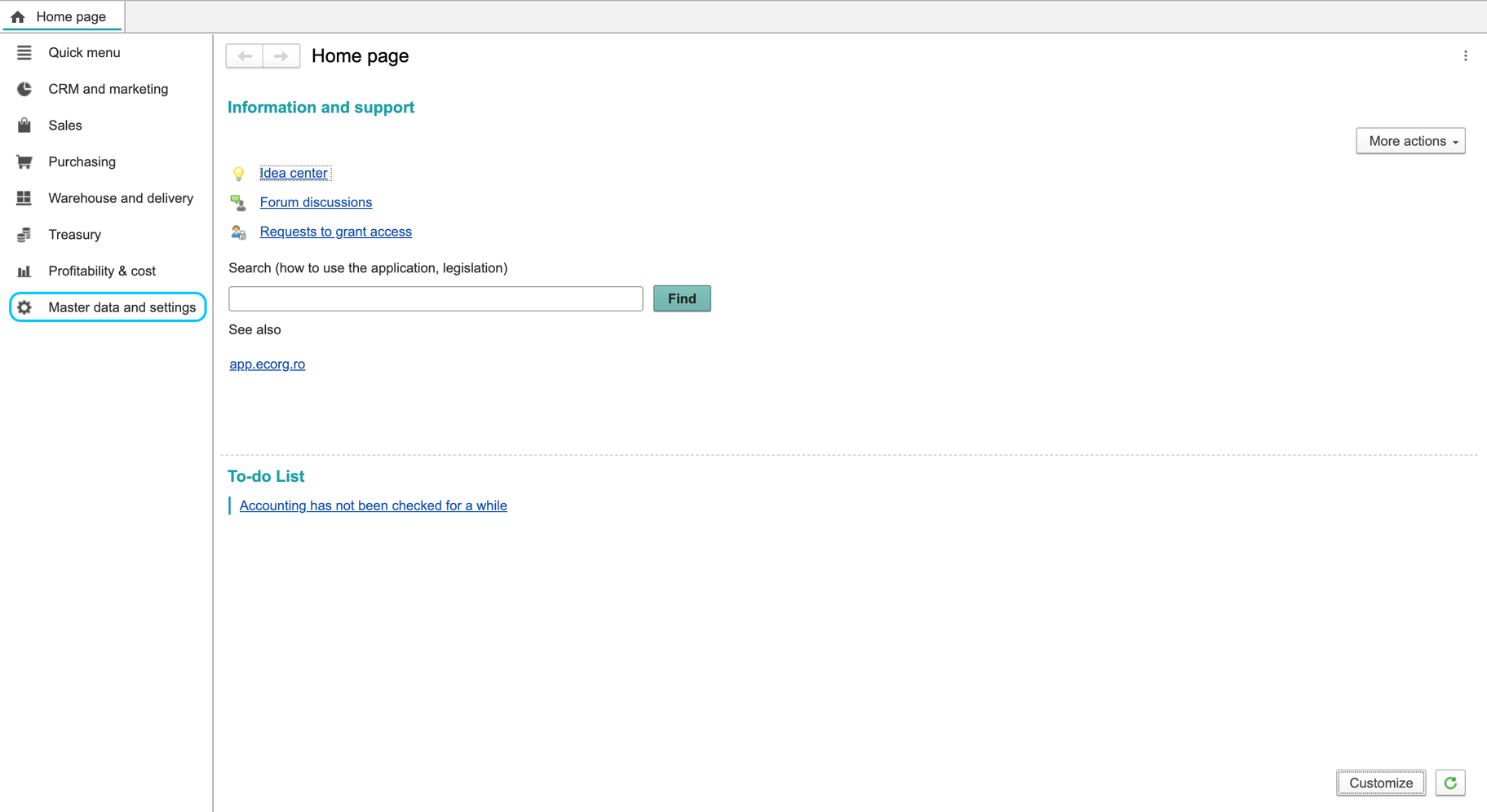
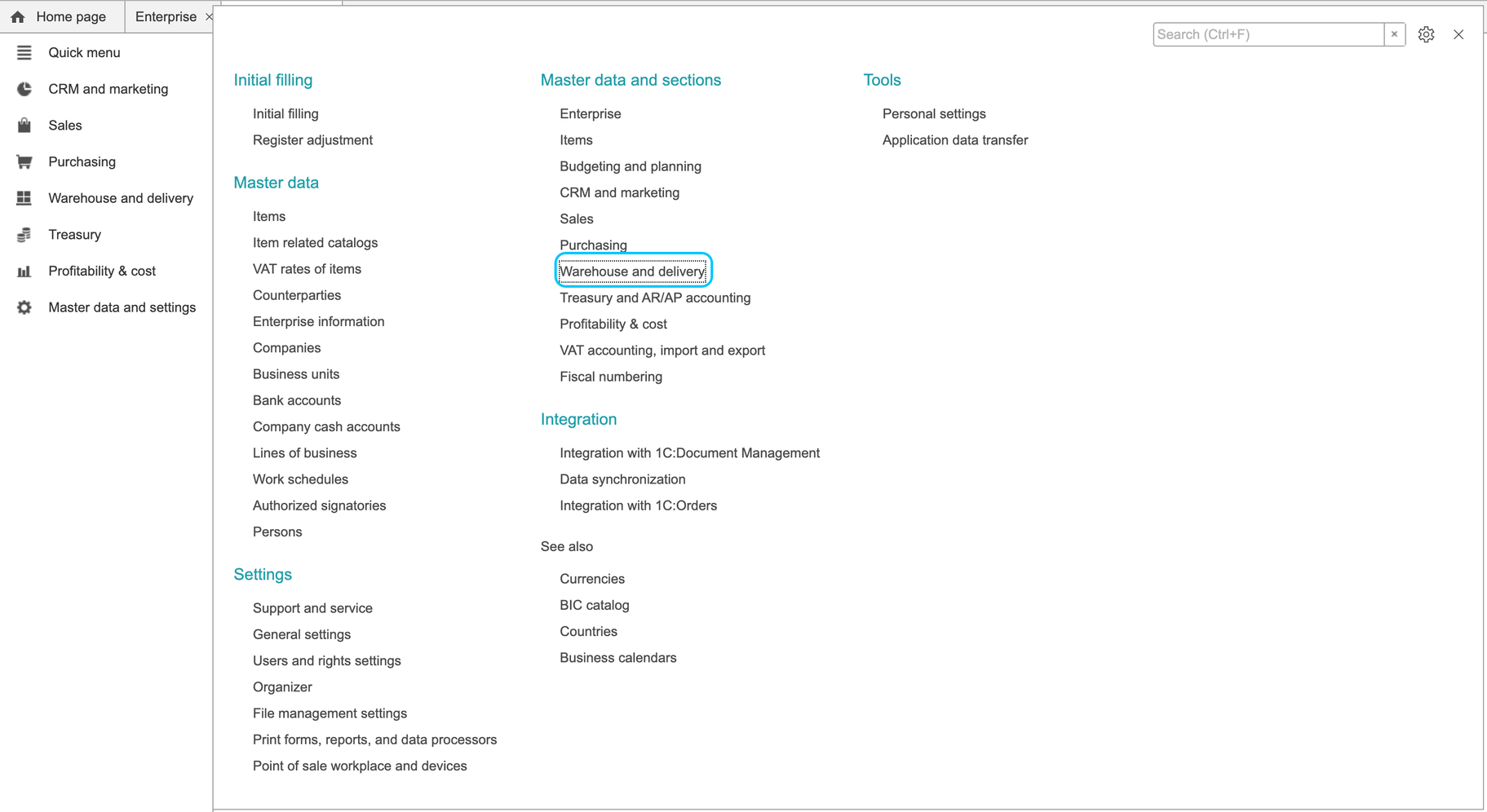
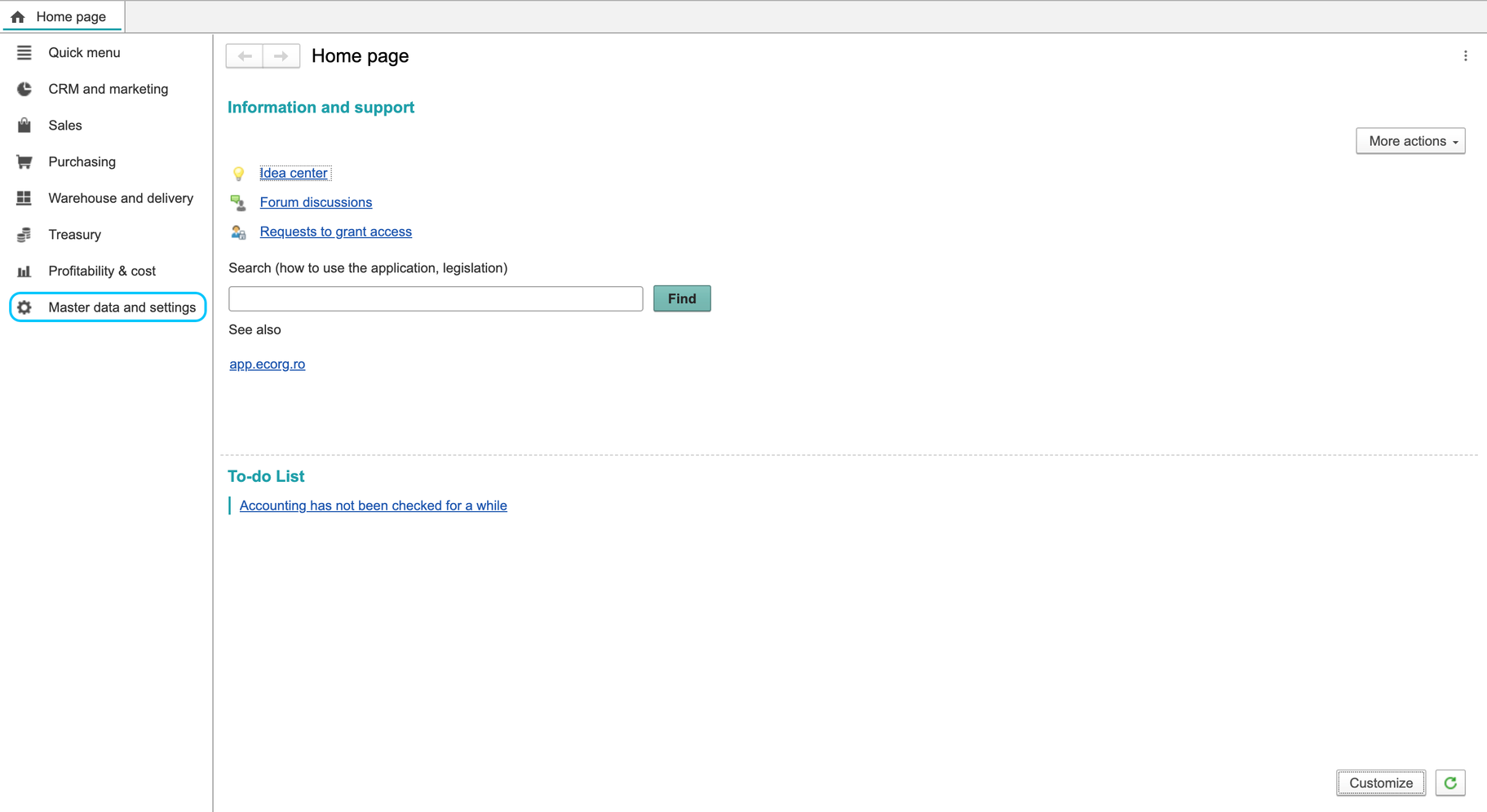
- Open Master data and settings > Enterprise information > Company information.
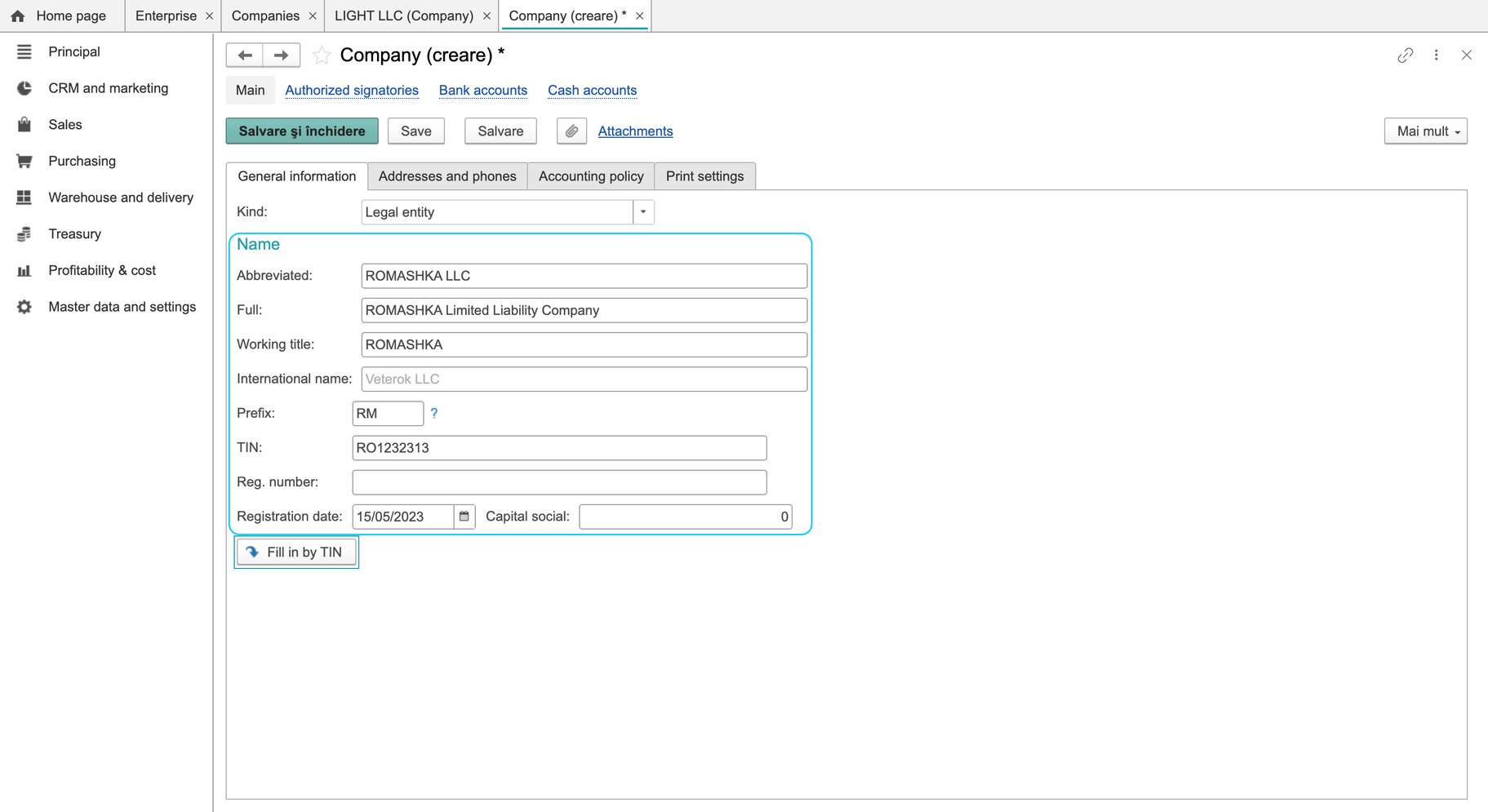
- Review the existing company card: company type and status, official and working names, registration details and main bank account. Use the details appropriate to your actual company. The presence of a field such as CIF or OGRN does not make it a universal registration requirement.
- On Accounting policy, review the accounting currency, inventory valuation method, financial year and VAT settings. See Setting up VAT for the current VAT-status form.
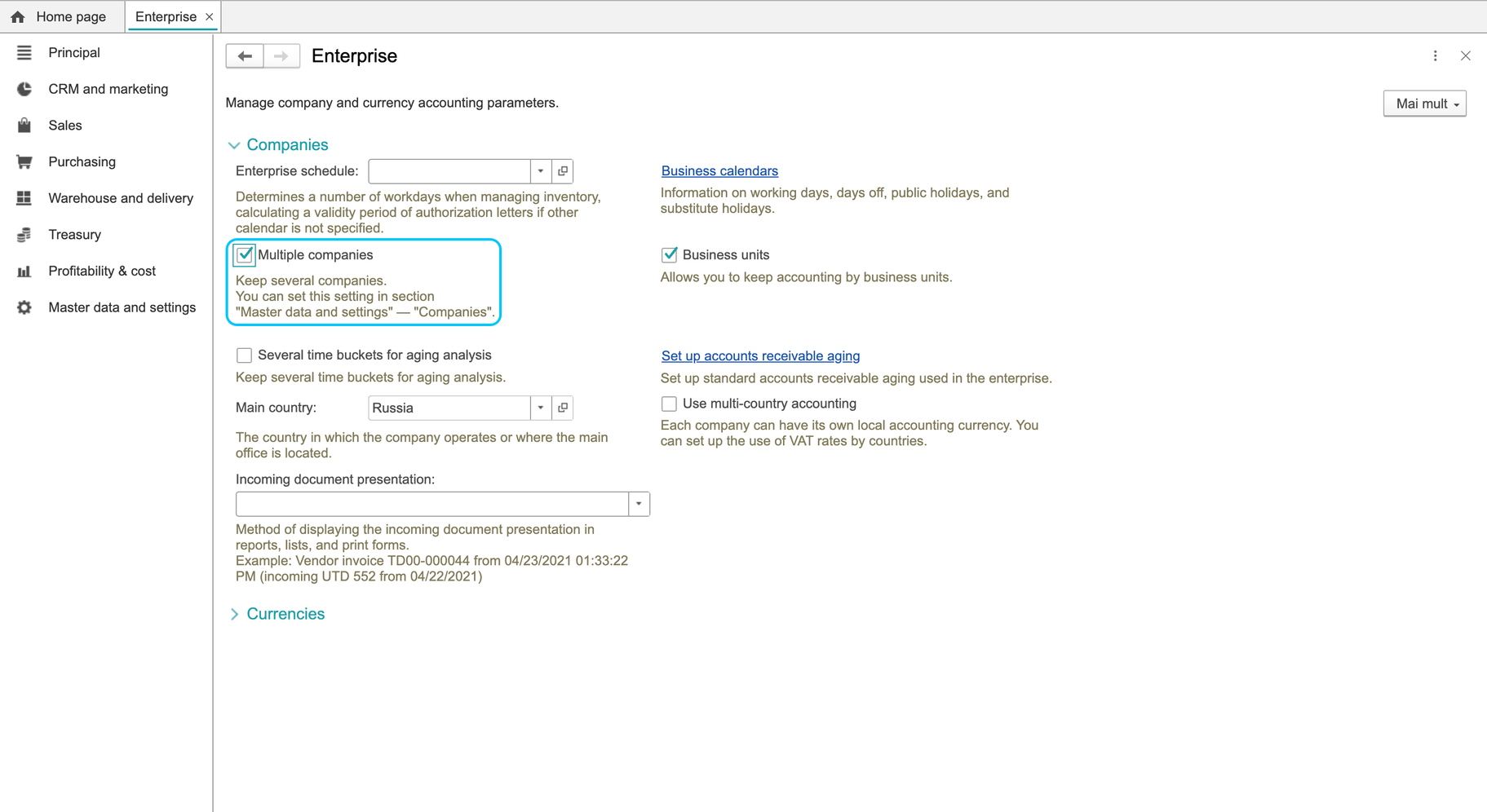
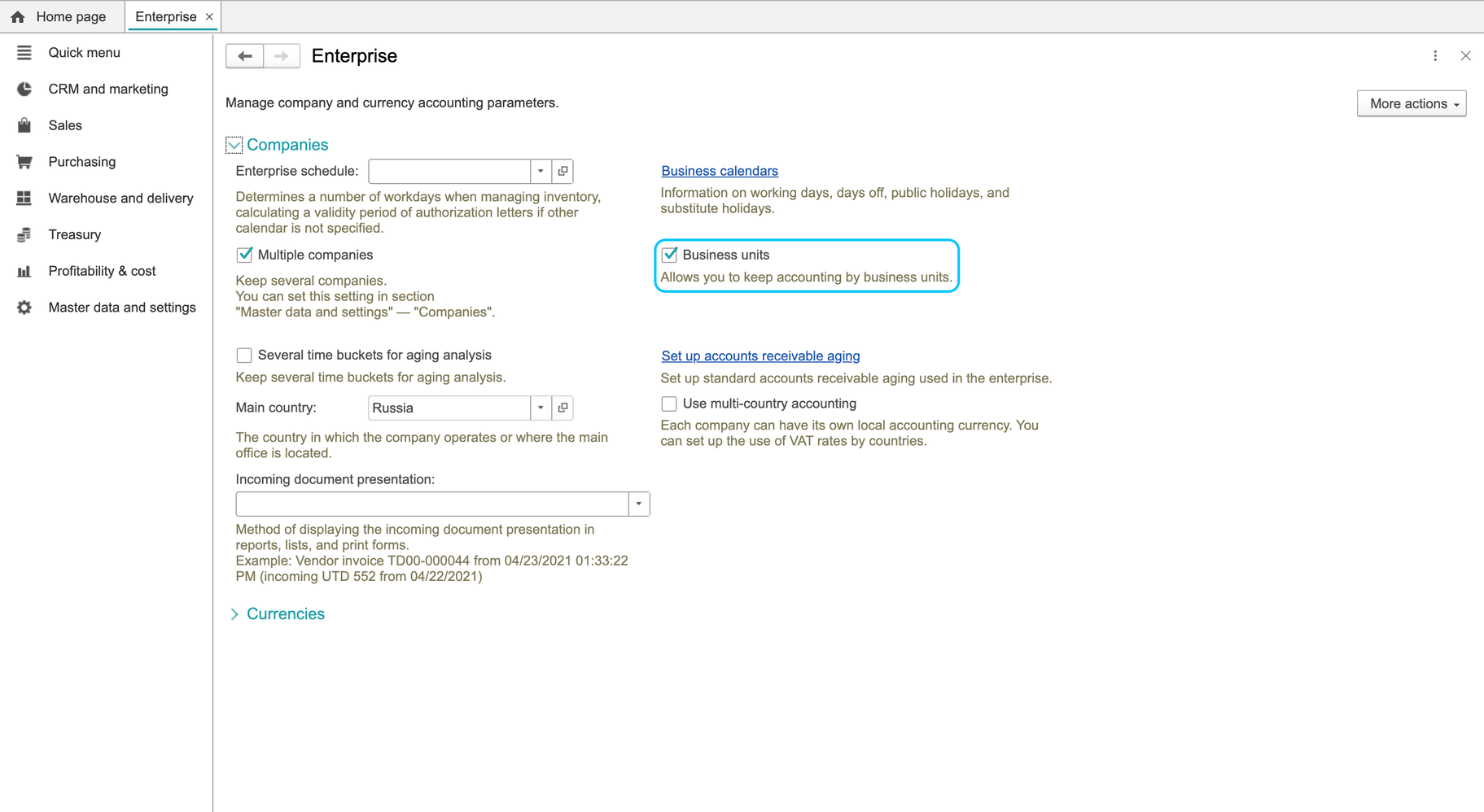
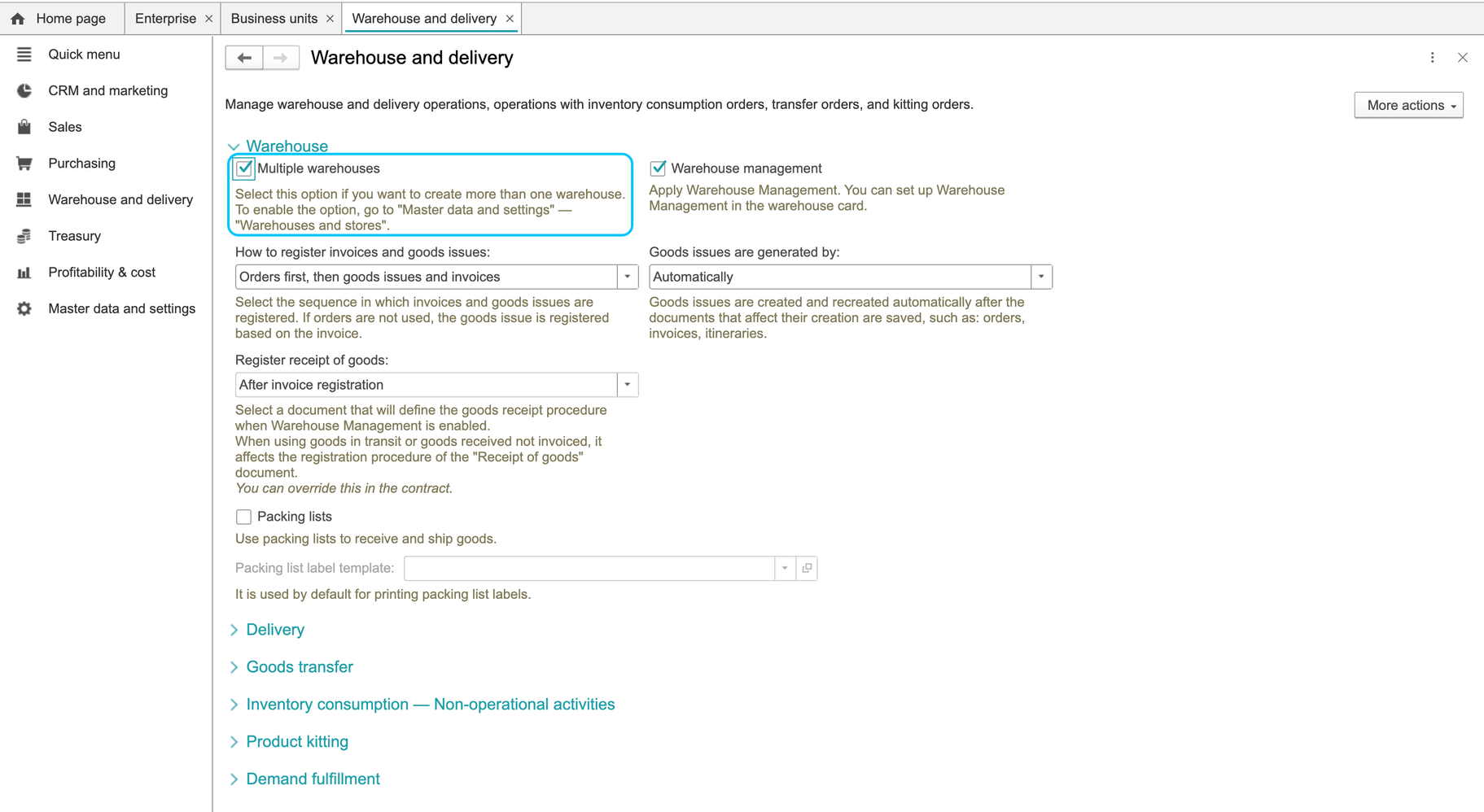
If your implementation needs several legal entities, review the Enterprise settings with the person responsible for configuration. Multiple companies is not a prerequisite for reviewing the existing company in the path above. Creating another company and changing that option were not part of the checked workflow.
Create a business unit
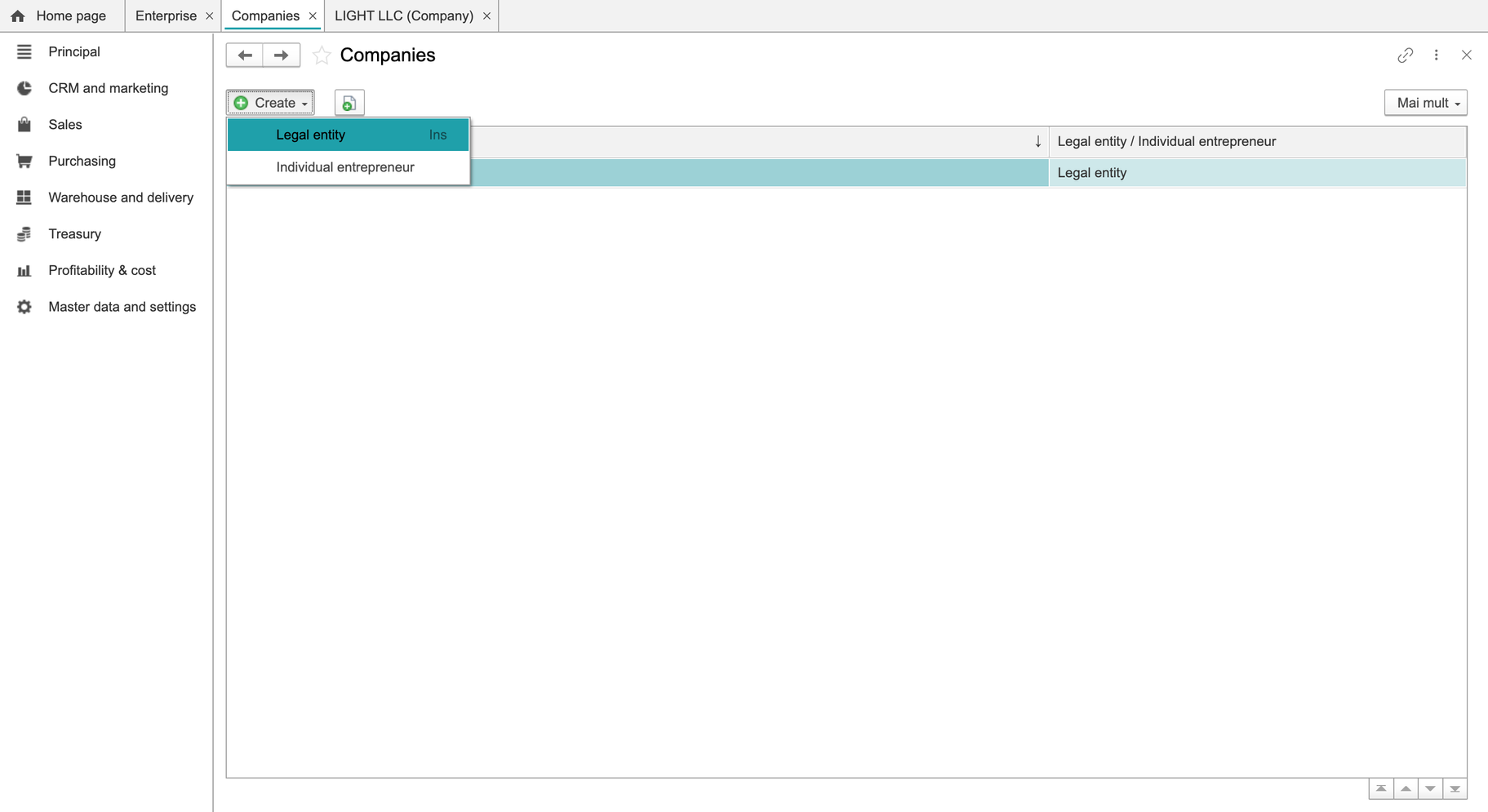
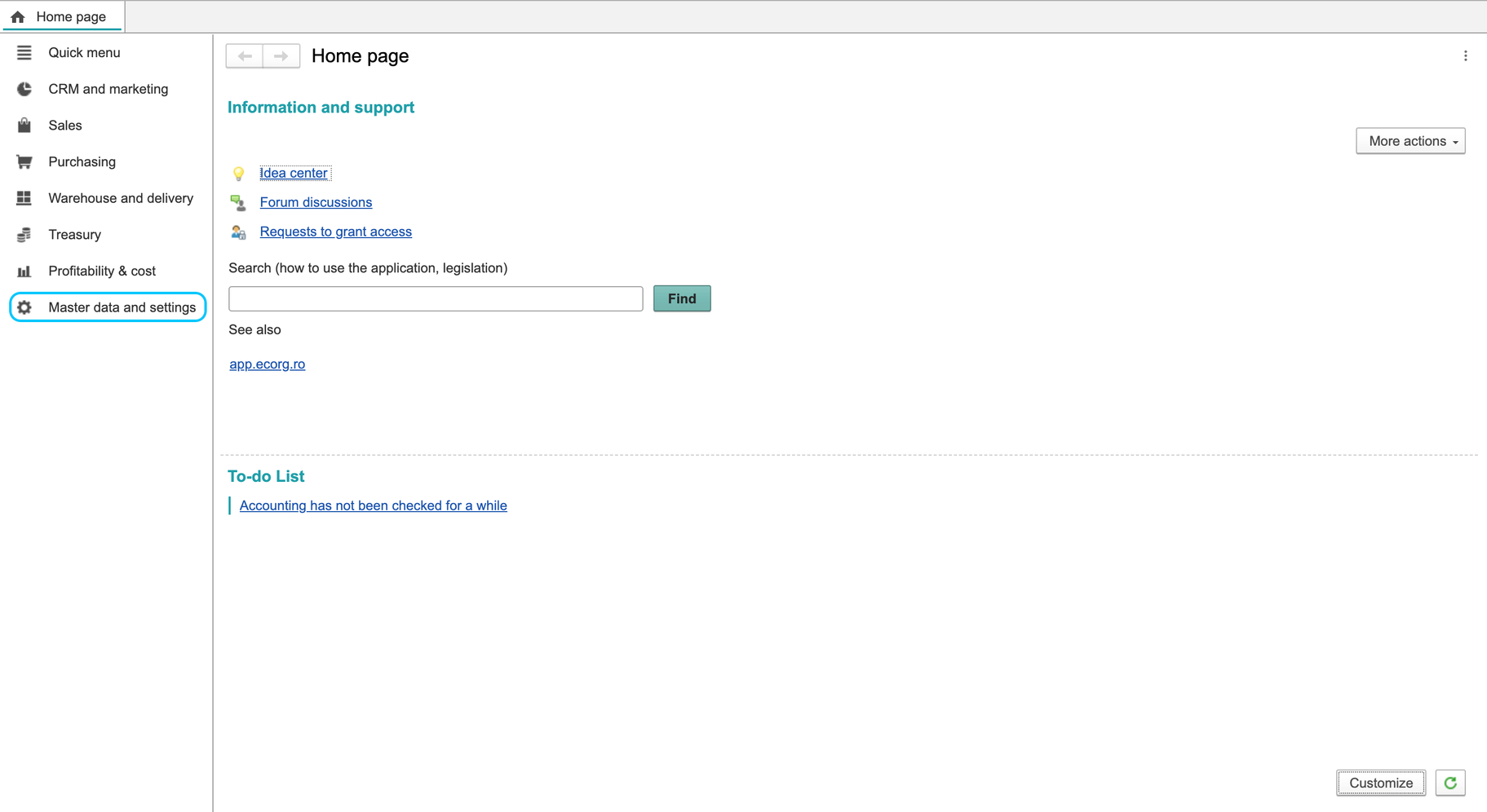
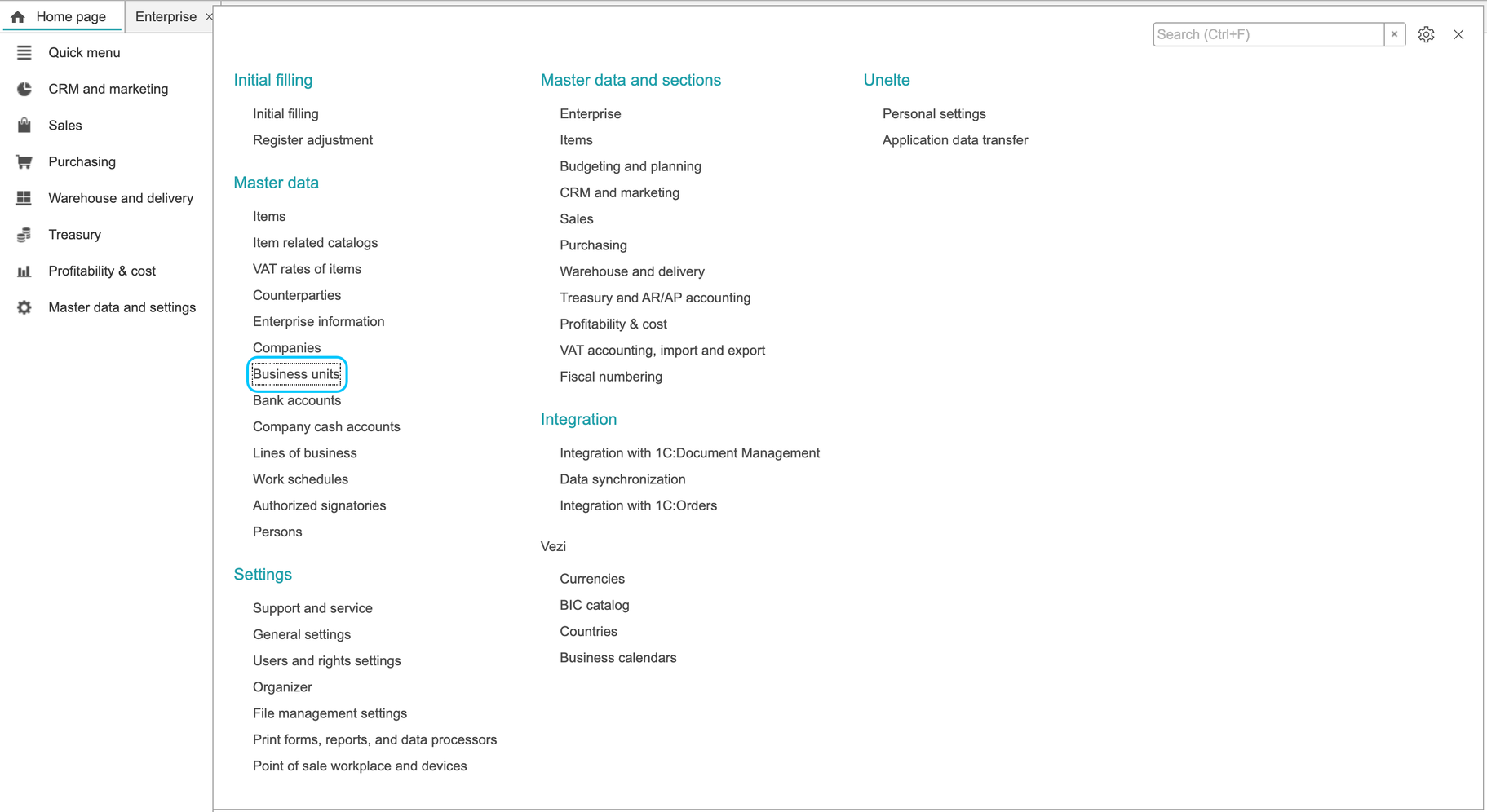
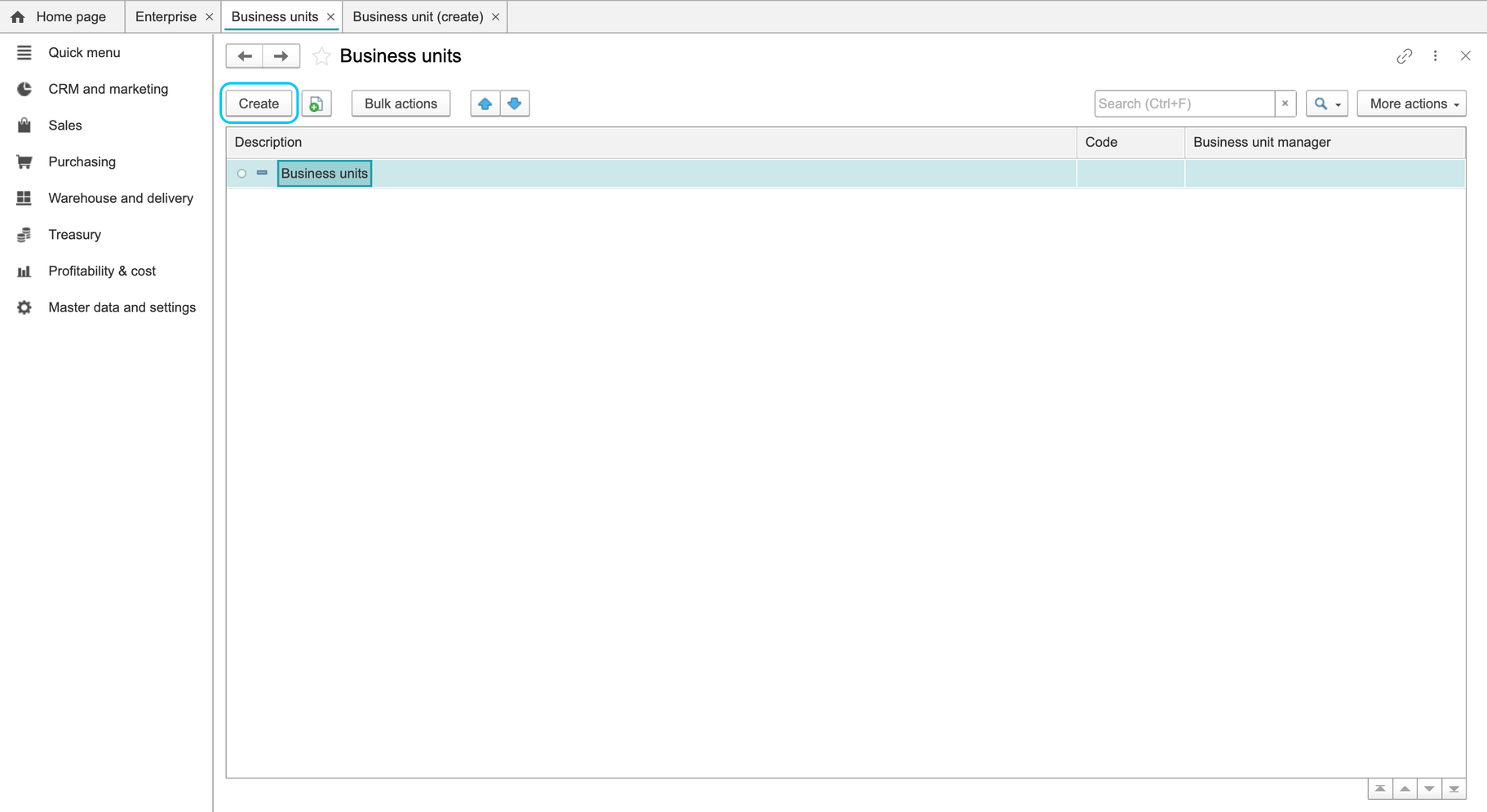
- Open Master data and settings > Business units and click Create.
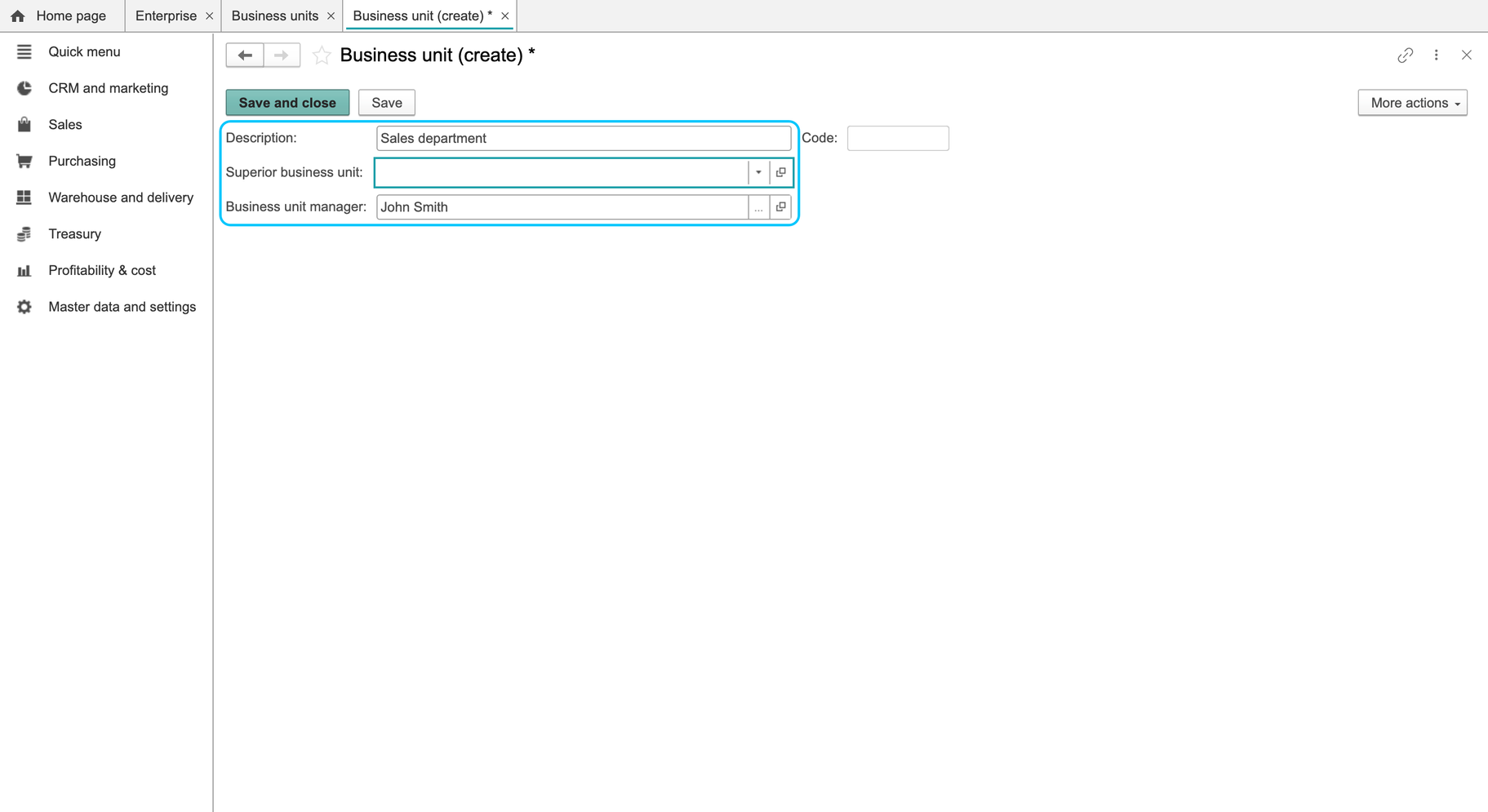
- Enter the unit's name in Description. The checked new record had status Active.
- Fill in the parent unit and manager if your structure requires them. Both were left blank in the checked example. There was no Company field on this form; use the structure agreed for your implementation.
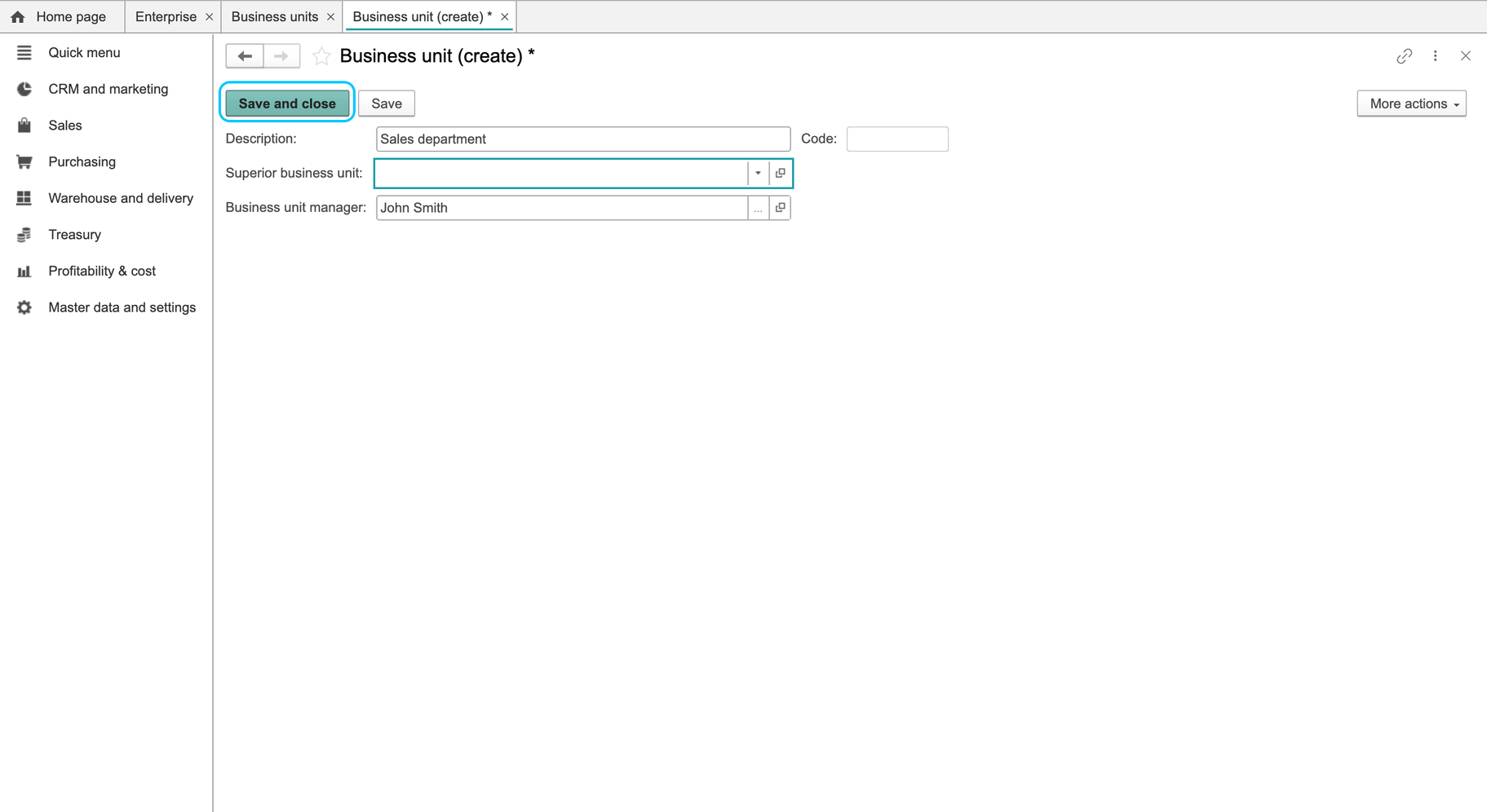
- Choose Save and close. Find the new unit in the list and check its name and Active status. The checked save displayed Added.
Create a warehouse
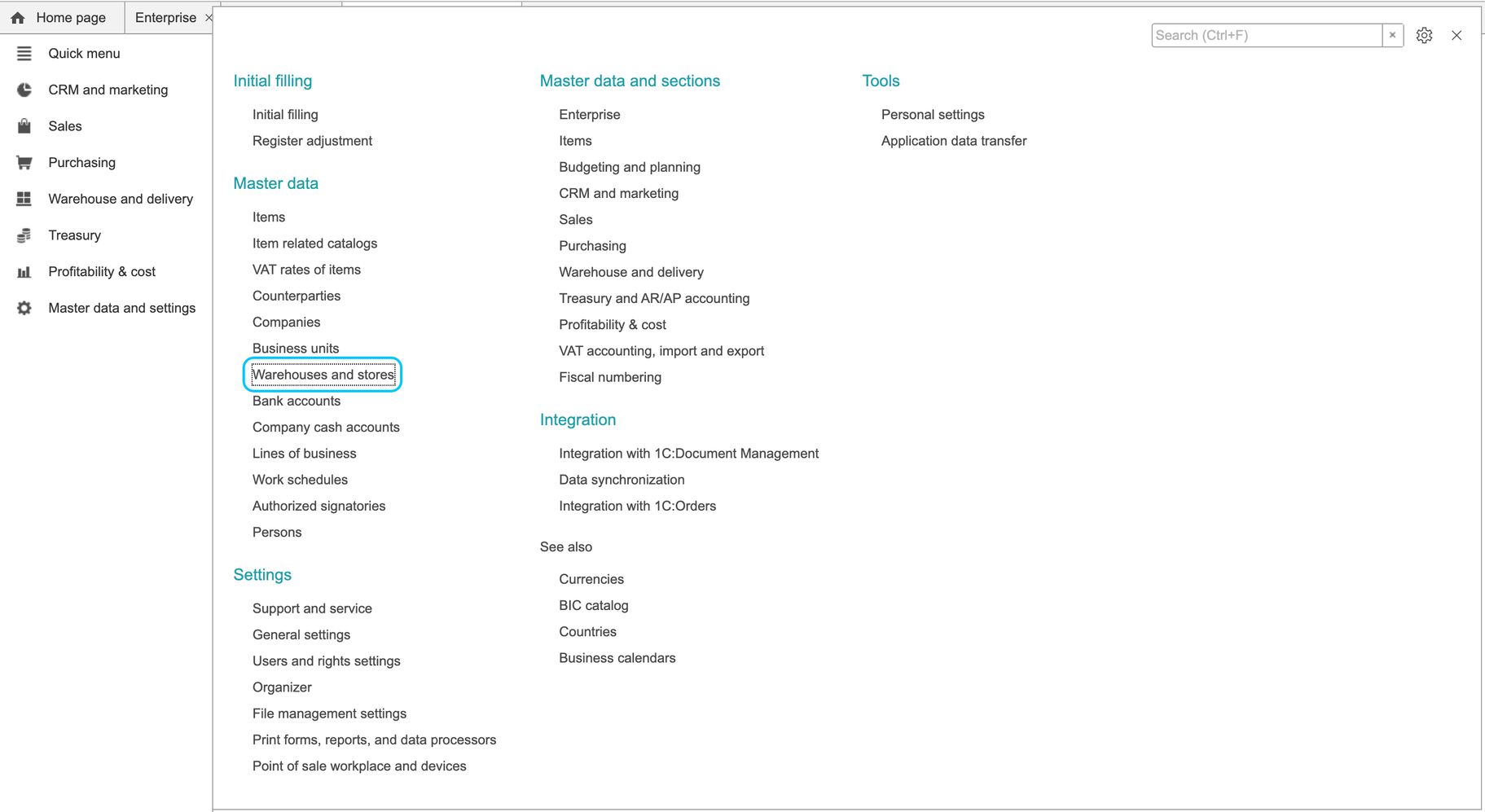
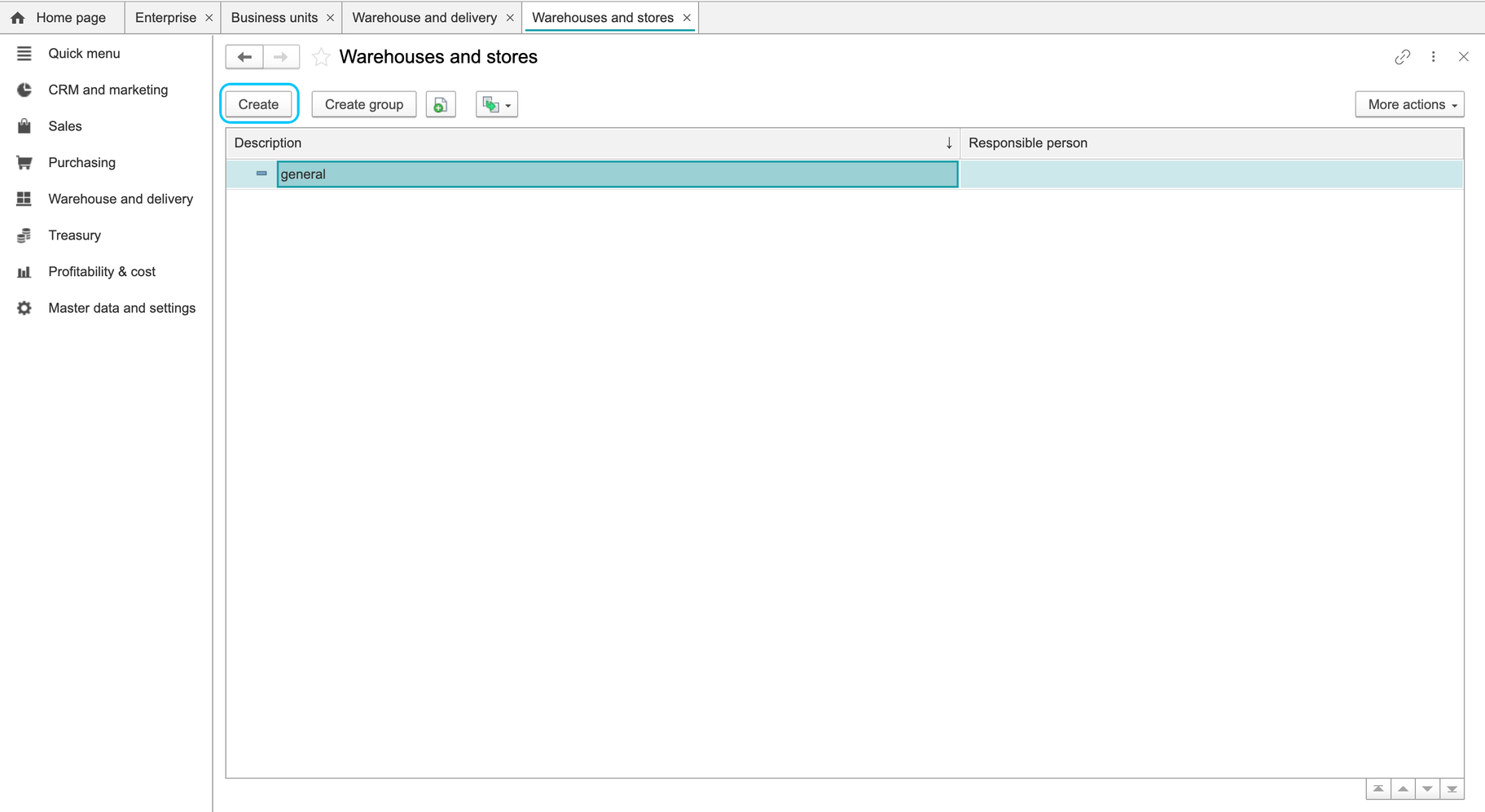
- Open Master data and settings > Warehouses and stores.
- Choose Create > Wholesale warehouse for a wholesale warehouse. Retail store was also available; the checked workflow used the wholesale option.
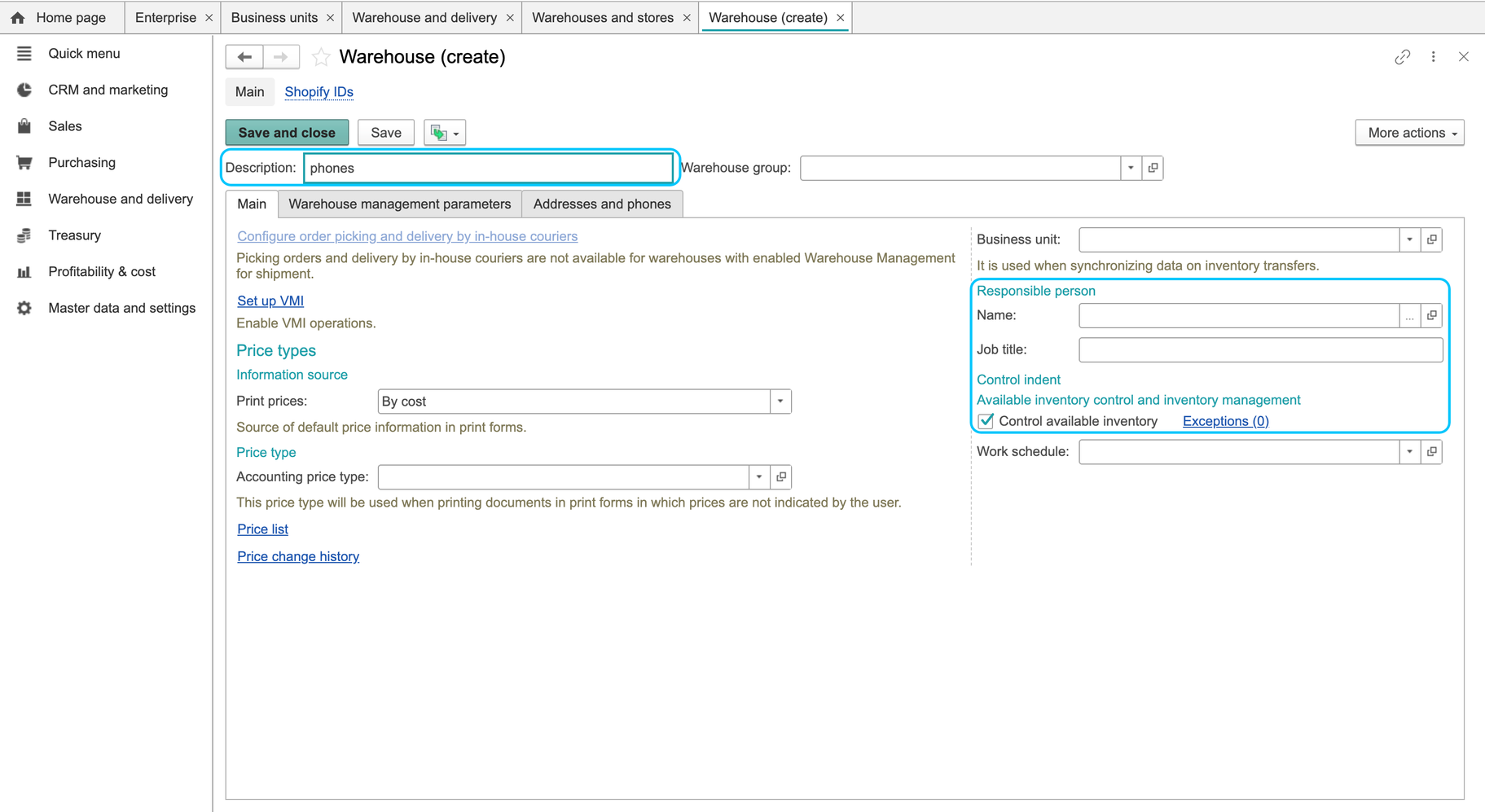
- Enter Description and review the parent group inherited from the selected folder. Check that the warehouse is being added to the intended group.
- Review the optional business unit, responsible person, job title, calendar and addresses. The card also has Warehouse management parameters, stock-control options and exceptions. Keep the configuration approved for this warehouse; do not enable every option as part of creation.
- Choose Save and close. Find the warehouse in the list and reopen it to check the saved details. The checked save displayed Added.
A destination warehouse without separate receipt orders can receive stock through the transfer document. Follow Transferring goods between warehouses and check the destination quantity in the stock report. Negative-stock control, bin putaway and cost valuation require separate checks. For warehouses using separate physical documents, see Warehouse management scheme, Receiving goods and Shipping goods.
Archived illustrations — earlier interface
These earlier screens show legacy setup paths and may contain OGRN/PSRN or RUB examples. They are retained for comparison, not as current Romanian registration, currency or configuration requirements.
Archived illustrations — earlier interface