Delivery management
The earlier video and illustrations are retained for comparison. Follow the written purchase-order route below for the current inbound workflow.
Use the purchase order's delivery details to prepare an inbound pickup from a supplier. Plan the trip separately from the warehouse receipt. The steps below apply when delivery planning is available in your configuration; they do not require enabling every global delivery option.
Prepare an inbound pickup
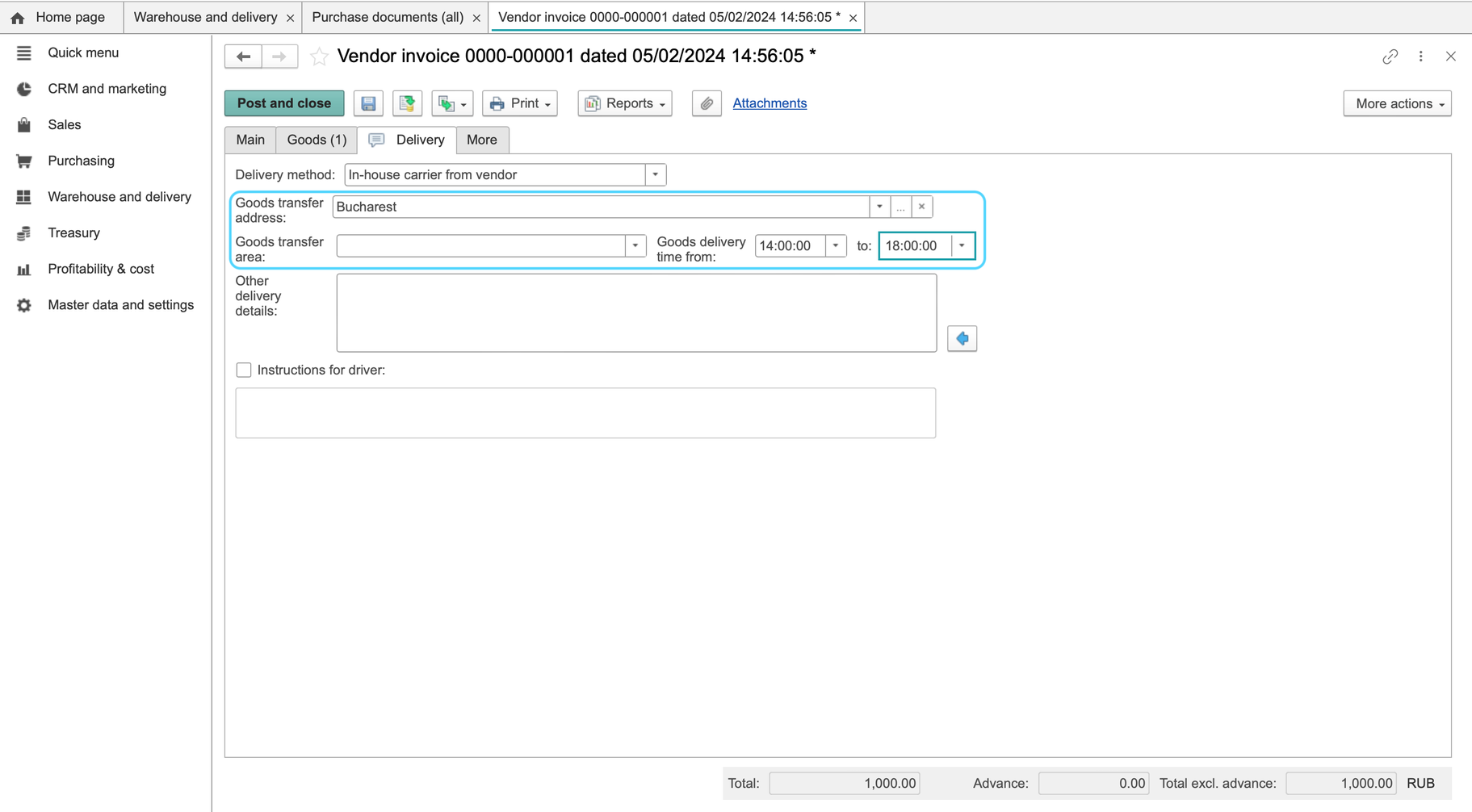
- Open the purchase order and its Delivery tab. For this flow, use the order's delivery details; a linked vendor invoice may have no separate Delivery tab.
- For pickup by your transport service, select Own carrier from vendor. Do not leave Vendor (to our warehouse) selected if the supplier will not deliver the goods to your warehouse.
- Review Goods transfer address and Goods transfer area for the pickup location and zone.
- Set the agreed window in Goods transfer time from / to. Add Other delivery details and driver instructions where available in your configuration.
- Check the receiving warehouse and the order's saved delivery details before planning the trip.
Choose the method that matches the actual handover. Other available methods include Own carrier from shipping company, Carrier (to our warehouse) and Define later.
Plan a trip when the delivery reference is available
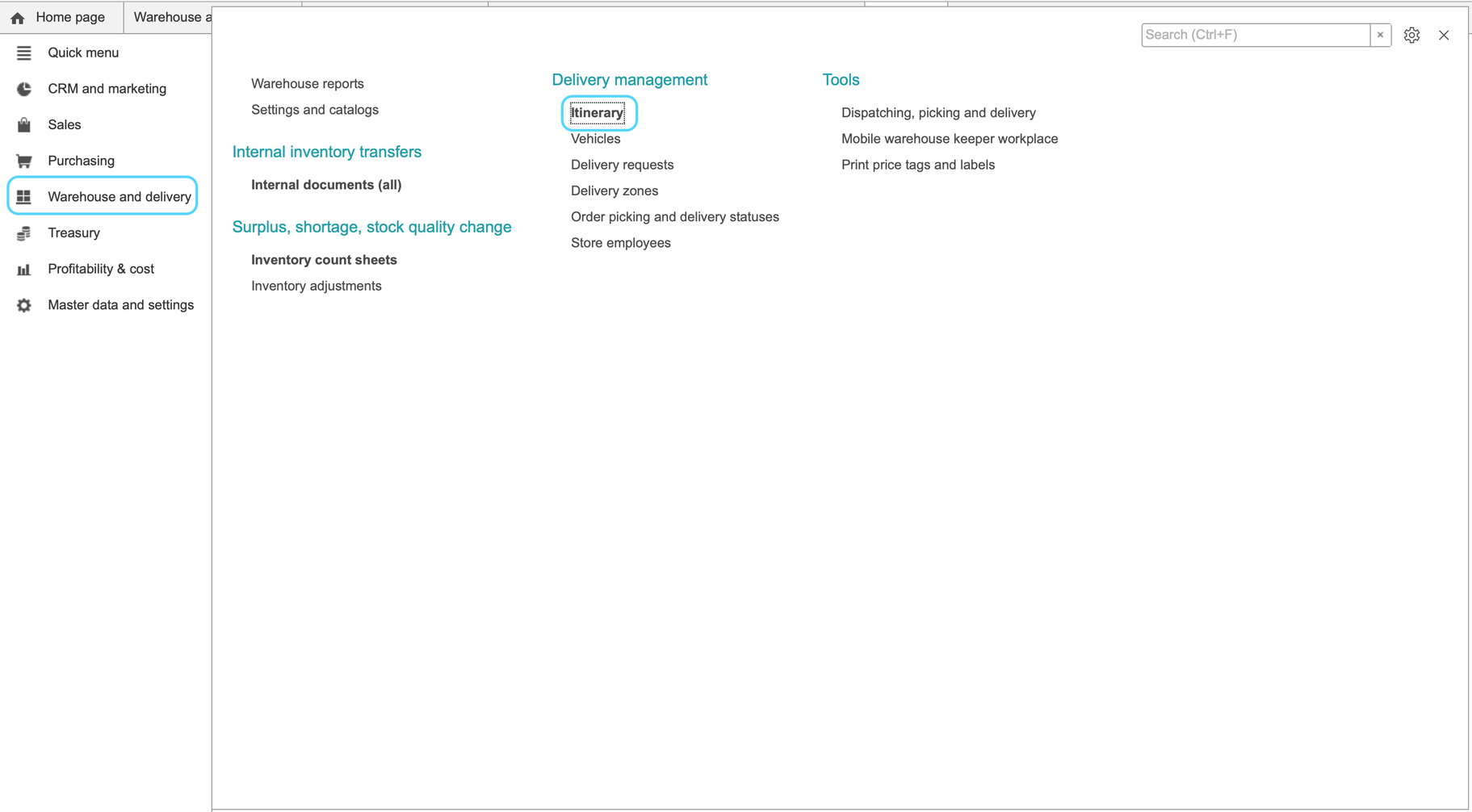
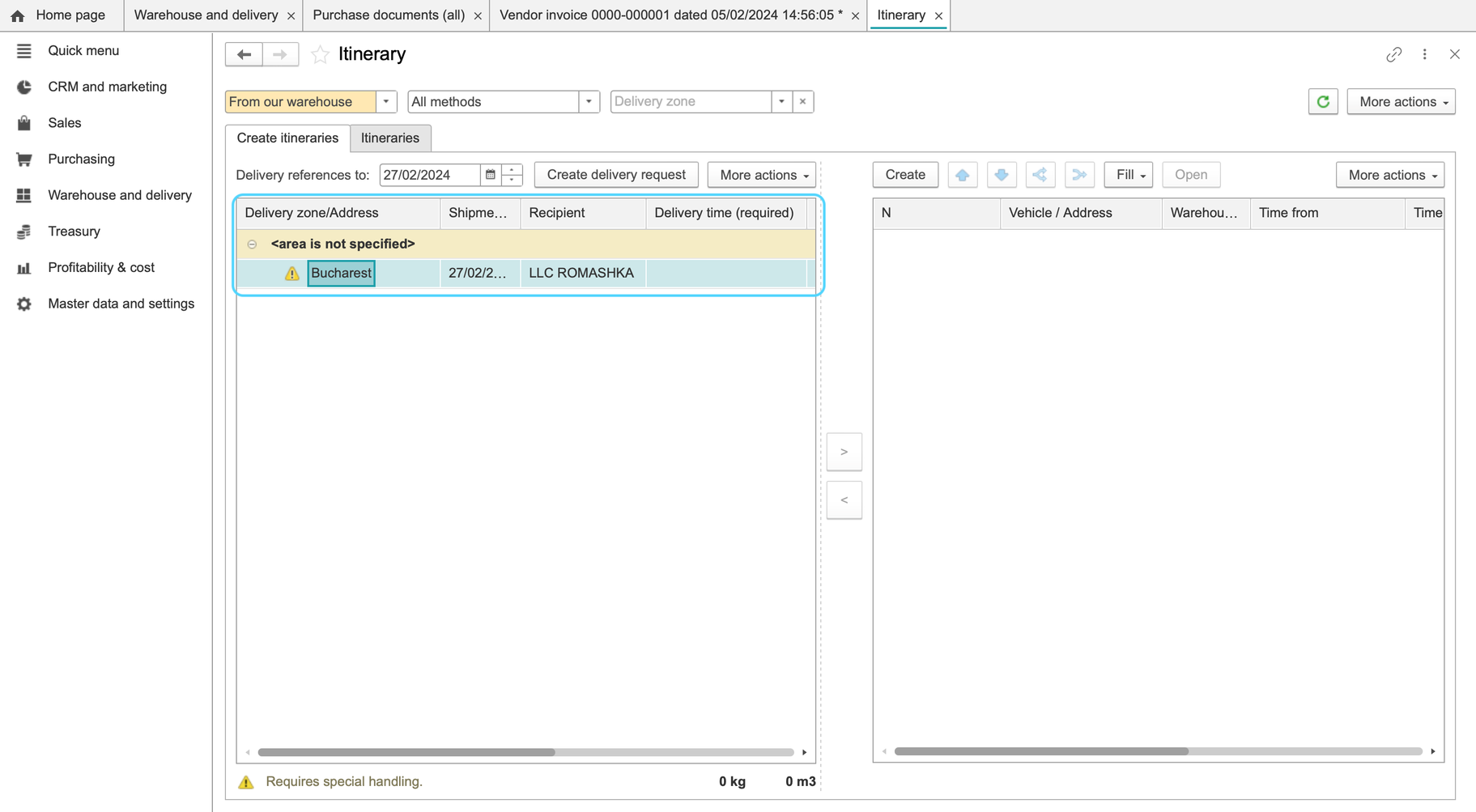
- Open Warehouse and delivery > Itinerary.
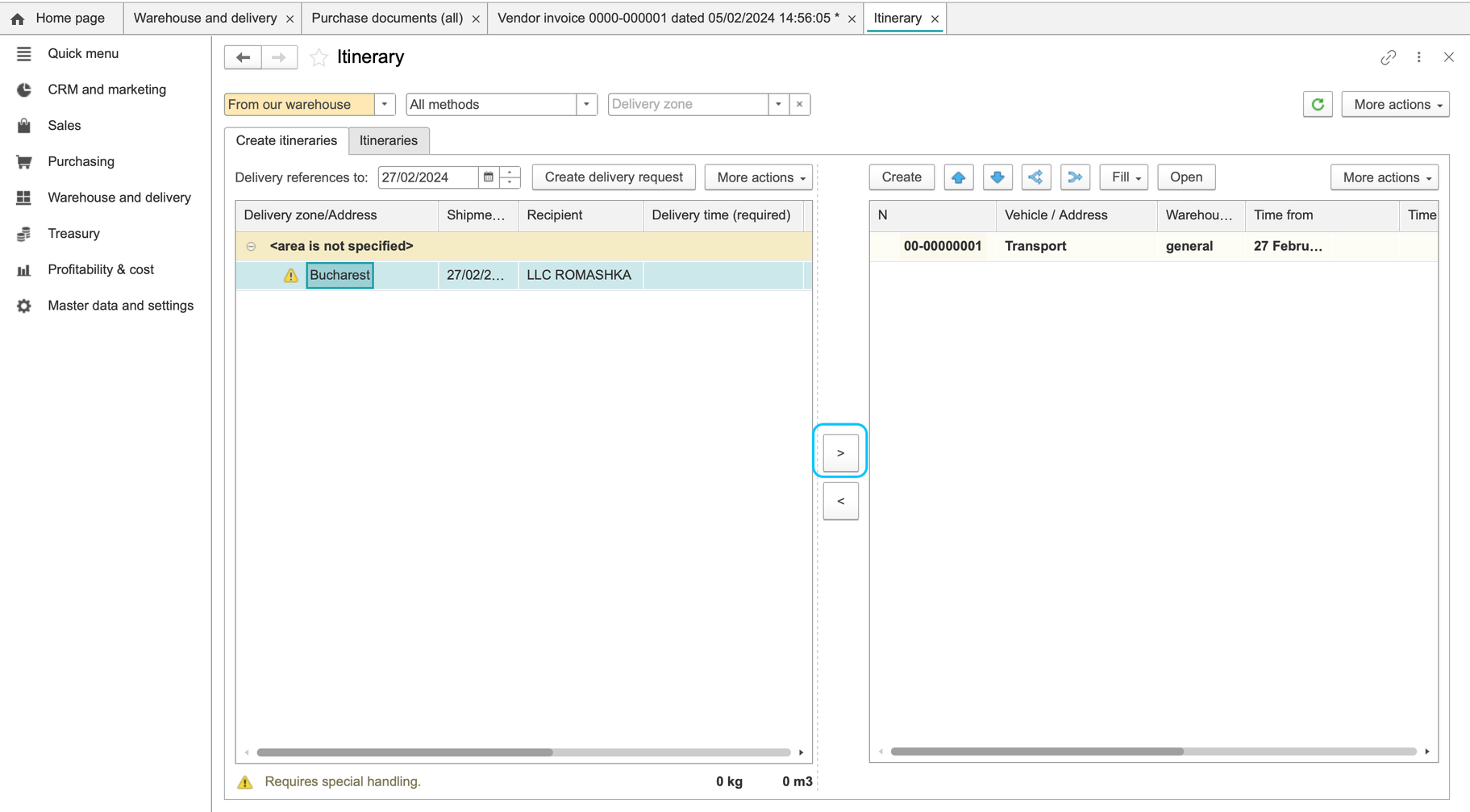
- Choose To our warehouse for inbound pickup. From our warehouse is the outgoing direction. Select the warehouse and review the delivery-method filter; All shows the broadest method selection.
- Find the relevant delivery reference in the planning queue. If it is absent, check the direction, warehouse, method and source order before continuing.
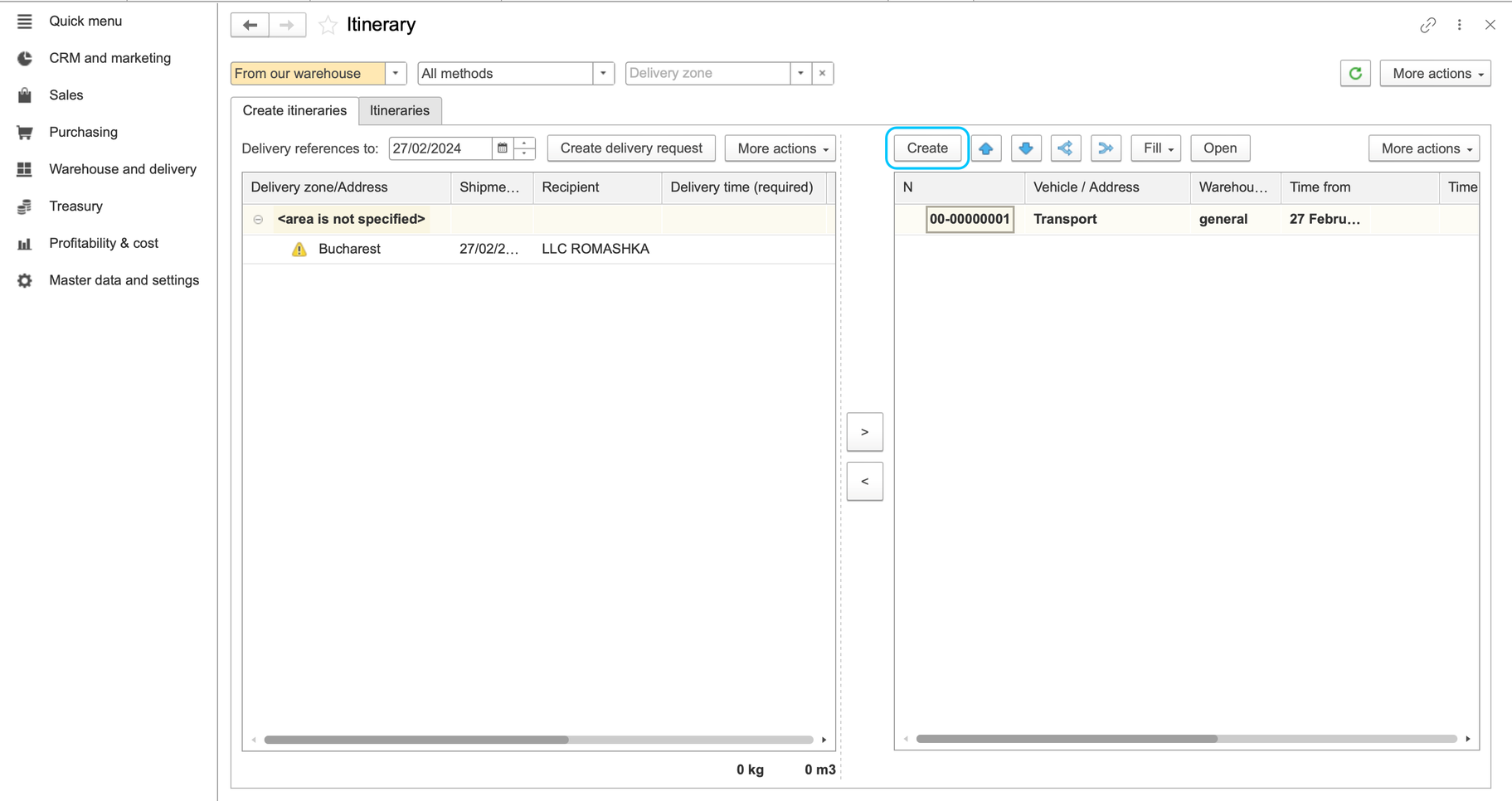
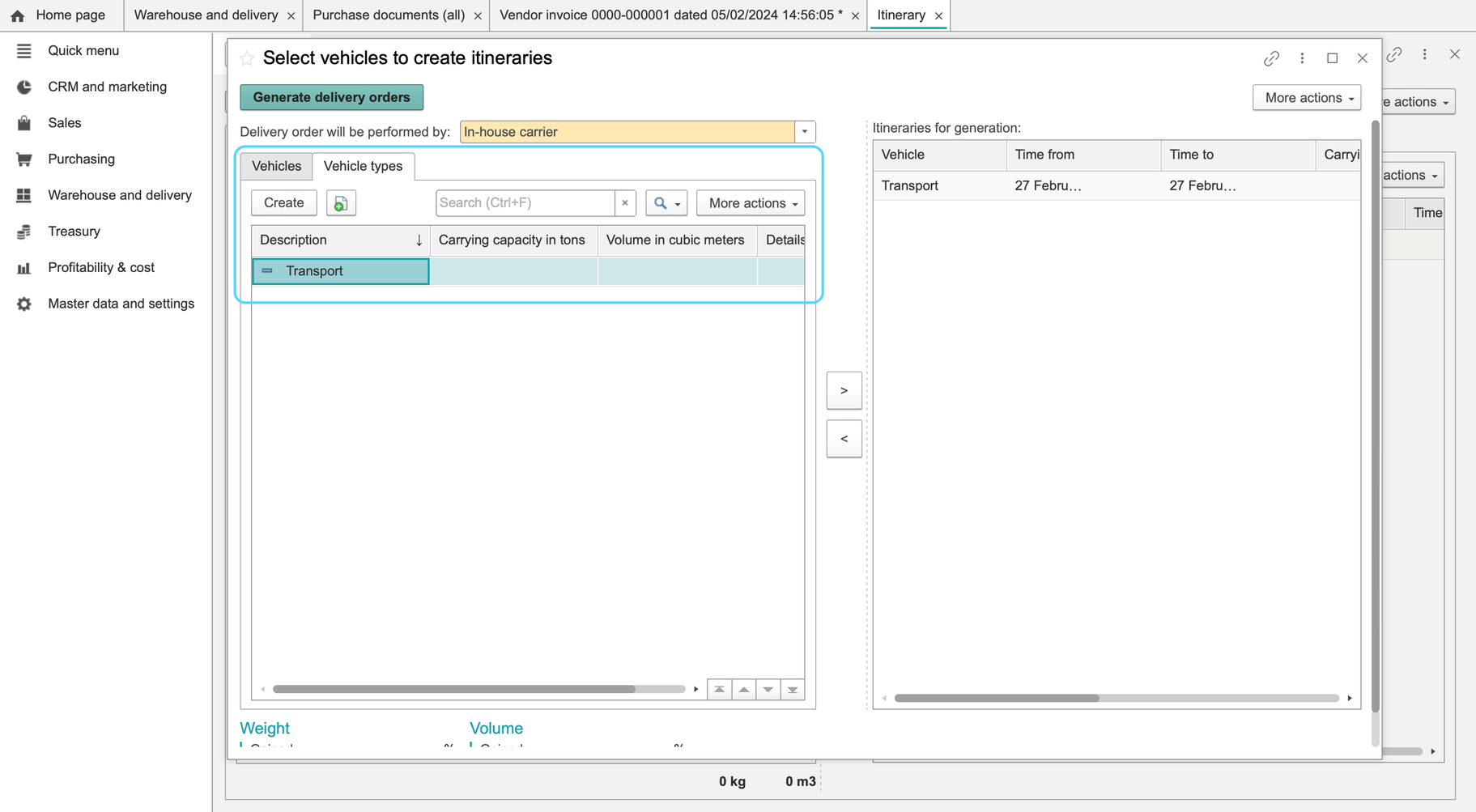
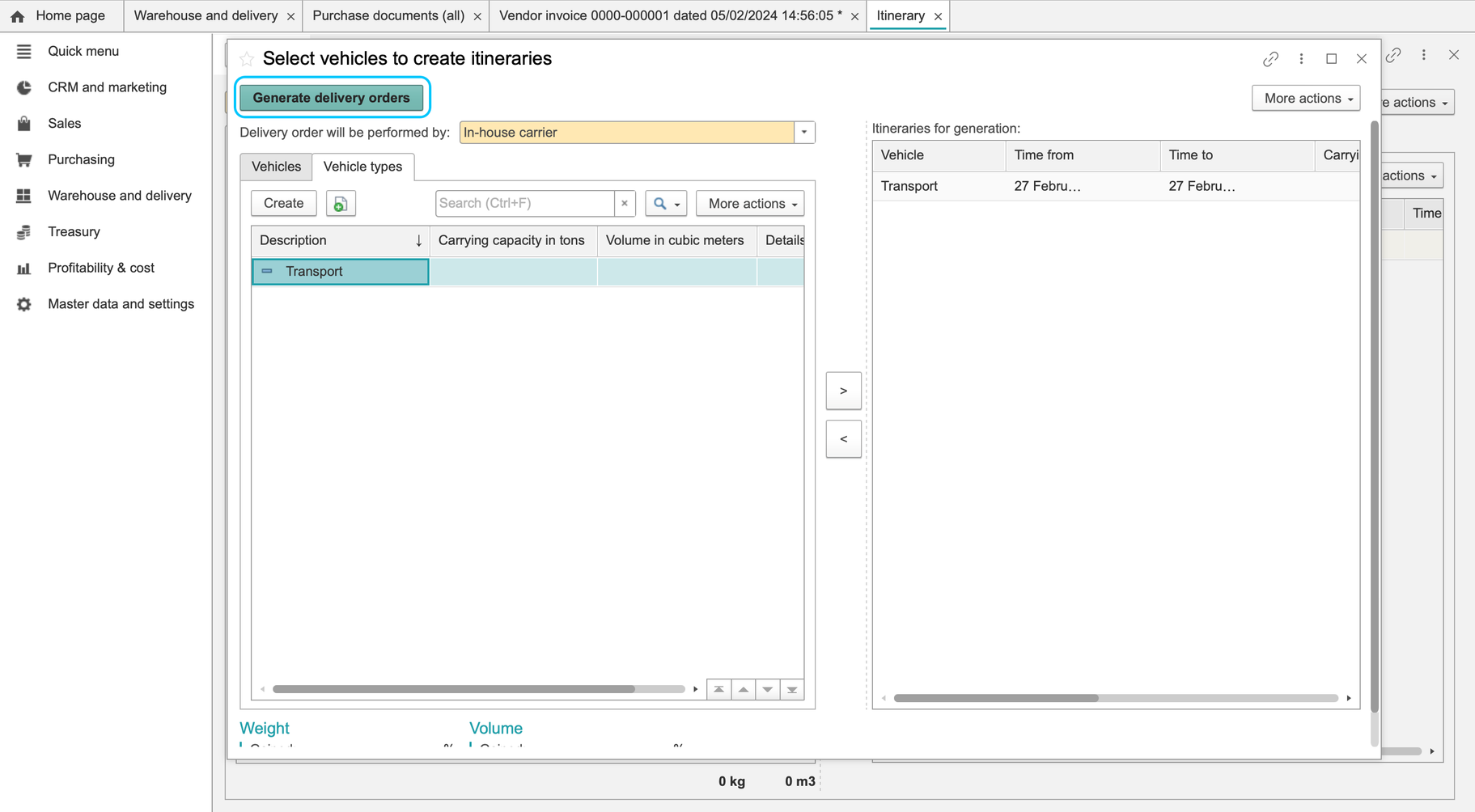
- On Create itineraries, click Create to open Select vehicles for creating itineraries.
- Choose Own carrier or Subcontracted carrier according to who will perform the trip. For internal transport, review the vehicles, vehicle types, date, capacity and volume. For subcontracted transport, specify the carrier and suitable vehicle type.
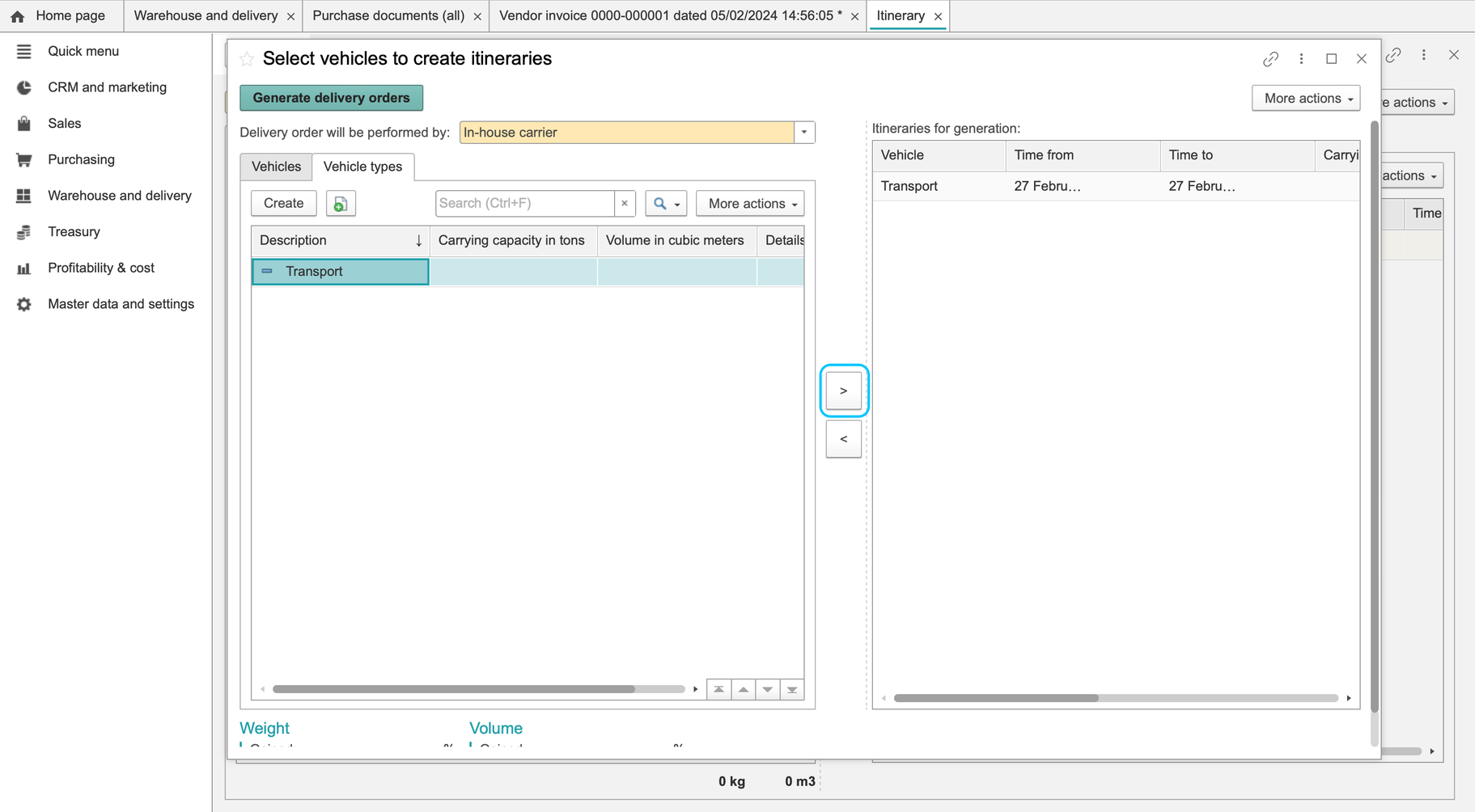
- Use the > selection controls and check the right-hand selection pane. Review the selected vehicle types and delivery jobs before using Generate delivery orders.
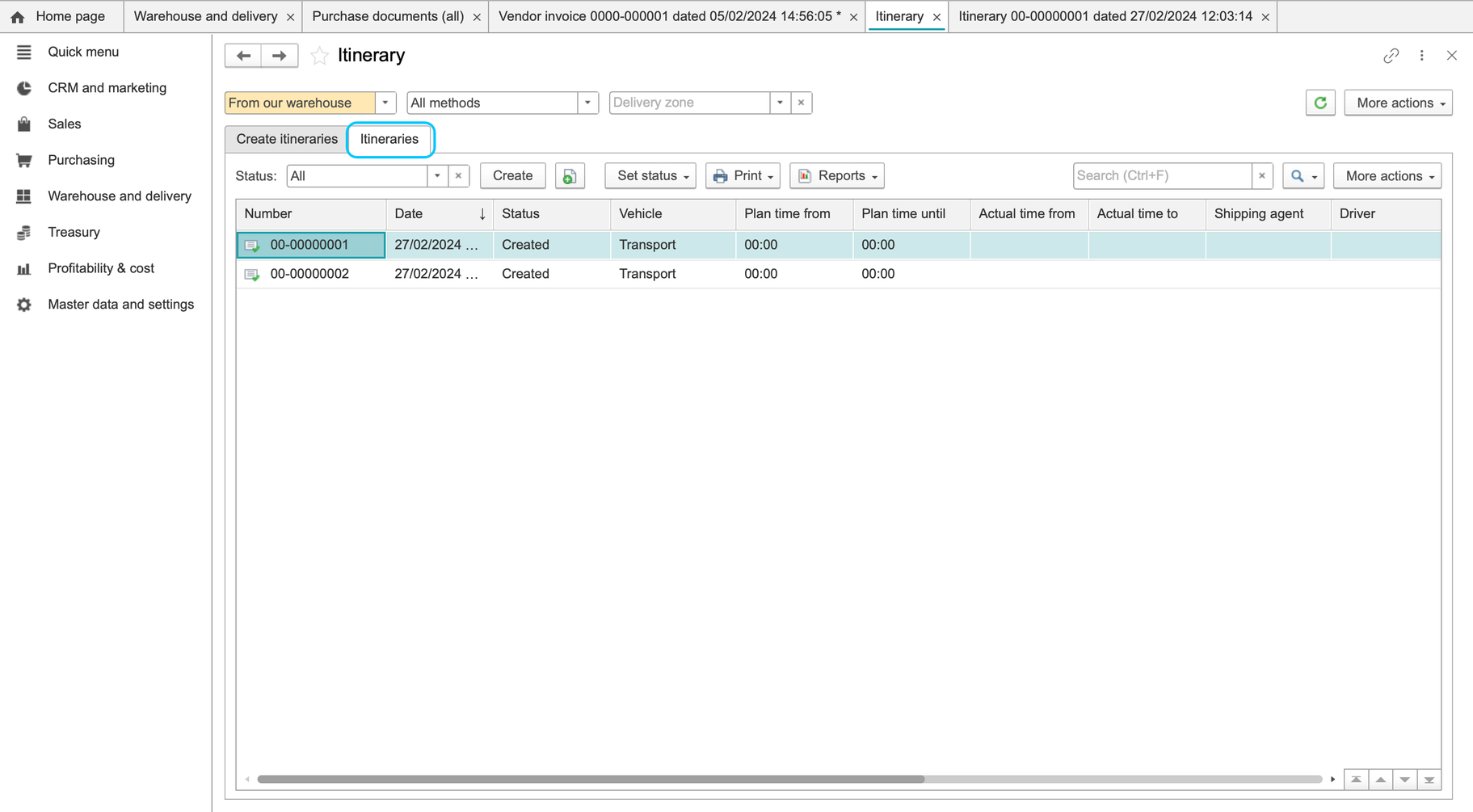
Proceed with generation only when the intended reference and transport details are selected. After generation, check the Itineraries list for the resulting trip and review its source warehouse, carrier or vehicle, route and planned times. Do not assume that opening the creation form has created a trip.
Track handover and receipt separately
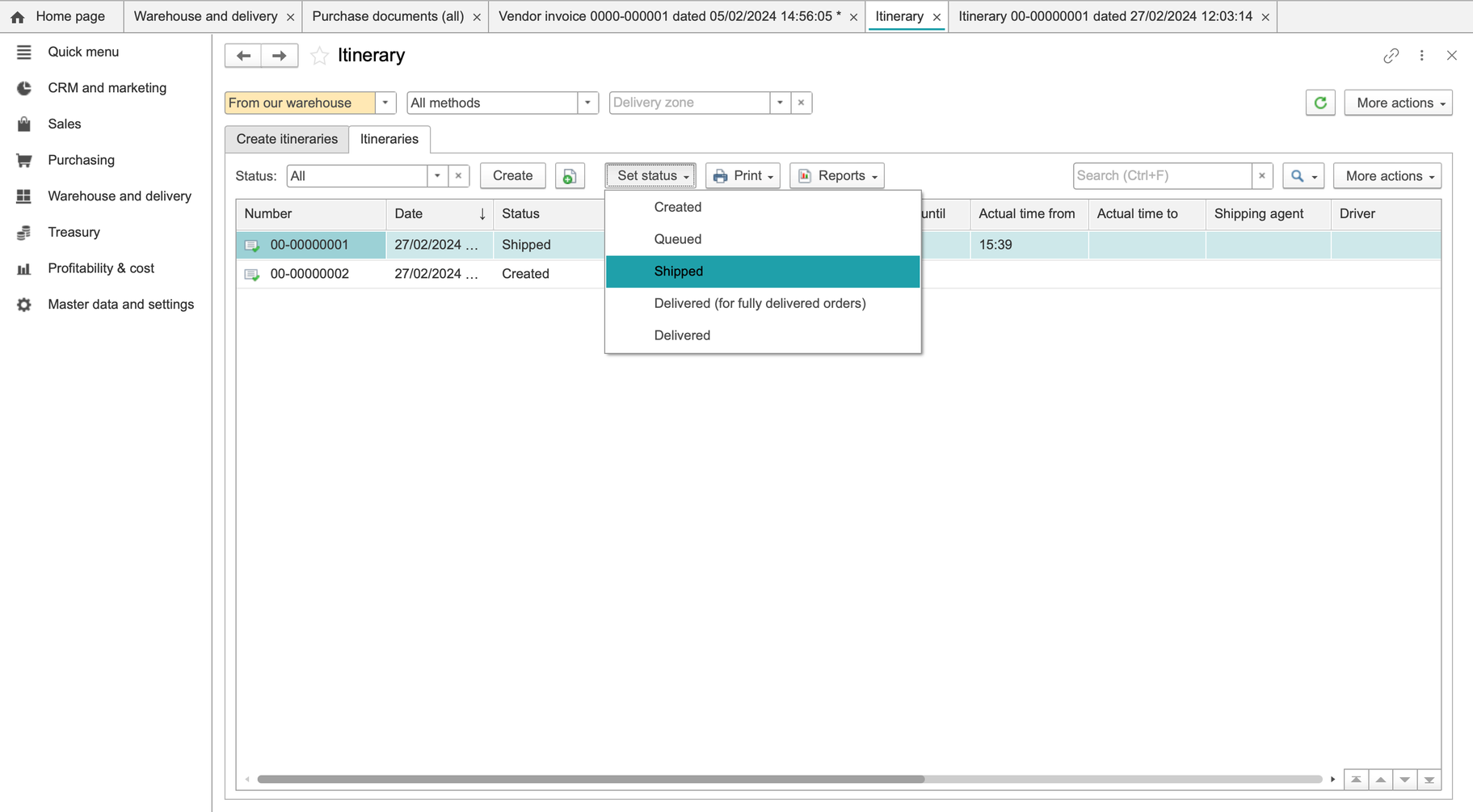
Existing itineraries can display Created, Pending, Shipped and Delivered. Update a trip's status according to the actual transport progress and delivery confirmation, rather than marking it delivered while merely planning it.
Trip status is separate from a warehouse note's Accepted or Completed status. For goods arriving at an order-controlled warehouse, complete Receiving goods and check the stock report separately. A transport plan or a Delivered trip alone does not replace that receipt process.
Allocate requests and complete transport
Where transport assignments are available, prepare compatible delivery requests before allocating vehicles. Keep warehouse receipt/issue separate from transport completion.
- Review delivery requests from purchase/sales/transfer documents. Confirm pickup versus dispatch direction, address and delivery window before grouping.
- Open Itinerary and choose internal or subcontracted carrier according to the actual service. Select vehicle type/vehicle and capacity where supported.
- Select only compatible delivery requests and add them to the itinerary. Check every stop’s source document, address, time and quantity/weight/volume.
- Review vehicle/trip capacity and timing. Use the workplace arrows to allocate selected instructions to the intended vehicle/trip, then inspect the complete assignment again.
- Generate the applicable delivery/transport documents from the itinerary and review their source references before dispatch.
- Set the dispatch state only when the transport actually starts. Record delivered status only after supporting handover confirmation, investigating failed or partial stops.
- Review request completion and unassigned/unfinished requests separately from warehouse stock. Complete receiving or goods issue documents through the warehouse process.
If a load does not fit, review weight/volume and split the goods into an additional authorized trip, retaining the unassigned remainder. Record failed or partial delivery outcomes rather than closing every request as delivered.
Archived delivery illustrations
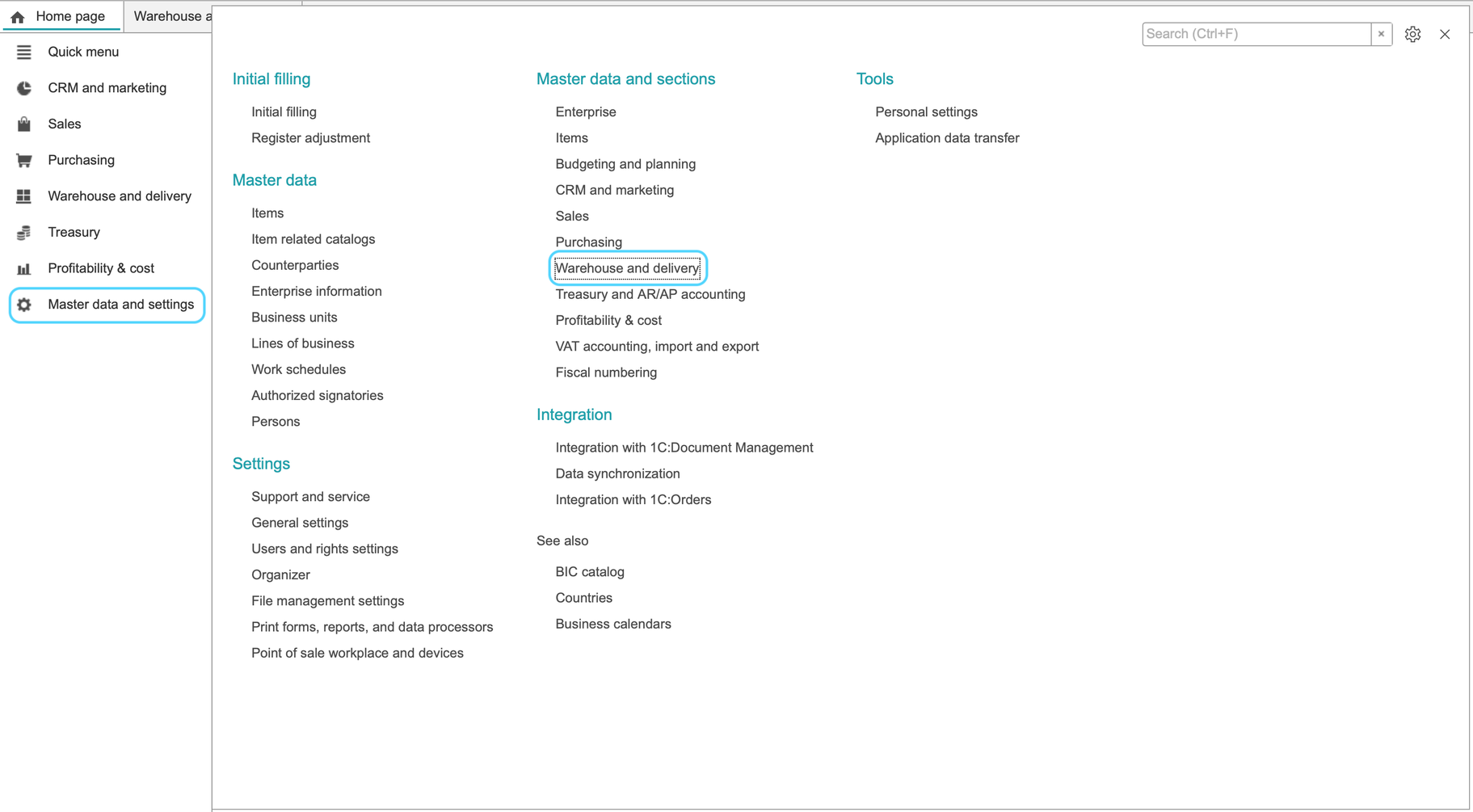
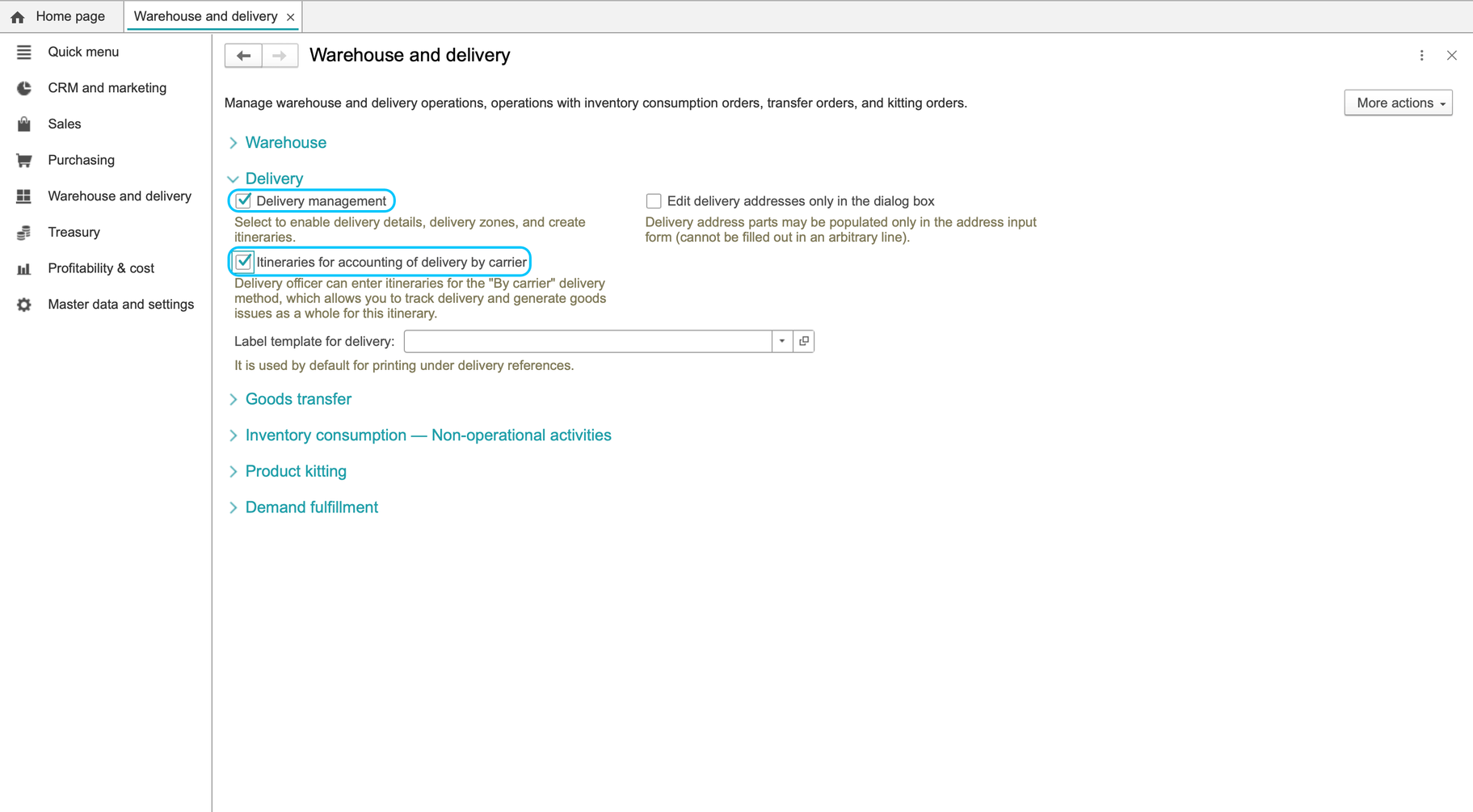
These screens show an earlier inbound supplier-invoice workflow, including RUB data. They are not the current instructions for where to enter delivery details and do not establish required currency or global options.
Archived delivery illustrations